

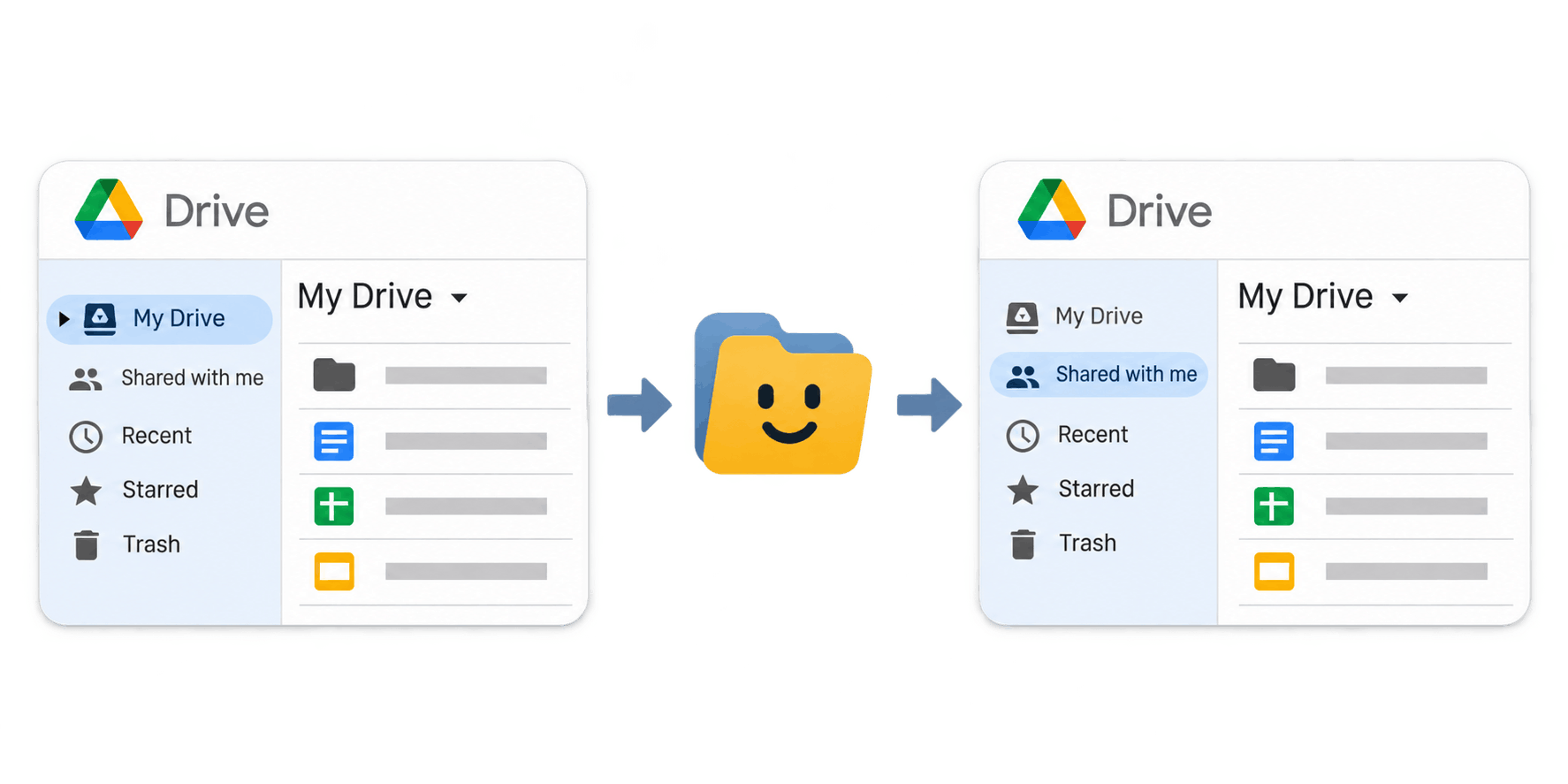
There are four ways to move Google Drive files to another account: transfer ownership, share then copy, download and re-upload, or export everything with Google Takeout. Currently, Google Drive has no easy native way to move or copy entire drives or folders between accounts. The right method depends on whether the accounts are personal, work, or school, and whether you need your whole Drive or just a few folders.
Alternatively, you can use FolderPal to transfer folders and files between Drives in seconds.
Choose a method
| Method | Google files keep their format | Keeps the folder structure | Works from a personal to a work account |
|---|---|---|---|
| Transfer ownership | Yes | Only the top folder changes owner | No |
| Share, then copy | Yes | Yes | Usually, if sharing is allowed |
| Download and re-upload | No, converted to Office files | Yes | Yes |
| Google Takeout | No, exported as Office files | Yes | Yes |
Transfer ownership
Ownership transfer in Google Drive hands a file to another account without making a copy. It's the simplest option for a handful of files between two personal accounts.
1. Share the file from your old account with your new account.

2. Open the Share menu again and click the dropdown next to your new account.
3. Choose Transfer ownership, then send the request.

4. Sign in to your new account and accept the request from the email.
Until the request is accepted, you're still the owner. Once it's transferred, the file counts toward the new account's storage and your old account becomes an editor.
The limitation: transferring a folder doesn't transfer what's inside it. Google's help page is explicit that you still own the files in the folder. Ownership also can't move from a personal account to a work or school account.
Share, then copy
Sharing a folder with your new account and copying it there gives the new account its own full copy, with every subfolder. Google's own guidance says sharing is faster than migrating.
- Share the folder from your old account with your new account.
- Sign in to your new account and open Shared with me.
- Create a folder in My Drive and copy the files into it.
The limitation: Drive allows copying shared files only, not entire folders, so you'll need to copy groups of files by hand and recreate each subfolder yourself. Our guide to copying a folder in Google Drive covers the manual options, and copying a shared folder covers this case in more detail.
Copy the folder with FolderPal
FolderPal copies shared folders in seconds:
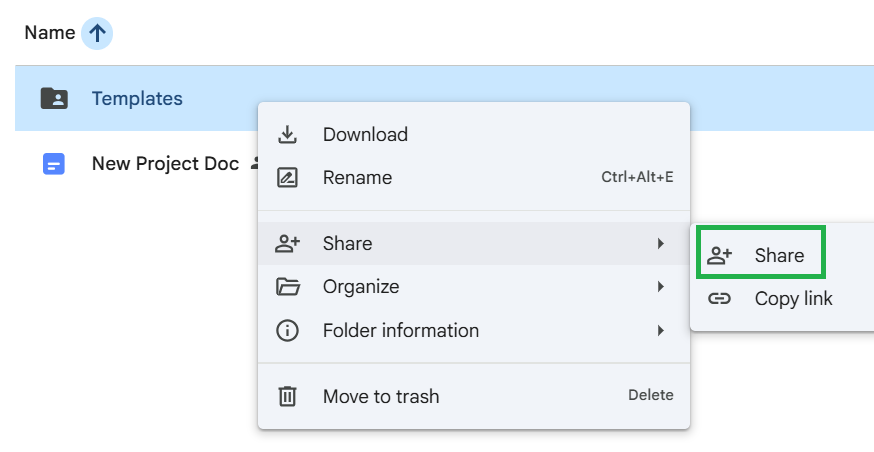
1. In your old account, share the folder you want to move with your new account.
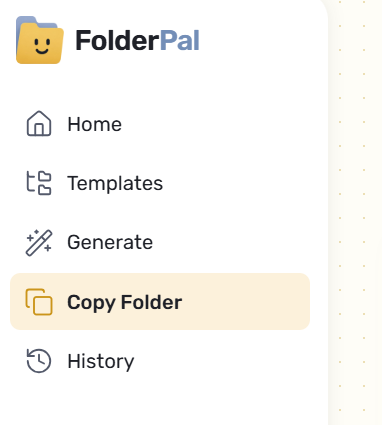
2. Sign in to FolderPal with your new account and open Copy Folder.
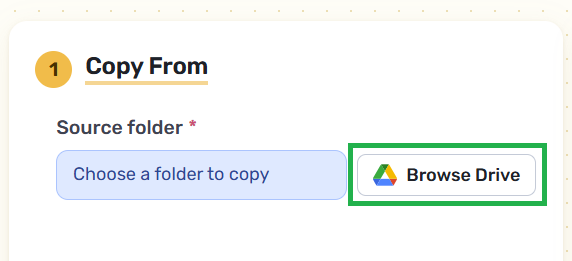
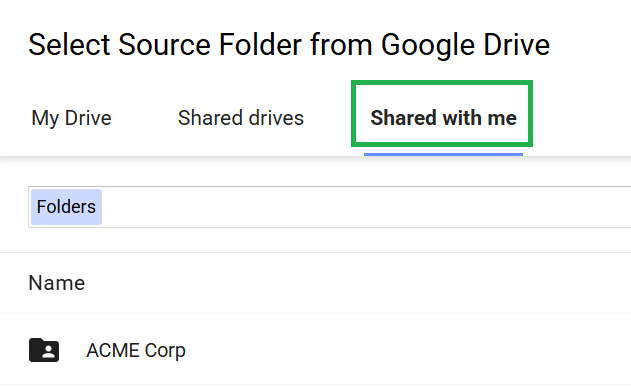
3. Pick the shared folder from the Shared with me tab as the source, and a folder in My Drive as the destination.
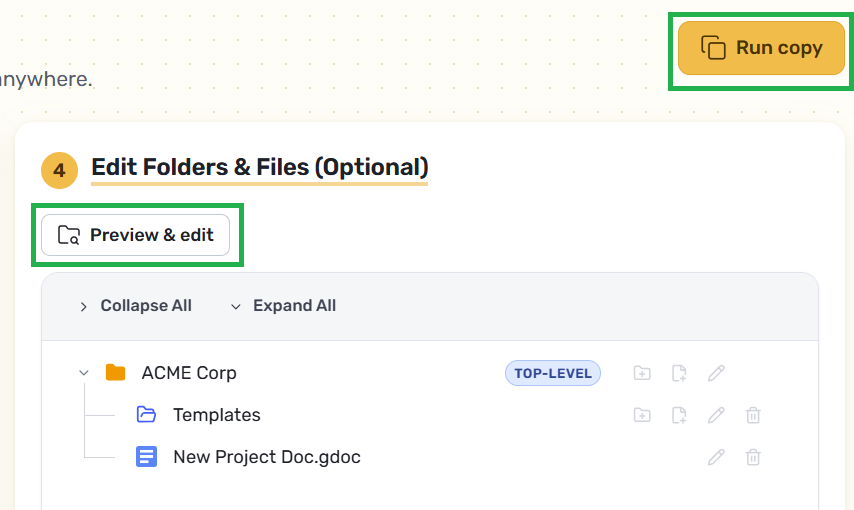
4. Check the preview and run the copy.
5. Check out your copied folders in Drive.
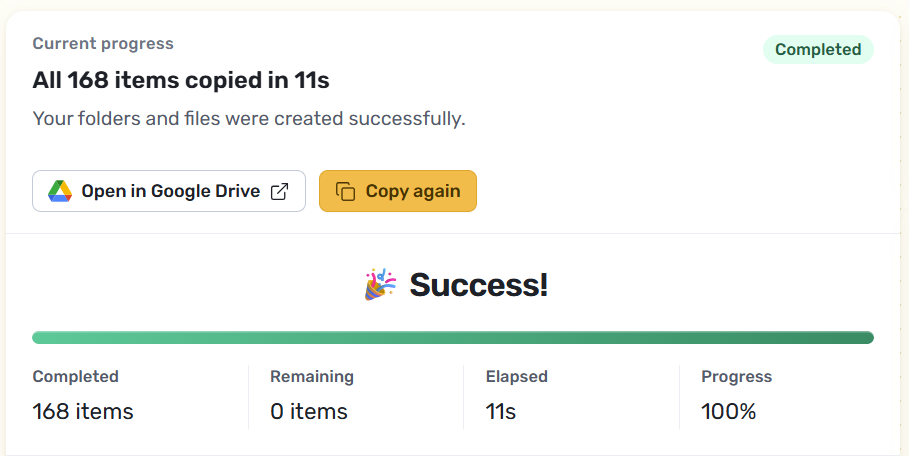
Copies belong to the account that makes them, so your new account owns every copied folder and file. Google files stay as Google files, and names are preserved exactly as they are. See our guide to copying a folder with FolderPal.
You can copy a folder with FolderPal for free.
The limitation: copies count toward your new account's storage, and Google limits each user to 750 GB of uploads and copies per day.
FolderPal's plan limits also apply. If a work or school admin blocks sharing outside the organization, you may be restricted from copying.
Download and re-upload
Downloading suits a small folder of PDFs, images, or Microsoft Office files. Download the folder from your old account, extract the ZIP, and upload it to your new account with New > Folder upload. The download method in our copy guide walks through each step.
The limitation: Google files are converted to their Office formats. E.g. Google Docs are converted to a Word (.docx) file, and Google Sheets to .xlsx. If you want to preserve Google files, you'll need to copy them in Drive itself.
Google Takeout
Google Takeout exports your whole Drive into downloadable archives, which makes it the usual choice for moving everything at once or keeping a backup before an account closes.
1. Open Google Takeout while signed in to your old account.
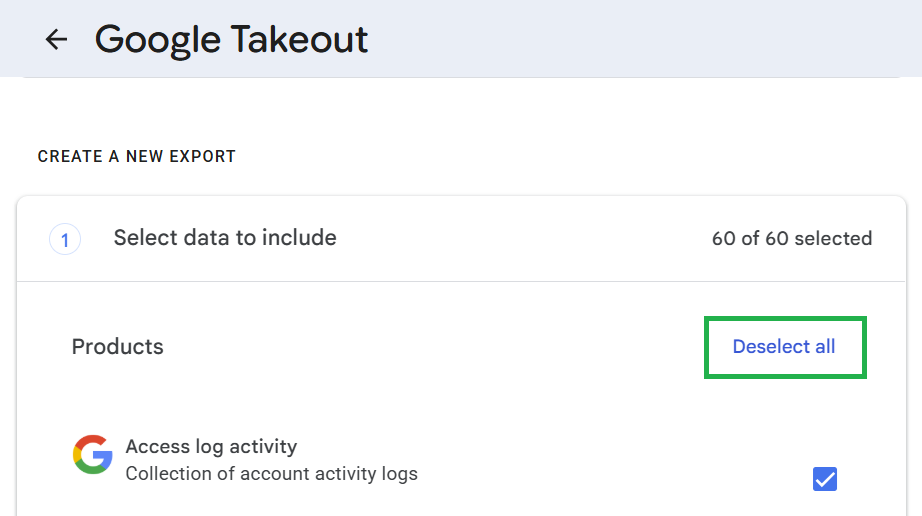
2. Click Deselect all, then select Drive.
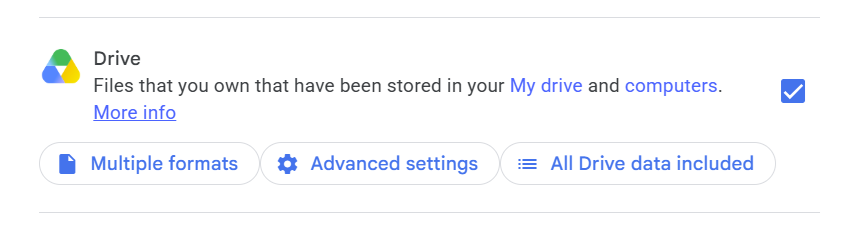
3. Check the export formats, choose a delivery method, and create the export.
4. Download the archive, extract it, and upload the files to your new account.
The limitation: Google files are converted to their Office formats. Google Docs are automatically converted to Word (.docx) file. Large exports can also take some time to process.
How to transfer a school Google Drive to another account
Many schools let students copy their Gmail and the Drive files they own to a personal account with Transfer your content. It's only available for Google Workspace for Education accounts, and only if the school's admin allows it. The personal account needs enough storage, and the transfer can take up to a week.
Transfer Google Drive to another account outside your organization
Work accounts can only transfer ownership inside the organization. An admin can move a departing employee's files to a colleague, but not to a personal account. If you're allowed to share files outside the organization, sharing and copying is usually the only way to keep a copy.
Which method should you use?
- A few files, both personal accounts: transfer ownership.
- Specific folders, keeping Google files and names as they are: share, then copy with FolderPal.
- A small folder of PDFs and images: download and re-upload.
- Everything, once: Google Takeout.
- Leaving school: Transfer your content, if your school allows it.
Common questions about transferring Google Drive
Does transferring a folder transfer the files inside?
No. Only the folder changes owner. The files inside stay with the original owner unless you transfer each one, or copy the folder instead.
Can I transfer files from a personal account to a work account?
Not by ownership transfer, because Google doesn't allow it. Sharing the files with your work account and copying them is the usual workaround, if your organization accepts files shared from outside.
How do I transfer files without sharing them?
Use Google Takeout or download and re-upload. Both move the files through your computer, so the two accounts never need to share anything.
Why is Google Drive not letting me move files?
Usually it's an ownership rule. Only the owner of a file can transfer it, so if it was shared with you, ask the owner or make your own copy. Personal accounts can't transfer ownership to work or school accounts, and work accounts can only transfer within their organization. The owner can also stop viewers from downloading or copying a file, and an admin may block sharing outside the organization.
Does a copied file use my storage?
Yes. Files shared with you don't count toward your storage, but copies you make do.
Copying a folder someone shared with you?
If the folder belongs to someone else rather than your old account, see how to copy a shared folder in Google Drive.