

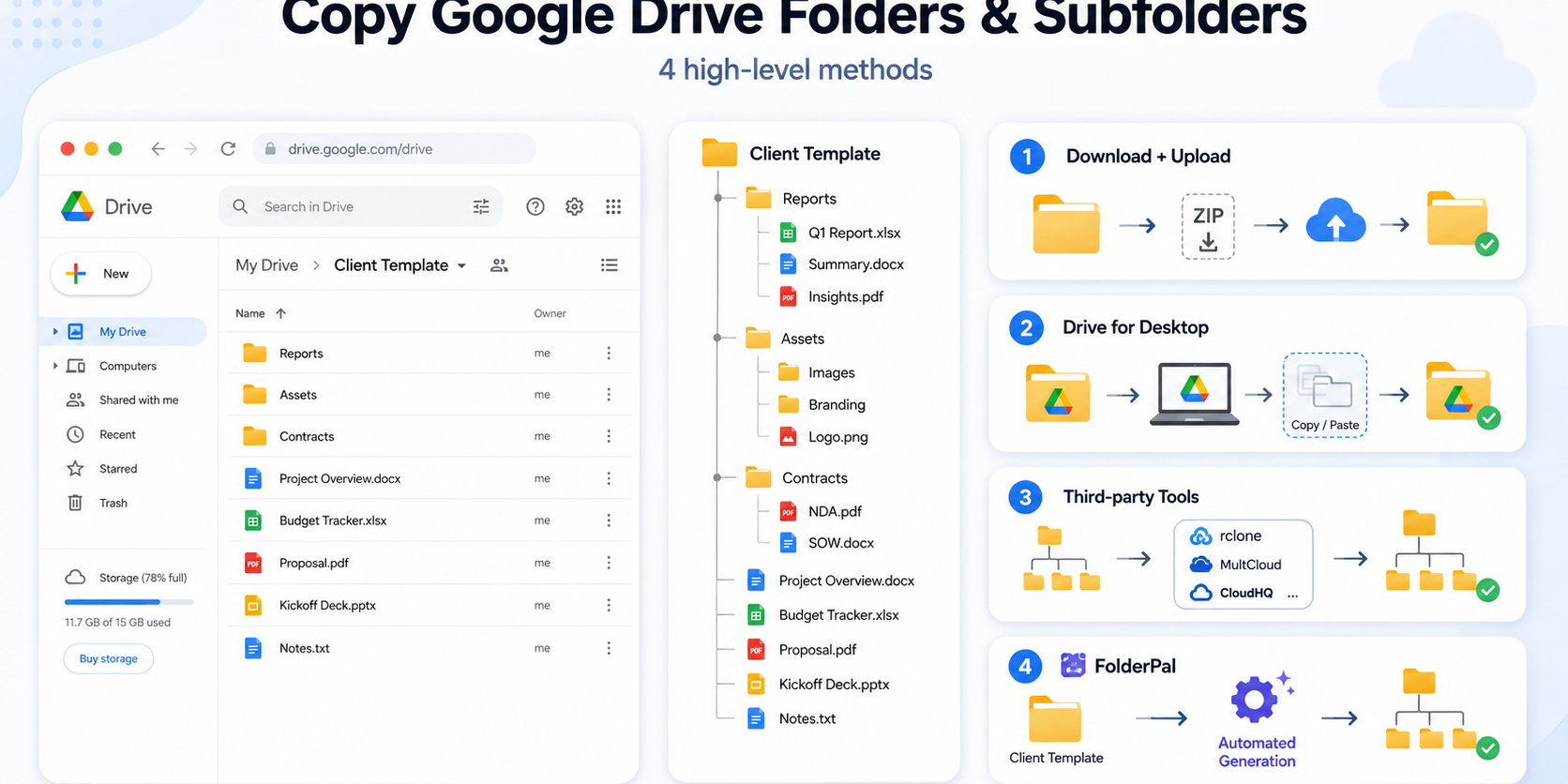
Google Drive’s web app has no built-in option to copy a whole folder. The Make a copy button only works on files and is entirely missing for folders. There are four ways around it, and the best approach depends on what’s in your folders and how complex your subfolders are.
Copying a folder someone shared with you? Here’s how to copy a shared folder.
Why Drive won’t copy a folder
Even today, Google Drive is missing some important functionality:
- Make a copy only appears for files. You won’t find a button to make a copy of a Drive folder.
- You can select multiple files, but not folders. Highlighting multiple files lets you copy them all, but the moment you include a folder, the option disappears.
- Downloading changes your Google files. Docs, Sheets, and Slides are automatically converted to Word, Excel, and PowerPoint, which usually isn’t desired.
- A shortcut isn’t a copy. Shortcuts point at the original, but in some cases you genuinely do want a separate, duplicated Drive folder.
The reason why Google has still not allowed folder copying on the web app is most likely to keep users’ storage under control, prevent complicated permissions calculations, and to encourage use of shortcuts and sharing (though Google has not shared any official reason). However, it is still one of the most important missing functionalities, which you can achieve below.
Choose a method to copy your folder
| Method | Subfolders | Google Docs and Sheets | Best for |
|---|---|---|---|
| By hand in Drive | You rebuild them | Stay as Google files | A few files, one level |
| Download and upload | Copied for you | Converted to Word and Excel | PDFs, images, Office files |
| Drive for desktop | Copied for you | Cannot be copied — must be omitted | Big folders of ordinary files |
| Folder-copying tool | Rebuilt for you | Depends on the tool | Nested folders, mixed file types |
If your workflow involves constantly copying Google Drive folders and files, the process can become quite manual and time-consuming, and you’ll need to convert files yourself or manually drag files in.
FolderPal helps you copy entire folder structures effortlessly in just seconds (not minutes). You can copy a folder with FolderPal for free, or work through the manual options below. For more complex copying needs, refer to our plans or the API.
Copy the files by hand in Google Drive
For a handful of files, you can stay entirely inside the Google Drive web app.
- Create a new folder for the duplicate.
- Open the original folder and select the files you want to copy. Leave subfolders out of the selection.
- Right-click the selected files and choose Make a copy.
- Select the new copies, then choose Organize → Move to and move them into your new folder.
- Rename the copies as needed. If the original contains subfolders, recreate each folder and repeat the process inside each one.
The limitation: you’re rebuilding the folders by hand. Perfectly fine for a couple, but for any workflow like repeated onboarding or project setup, it’ll get tiring fast.
Google’s file-copying instructions cover this in more detail.
Download the folder and upload it again
Downloading is a reasonable option when the folder mostly contains PDFs, images, Microsoft Office files, or any other non-Google files.
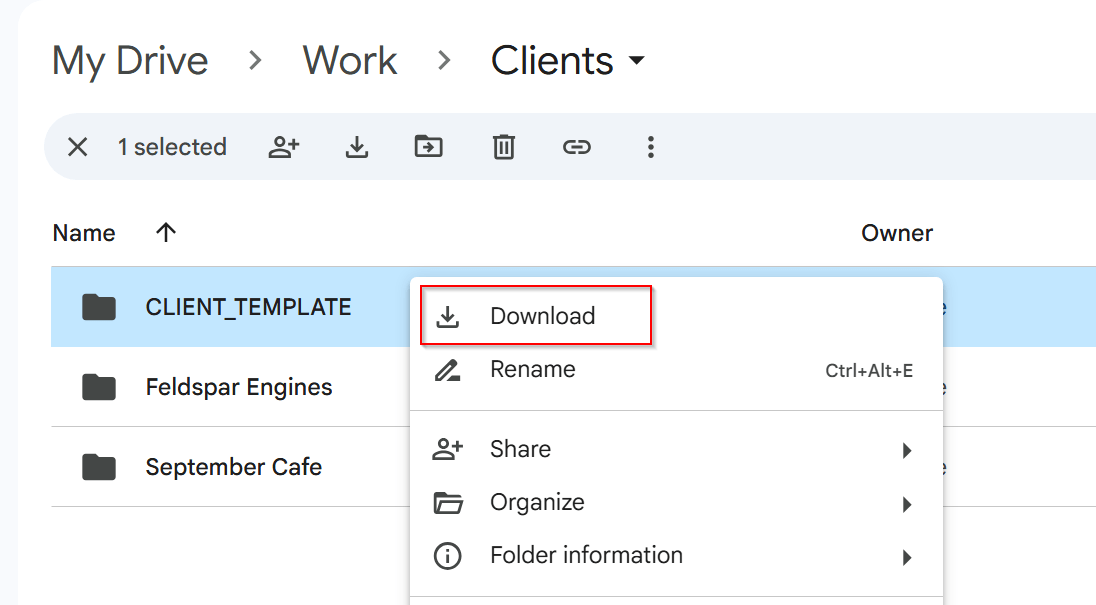
1. Download the source folder
In Google Drive, right-click the folder and choose Download. Wait for Drive to prepare the ZIP file and finish downloading it.
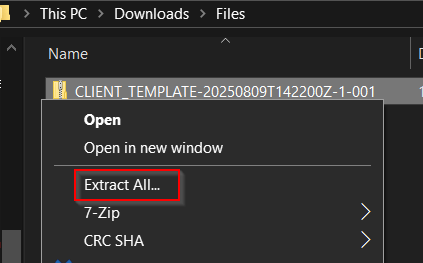
2. Extract the downloaded folder
Extract the ZIP on your computer.
3. Upload it to the destination
Open the destination in the Drive web app. Choose New → Folder upload and select the extracted folder, or you can drag the folder into the Drive window.
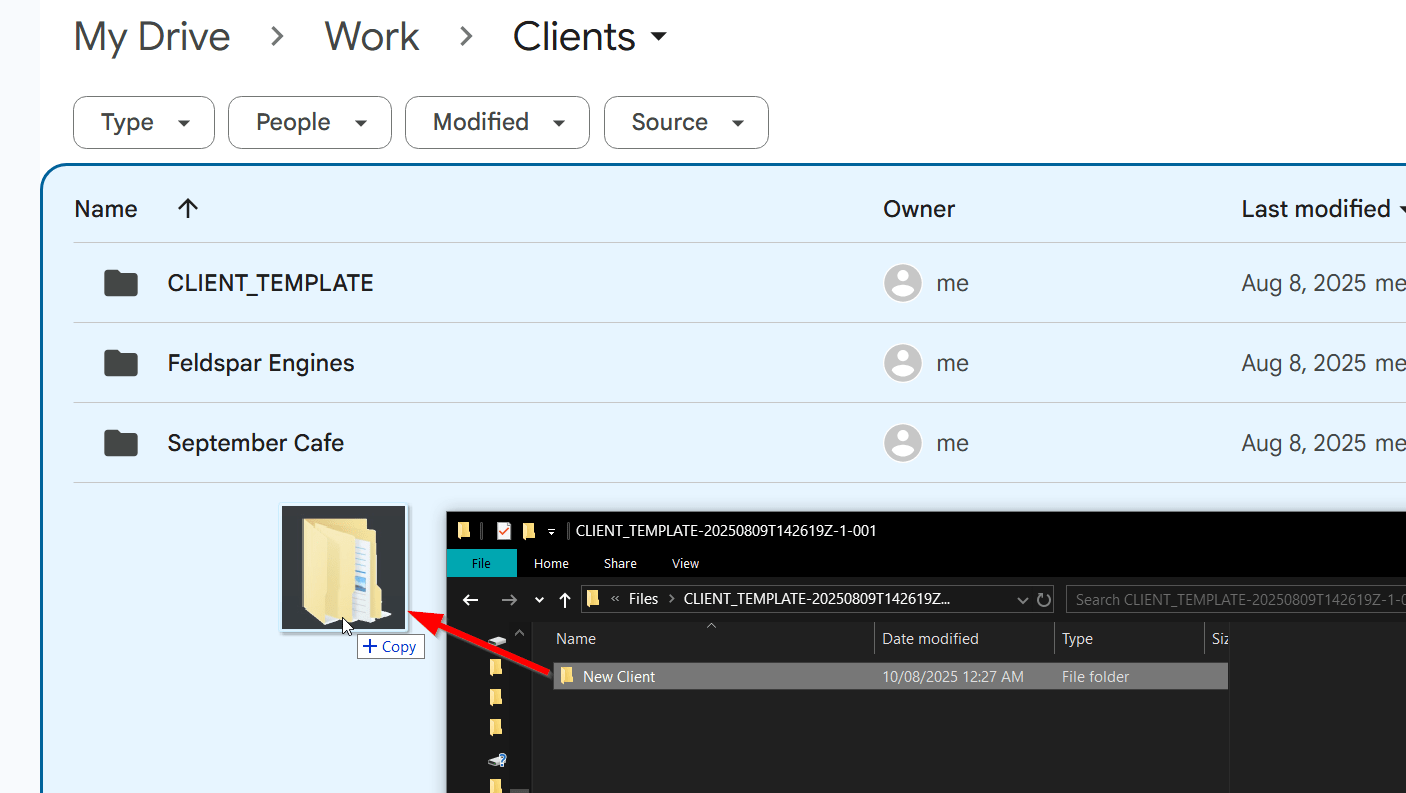
Wait for the upload to finish, then compare it against the original. Check the nested folders, and any empty folders — they’re easy to miss.
The limitation: downloading turns all your Google Docs, Sheets, and Slides into Word, Excel, and PowerPoint files. If you need them to stay as Google files, you’ll need to convert them manually, copy those files inside Drive, or use a dedicated folder-copying tool.
Google documents the available download formats and folder-upload options.
Copy the folder with Drive for desktop
If you already have Drive for desktop installed, your Drive shows up in File Explorer or Finder like any other folder. You can copy a folder there the way you’d copy anything else on your computer, and the copy syncs back up to Drive.
1. Install Drive for desktop and sign in.
2. Open your Google Drive in File Explorer or Finder.
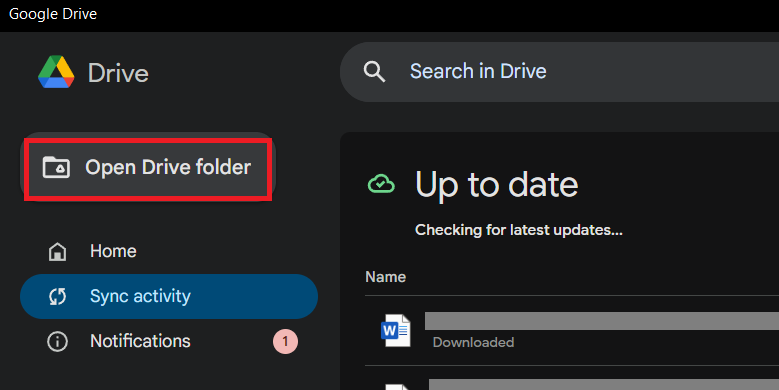
3. Find the folder you want, then copy and paste it where you want the copy to go.
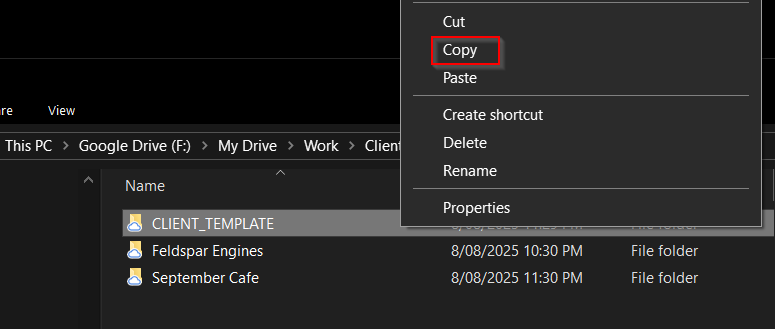
4. Rename the new folder if you need to.
5. Leave your computer on until the sync finishes, so everything makes it back to Drive.
The folder and its nested subfolders come across. That makes it a decent option for a big folder of ordinary files.
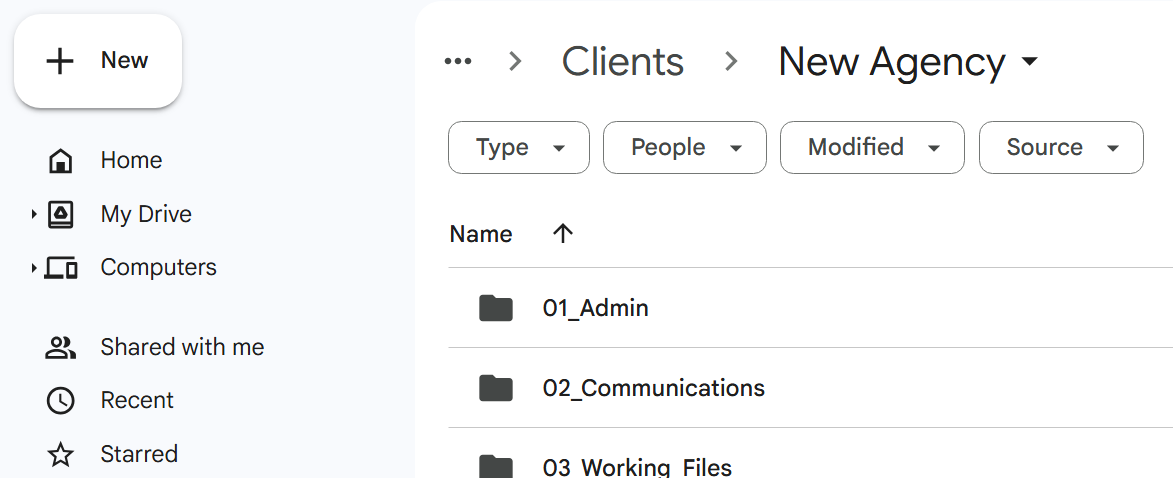
The limitation: your Google Docs, Sheets, and Slides won’t be copied. Google doesn’t support copying native Drive files this way, so you’ll need to leave them out and copy them in your browser instead. If your folder is mostly Google files, pick another method.
It’s also a lot of setup if you don’t already use it. Syncing your whole Drive to copy a few folders is more than the job needs.
Copy Google Drive folders, subfolders, and files with FolderPal
FolderPal rebuilds the folders in Drive and copies what’s inside them, including your Google Docs and Sheets. It saves you rebuilding each subfolder by hand or exporting your documents and converting them back.
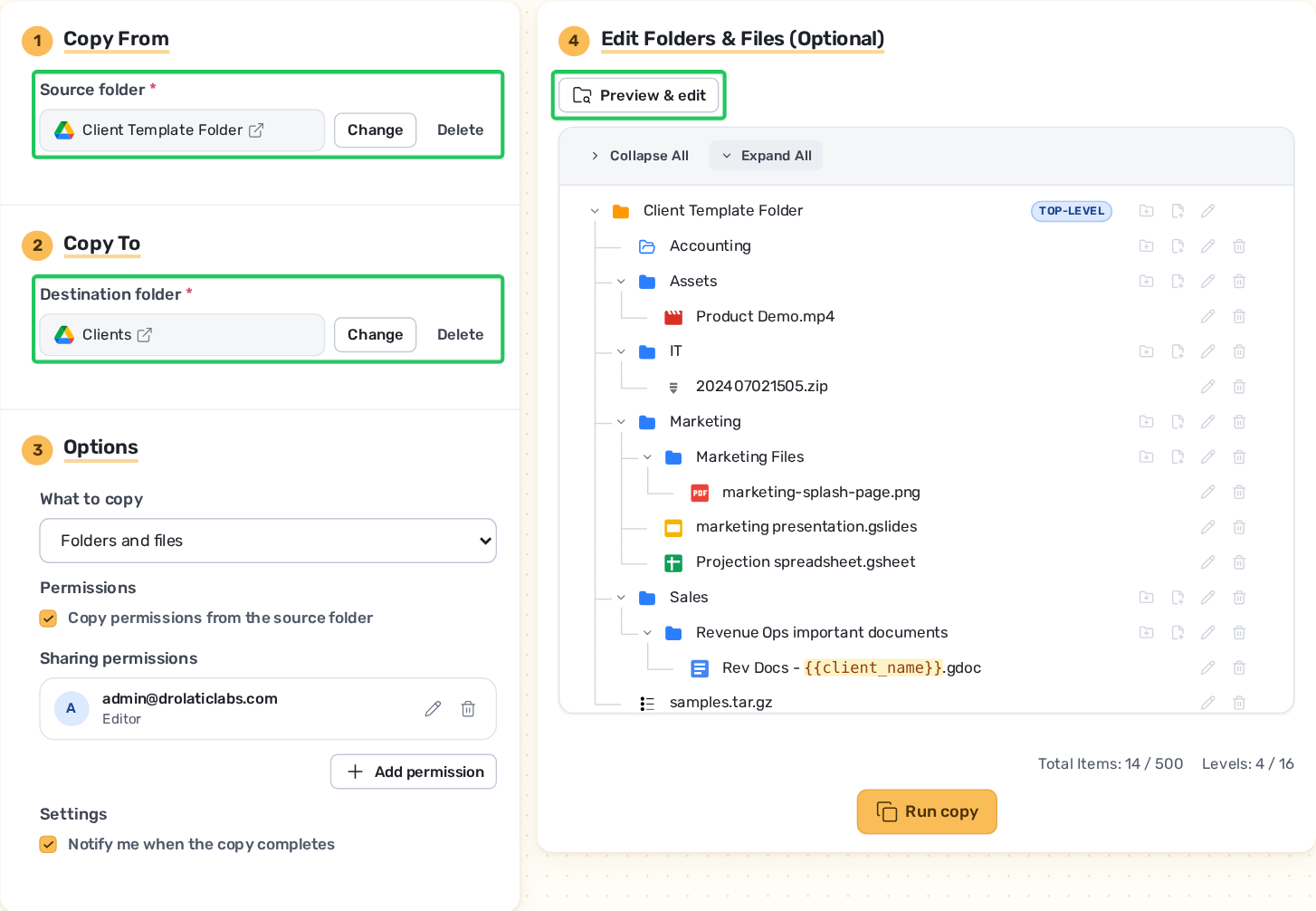
1. Choose what to copy and where it goes
Connect your Google account and open Copy Folder in the sidebar. Select the source folder and destination.
The preview lets you edit your entire folder structure before copying. You can rename any folder or file, or remove any items you don’t need in one view. Copy only folders, copy files as shortcuts, and set folder-level sharing by copying existing permissions or setting up new ones.
2. Run the copy
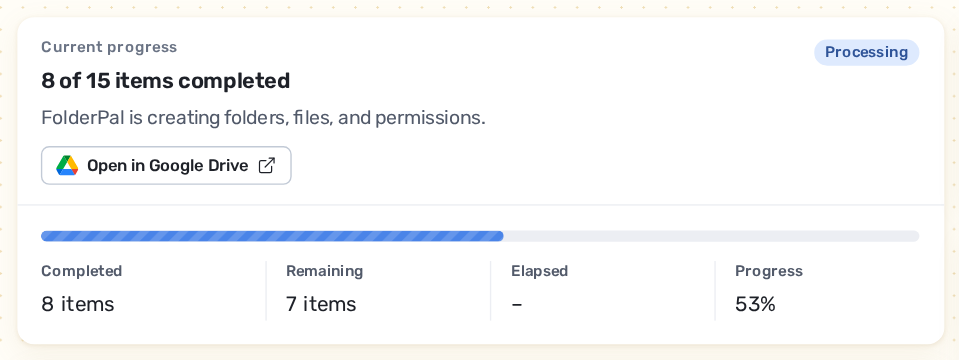
Start the copy and watch it work. Your original folders and files aren’t touched or stored.
Copying folders with FolderPal only takes seconds, way faster than existing folder copy tools, which can take many minutes.
3. Open the result in Drive
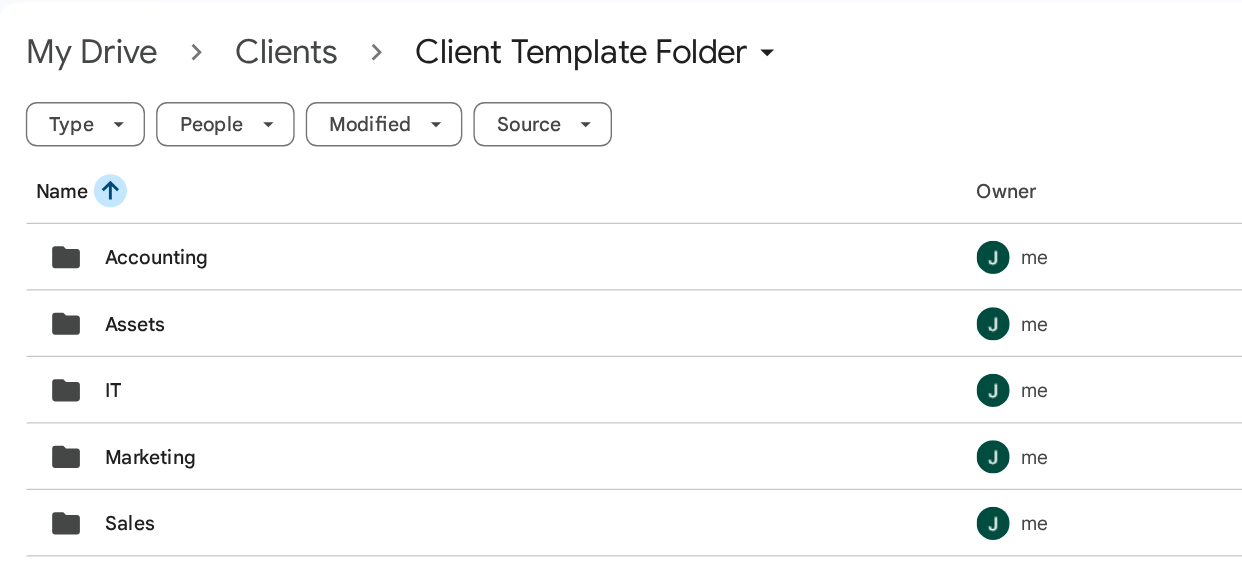
All done! Open the copied folder in Drive. It’s that simple.
What you get
- Nested folders and all files inside them.
- Google formats kept as they are. Docs stay Docs, Sheets stay Sheets. Nothing is converted.
- Names copied exactly, with no “(1)” added on the end.
- Your choice of what comes across: the folder structure on its own, the folders and everything in them, or files as shortcuts pointing back to the originals.
- Your choice of sharing: keep the original folder’s permissions or share it with someone new.
- Copy to and from Shared Drives and My Drive.
The limitations: you’ll need access to both source and destination folders. Your organisation’s rules and your plan limits still apply. Have a look at our plans to see what your workflow needs.
The copy-folder walkthrough covers the folder copying flow in more detail.
Common questions about duplicating Drive folders
Can you duplicate a folder in Google Drive without downloading it?
Yes. You can copy the files inside Drive and rebuild the folders manually, or use a tool that recreates the folder structure. Manual copying is reasonable for a few files; a tool saves more work as the hierarchy grows.
Does adding a shortcut make a copy?
No. A shortcut points to the existing folder or file. It gives you another way to reach the same item, useful for a single-source-of-truth file.
Shortcuts are useful for shared reference material. Full copies make more sense when each client or project needs its own documents.
Can I copy a shared folder or use a Shared Drive?
Yes — as long as your account has access to the folder and to wherever you’re placing the copy.
But being able to open a shared folder doesn’t always mean you can copy what’s inside. The owner can switch copying off, and your organisation may limit what you’re allowed to create or share. Check both ends before you start. For step-by-step options, see copying a shared folder in Google Drive.
FolderPal copies between My Drive and Shared Drives in both directions, wherever your account has that access.
Will the copied folder have the same sharing permissions?
With FolderPal, you choose: keep the original folder’s sharing, remove all permissions (excluding inherited sharing), or share it with new people. Whatever you pick applies to everything inside.
Copying the same folder for every client or project?
A one-off folder copy is enough when you just need to duplicate once. If every new job starts with the same folders, save that set-up as a Google Drive folder template and generate it again whenever you need it.
A client-onboarding template might create Brief, Budget, and Assets under a new client folder. You enter the client’s name once and it fills in everywhere automatically.
Check out our template quick start to see how FolderPal makes your folder provisioning faster and easier.
Also check out our client-onboarding folder example, or plan your folder structure to see what the best practices are for shaping up your Drive folders.
Get started in a few clicks for free by signing up with FolderPal and choosing Copy Folder. It’s really that easy.