FolderPal use case
Use a clean Google Drive folder structure to organize client onboarding, assets, meetings, working files, deliverables, and archives without the mess.
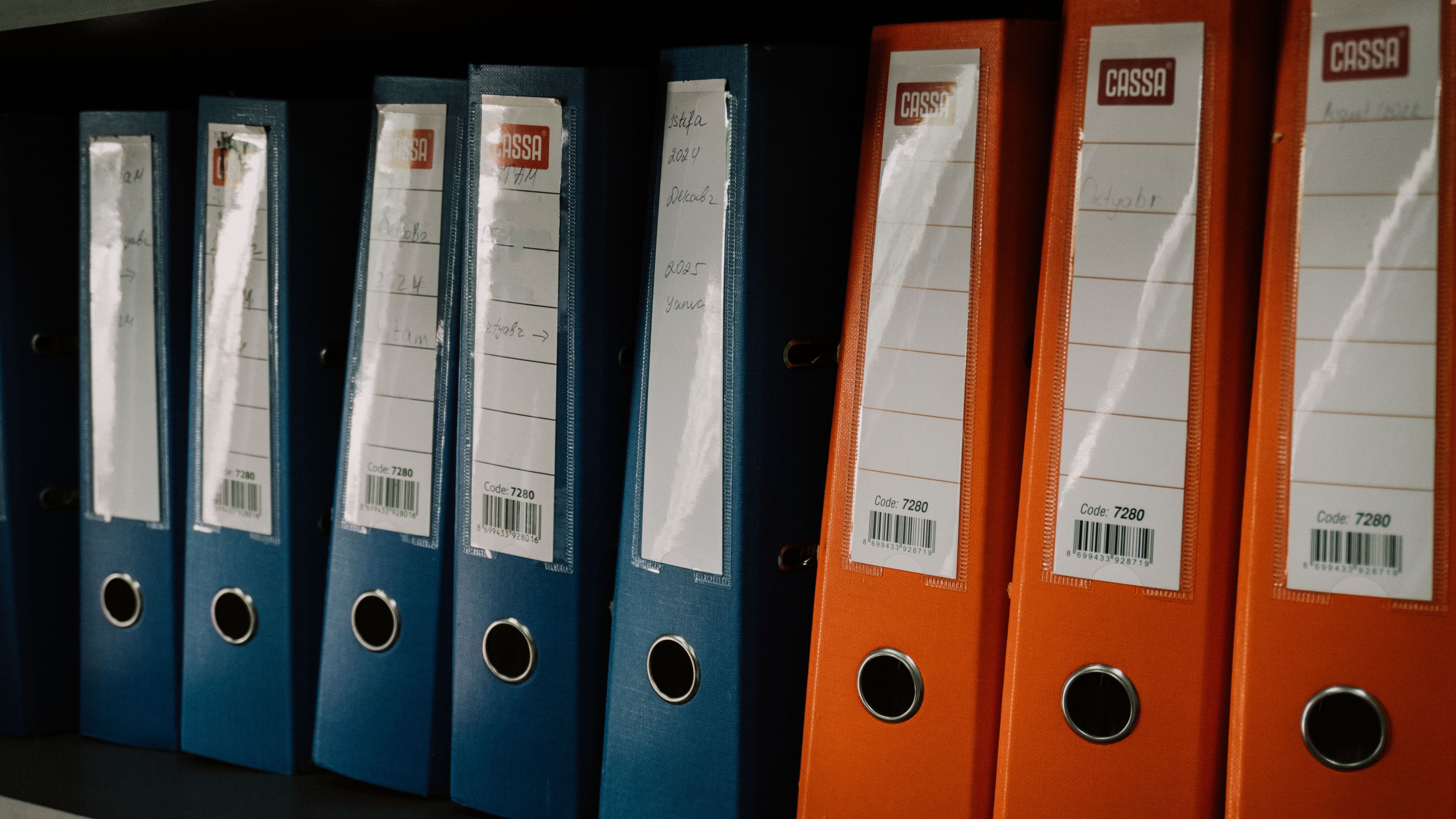
A messy and inconsistent client folder structure makes your team’s day-to-day work difficult. More importantly, it might hint to your clients that your operation is disorganized and uncoordinated.
Investing in a clean and effective client folder structure will make working with your clients a pleasant and professional experience.
This client onboarding folder template is a clean starting point for agencies, consultants, freelancers, and service teams - flexible for any use case with room to customize and tailor folders and files for your needs.
An Overview or Start Here folder is the first folder someone opens when they're new to the engagement. The client brief, key contacts, project summary, communication preferences, and links to the tools used all belong here — alongside the intake form clients fill out before kickoff (a Google Form works well), an onboarding checklist as a Google Sheet, and a welcome guide or packet as a PDF.
The Admin (or “Contracts & Billing”) folder holds the paperwork: proposals, signed agreements, statements of work (SOWs), NDAs, purchase orders, and billing records, usually saved as PDFs.
You can choose to use 3rd party applications to manage contract signing or invoice creation, as well as upload documents directly into these folders.
When a client needs a specific contract or invoice, sharing that individual document is more secure than sharing the entire folder.
Assets is where client-supplied material lives, split into subfolders depending on your needs: examples include Brand for logos and style guides, Source Files for the raw files a client hands over, and References for background material and links.
Keeping these separate from your team's working files makes it easy to see what arrived from the client and what your team produced. You can even set up file request / client portal applications for clients to securely upload assets directly to your Drive.
Kickoff agendas, meeting notes, decisions, action items, and call recordings all belong here. Dating filenames at the front, e.g., "2026-07-14 Kickoff Notes" — means the folder sorts itself without anyone having to tidy it later.
Work (or Internal) folder is the internal workspace for drafts, research, production files, and revisions that aren't ready for client review. If the work needs more structure, subfolders by project phase or discipline tend to be a better option than more top-level folders.
Files land here once they're ready for client review or approved for final delivery. The Review and Final subfolders prevent "final-v7-really-final.pdf" from becoming your filing convention.
Old rafts, closed work, old reports, and previous versions go here. Archive keeps the active folders clean while preserving context you may need later.
Sharing only the folders the client needs rather than the root folder gives your team room to work without exposing internal notes, drafts, or billing info. Not every client collaborator should have full access to the project either.
The industry standard is to follow the principle of least privilege, where you share with client contacts only if they need access to that folder or item.
| Folder | Recommended access |
|---|---|
| 01 Overview | Client and internal team |
| 02 Admin | Internal by default |
| 03 Assets | Client and internal team |
| 04 Meetings | Client and internal team |
| 05 Work | Internal team |
| 06 Deliverables | Client and internal team |
| 07 Archive | Internal team |
This is just a starting point. A client may occasionally need access to an item in an internal folder. In those cases, sharing just that file is always an option.
You can choose to create these templates and copy them manually, but this takes up valuable time, causes folder drift, and increases risk of human error and inconsistencies.
FolderPal is perfect for when your business has grown and client folder setup has become a repeatable workflow. Follow these simple steps to get started.
FolderPal’s template editor lets you build the structure from scratch, or you can import a working client onboarding folder from Google Drive.
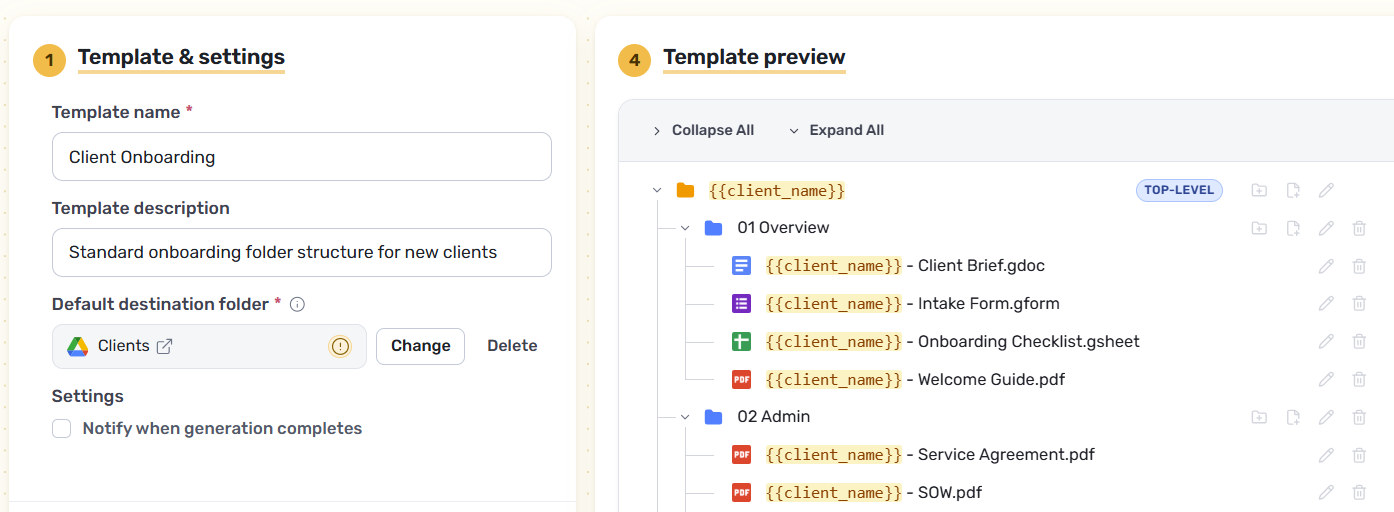
Add new subfolders, or insert new files; you get the full view of the template folder structure so you know exactly where everything goes. You can add Google files (Sheets, Docs) or regular files (Excel, Word, PDF) and the template will preserve their format.
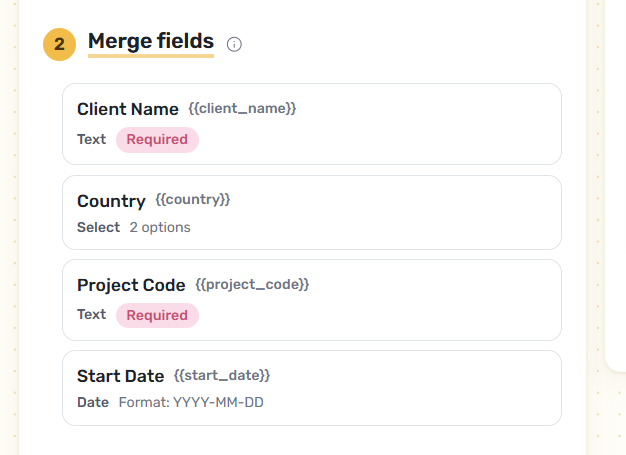
Merge fields look like {{client_name}} and can make your folders and files fully adaptable to your needs without having to manually go into each of your folders and rename files one-by-one.
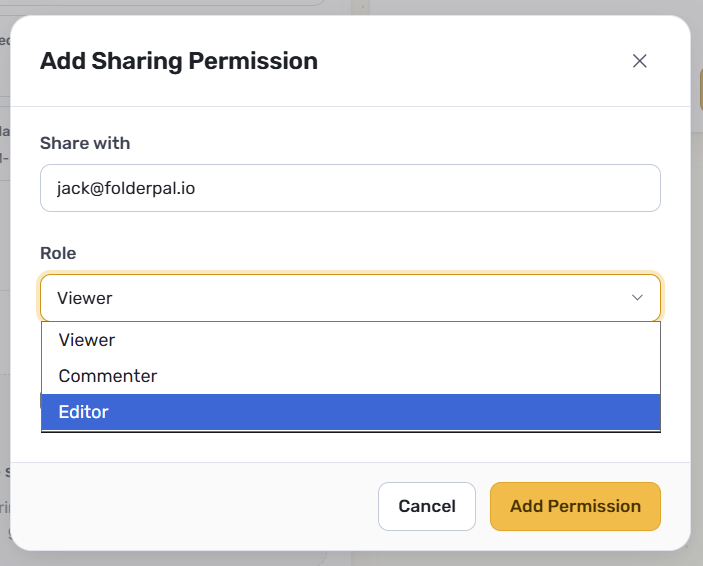
For your folder templates, you can set top-level permissions for that folder to ensure you have control over who gets access to new folders when they’re created.
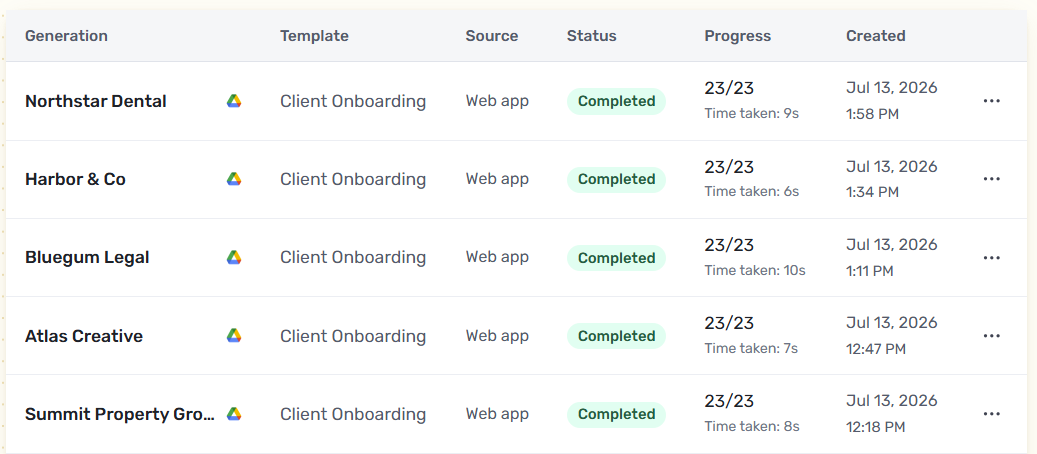
With a single template, you can reuse it for all future client onboardings, making sure each one is clean, standardized, and tailored to each client.
Not natively. Google Drive has no built-in way to save a folder structure as a reusable template. Each new client starts from a manual copy, and native Google files like Docs and Sheets can lose their format along the way if you're not careful. FolderPal lets you build complex folder templates, turning an existing folder structure into a powerful template with standard files and merge fields already built in.
Usually not. You will want a well-defined boundary between internal-only folders and external-facing folders. There will be exceptions — sharing a specific item rather than the whole folder is almost always preferred. Alternatively, you can simply create a “Client” subfolder that houses all the client-facing stuff and controls sharing from one folder, useful if you have a single client point of contact.
