FolderPal use case
Use a practical construction project folder structure for commercial records, drawings, project queries, procurement, site records, finances, and handover—then reuse it in Google Drive.

Construction project folders tend to start clean and get complicated quickly. Drawings need dozens of revisions, project queries and approvals keep going back and forth, and commercial records need careful permissions handling.
A reusable project folder template gives every job the same starting point, especially if your business is not yet working off a full construction management platform. The structure below is designed for contractors, project managers, architects, and engineering teams that already keep project documents in Google Drive.
Project Overview is a useful front door for the job. The project brief, key contacts, programme links, meeting schedule, responsibility matrix, and working procedures can sit here so a new team member has somewhere sensible to begin.
This section can hold contracts, changes and variations (also known as change orders), insurance documents, permits, approvals, and other formal commercial records. Review and executed copies are easier to distinguish when each stage has its own subfolder instead of relying on changing file suffixes.
Current drawings, superseded sets, specifications, design submissions, reviewed drawings, and final or as-built information need clear boundaries. For a smaller project, separating Current, Superseded, Reviewed, and Final may be enough.
Project queries, requests for information (RFIs), submissions (or submittals), responses, and approvals work well with a simple register and folders for Pending, Issued, Responses, and Completed. Names vary between teams and regions, but the supporting files and exported records still need a predictable home.
Supplier quotations, purchase orders, subcontractor agreements, lead-time information, and delivery records can live here. A folder per supplier or work package is often easier to maintain than adding every company to the top level.
Site reports, inspection records, meeting notes, site instructions, and progress photographs build the history of the work. Date-first names such as 2026-07-13 Site Visit help those records sort chronologically in Drive.
Health and safety plans, inductions, permits, inspection forms, incident records, and supporting documents may need their own access rules and retention process. The exact structure depends on the project, jurisdiction, and your organisation’s procedures, so treat this as a baseline guide.
Budgets, forecasts, payment applications and claims (e.g. progress claims or pay applications), invoices, cost reports, and payment records are usually internal. Keeping these records together makes access easier to manage for accounts staff and other financial users.
Handover (also known as closeout) is easier when its destination exists from day one. Warranties, operation and maintenance manuals, commissioning records, certificates, final or as-built drawings, training material, and other completed records can be collected progressively throughout the project, with superseded material moved into the archive.
The above is just a general outline. A template works best when it reflects one of your real jobs. A completed or well-run project is often the most useful source: keep the folders that constantly get used throughout the project, remove project-specific clutter, and simplify anything people ignore or don’t use.
If you only open an occasional job, manually recreating the folders may be perfectly reasonable. The difficulty is that Google Drive's web interface does not provide a simple way to duplicate an entire folder tree. Our guide to copying Google Drive folders and subfolders explains the manual options and their tradeoffs.
FolderPal can build the project structure from scratch or import an existing Google Drive folder. Importing is handy when the company already has a project setup that works. The folder hierarchy and its standard files become the starting point, while the original project remains unchanged.
Inside the template editor, you can remove, add, or keep any folders and files to craft your ideal template. A smaller structure that people recognize is more useful than a comprehensive tree they work around.
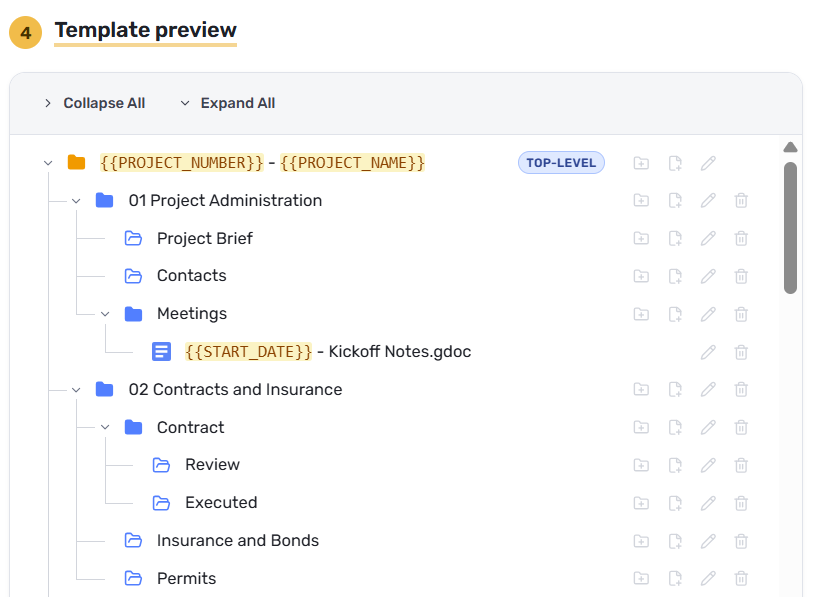
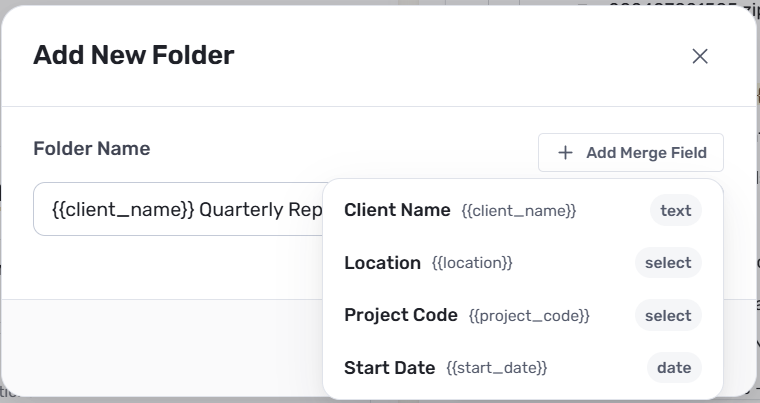
Project number, project name, client, site address, and start date are the details most likely to change from job to job. In FolderPal, those values can become merge fields inside folder and file names. Filling them in once at generation time updates every place the corresponding tag appears.
A root folder such as {{PROJECT_NUMBER}} - {{PROJECT_NAME}} can be paired with starter files including {{PROJECT_NUMBER}} - Project Query Register and {{PROJECT_NAME}} - Project Contacts. That removes a separate renaming pass and helps the first files on every project follow the same convention.
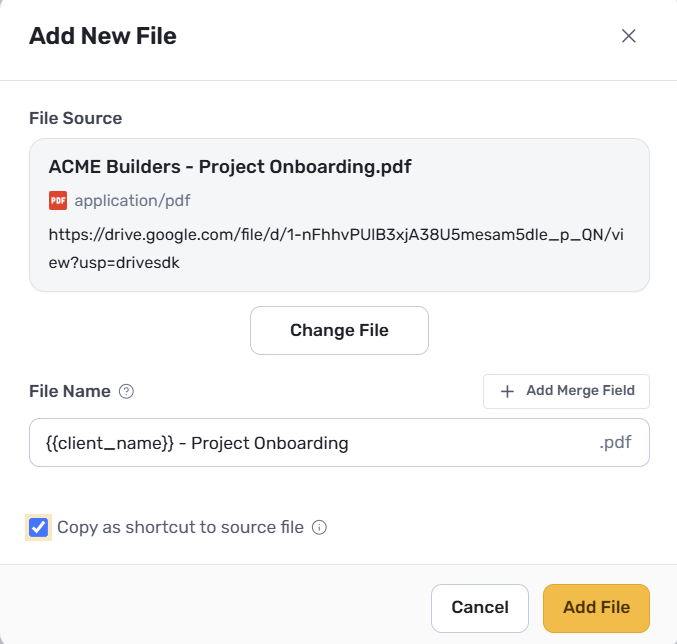
FolderPal can keep native Google files and binary file types in the template, then reproduce them with the folder structure. A shared reference file can also be included as a shortcut when the team needs one maintained source rather than a fresh copy on every project.
A personal or early-stage job may sit in My Drive, while organisation-owned project records usually fit more naturally in a Shared Drive. FolderPal lets you choose the Google Drive destination for the new structure, as long as your account has read and write access.
The destination matters because it affects ownership, continuity, and who can discover the project.
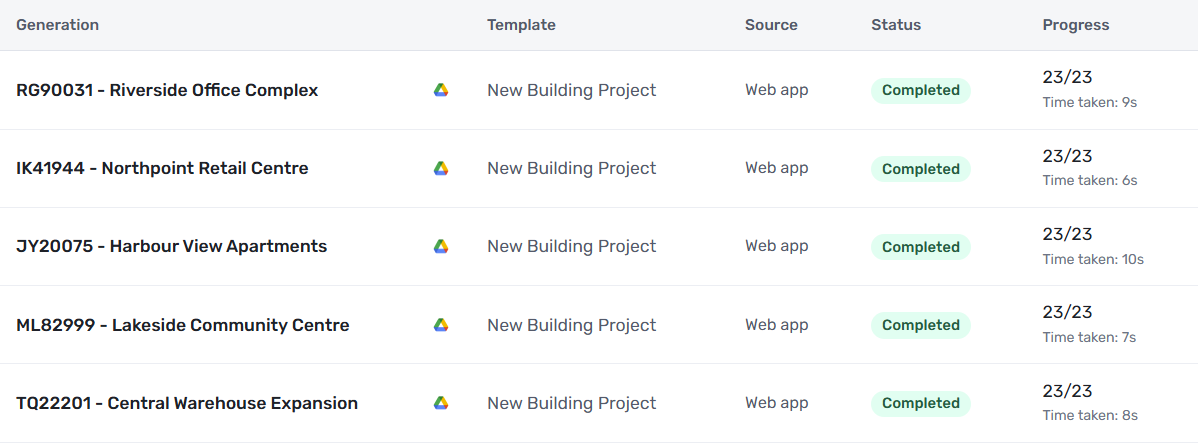
Once the template is ready, a new job can be set up without copying each branch by hand.
Google Drive does not have a native folder-template feature in its web interface. A team can keep a clean master folder and recreate it manually, use a script, download and upload a folder tree, or use a purpose-built tool such as FolderPal.
Yes. A FolderPal template can include nested folders and files, including native Google files and uploaded formats. Each generated project receives the structure and the copied starter files defined by the template.
Yes. FolderPal supports generation into My Drive or a Shared Drive, provided the connected Google account has the access required to create the items in the selected destination.
Project number and project name are the most common starting point. Client name, site address, project type, start date, and responsible project manager can also help when they match an existing company naming convention.
Not by default. Many teams keep the root internal and share a defined collaboration or approved-documents folder with external parties. The right setup depends on the contract, project roles, organisation policy, and the sensitivity of the material.
If your team already has one construction project folder that works, it can become the basis of the next one. Save the repeatable structure in FolderPal, add the project details as merge fields, and generate the next workspace in Google Drive.
Build a Google Drive folder structure that stays consistent as your business grows, with practical templates, naming conventions, and ways to prevent folder drift.
GuideCopy a Google Drive folder with its subfolders and files. Choose a method based on your folder structure, file types, and whether you’ll need to do it again.
