

If your team is on Google Workspace, you've probably come across Google Apps Scripts (GAS) - a simple yet powerful tool to build automations directly into your Google ecosystem, powering up Google Sheets, Drive, Gmail, etc. With a bit of developer know-how (and some elbow grease), you can build useful and versatile automations for your business.
However, like many automation tools, the sky is not the limit, and you should be aware of the biggest limitations you will face when building Apps Scripts. Apps Scripts are subject to hard limits and quotas, which are crucial to understand when building workflows involving bulk folders and files and long-running operations.
In this guide, we’ll go through these limitations as of 2026, strategies to work around them, and why it may just be simpler to use a 3rd party solution like FolderPal to handle your Drive folder automation tasks instead.
The main Google Apps Scripts limitations
There are a bunch of Apps Scripts quotas and limits that Google imposes, and depending on whether you have a Consumer account or Workspace account, could be a huge pain down the track. Below are the most common limits faced and how they work.
| Limit | Consumer account | Workspace account |
|---|---|---|
| Max execution time per run | 6 minutes | 6 minutes |
| Triggers per user, per script | 20 | 20 |
| Simultaneous executions per user | 30 | 30 |
| Simultaneous executions per script | 1,000 | 1,000 |
| Trigger total runtime per day | 90 minutes | 6 hours |
| URL Fetch calls per day | 20,000 | 100,000 |
Source: Google Apps Script quotas (current as of July 2026).
Apps Scripts are Single-Threaded
Google Apps Scripts run in a synchronous execution model by nature, meaning each script executes step-by-step in a single thread. That means you need to wait for each request to complete first before making the next one.
This design simplifies simple automations, but limits parallelism, throughput, and execution time, making Apps Script unsuitable for high-concurrency or long-running workloads.
Apps Scripts are Stateless
Google Apps Scripts run in a stateless execution environment. Each invocation starts fresh, with no guaranteed memory or persistence between runs.
For any long-running operation or task that requires memory between different Script runs, there is no native method to store state, which presents problems with error recovery, retries, resuming jobs, and handling high volume tasks.
The 6 Minute Maximum Execution Time
Google Apps Scripts have a 6 minute total execution runtime limit. For your long-running tasks like file uploads, folder tree recursion, and bulk Drive API tasks, once 6 minutes is reached, the run is aborted and an “Exceeded maximum execution time” exception is thrown.
When any limit is reached, all Google Apps Scripts execution halts, throwing exceptions like “Limit exceeded: Properties read/write”, “Service invoked too many times: Drive”, “Exceeded maximum execution time”. Limits only refresh 24 hours after the very first request.
Daily Quotas
Apps Scripts have a huge list of daily quotas. Refer to this quota page for the specific operations you want to carry out.
Trigger & Concurrency Limits
Apps Scripts supports some limited form of concurrent script processing out-of-the-box, though it is quite brittle. The limits include:
- 20 triggers per user per script
- 30 simultaneous executions per user (across all scripts)
- 1,000 simultaneous executions per script
For more complicated long-running tasks like folder tree operations and bulk copying, these limits on Scripts may not be suitable.
Service-specific Quotas
Beyond Apps Scripts quotas, the specific Google service you are calling, such as Drive API, would impose their own usage limits for your Workspace. When building Apps Scripts on top of these Google services, understand these quotas as well to avoid significant headaches and refactors.
Drive API Quota Changes (May 2026)
As of May 1, 2026, the Drive API changed how usage is measured. Instead of request count, the quota is represented as a shared quota unit pool. Calls like listing files consume 100 units, a download would be 200 units, etc. See Google’s Drive API usage limits for the full breakdown. Projects created before May 1, 2026 remain on the old request count quota. The bottom line is working with the Drive API can be complicated unless you have a good idea on your usage patterns and estimated loads.
Hacks to Overcome Google Apps Scripts Limits
If you are set in stone on solving your problem with Google Apps Scripts, then you may still be able to build around long-running tasks and concurrent executions with these strategies. However, note that they all have tradeoffs.
| Workaround | How it works | Tradeoff |
|---|---|---|
| Batch splitting | Process a fixed number of items per run, save progress, then re-trigger | Still bound by daily trigger runtime & Properties quotas |
| State tracking (Properties) | Store checkpoints as key-value pairs via PropertiesService | Very limited Properties quotas — hit fast if run constantly |
| Trigger chaining | Programmatically schedule the same script to resume later | Consumes trigger quota; brittle |
| Use fetchAll() | Fire HTTP requests in parallel, waiting only for the slowest | Still capped at 20k/100k daily fetches + service quotas |
| Backoff & throttling | Use Utilities.sleep() delays to stay under rate limits | Slows execution, eating into the 6-minute runtime |
| Account rotation | Spread tasks across multiple Google accounts | Credential, security & compliance risk; unreliable |
Splitting your Job into Batches
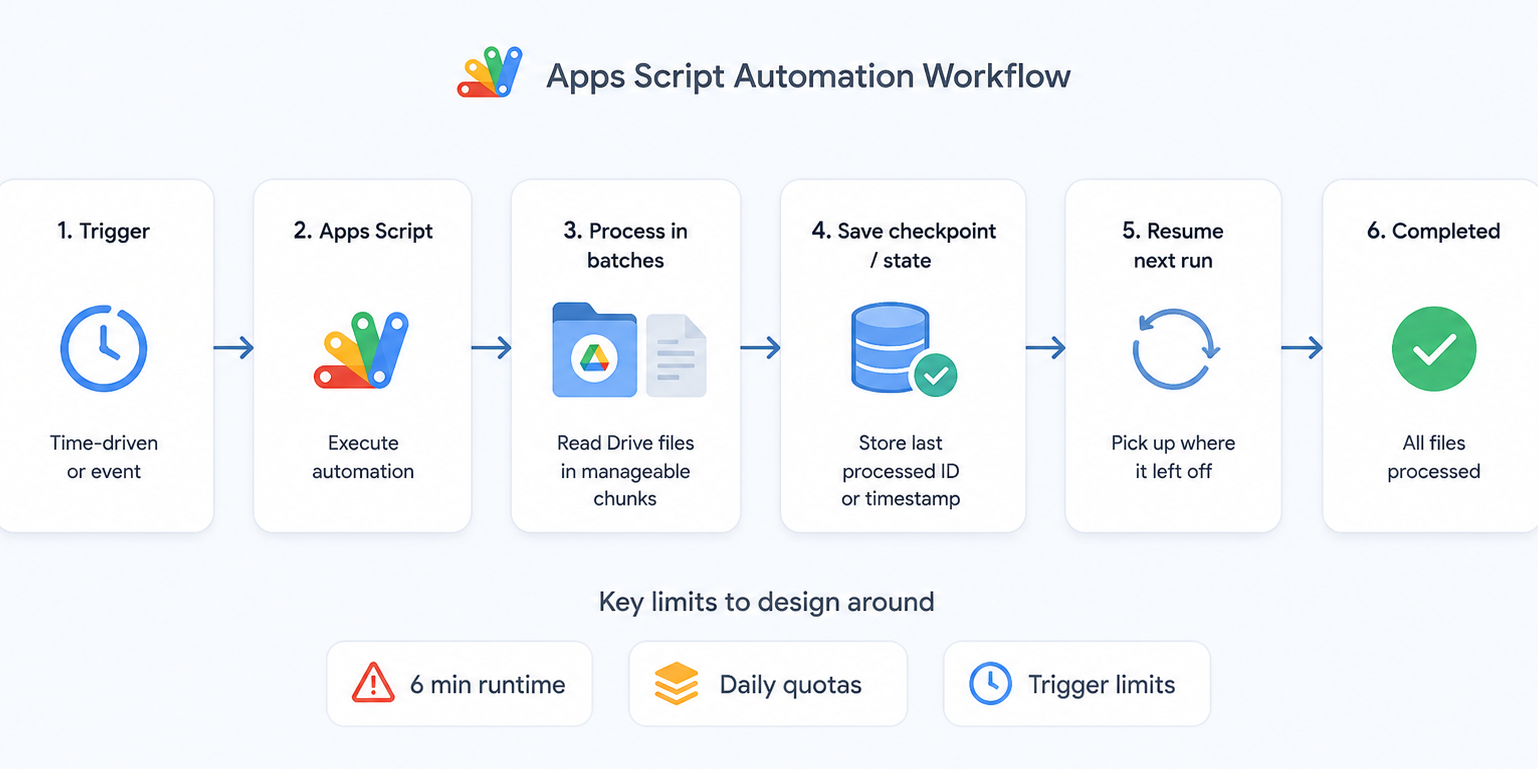
For massive jobs like processing thousands to millions of rows in Google Sheets, or performing major bulk operations on Google Drive folder trees, you can split your job into chunks of work. At a high level, the steps are:
- Limit each script to a set number of items
- When the batch is completed, store the last completed item as a Script Property.
- Schedule a time-driven trigger to re-run the Script
- The Script looks up the Property to see where to resume, and the next batch is processed
- If the Script nears the timeout limit before the batch is done, exit early by saving the current state, and then schedule a time-driven trigger
- Make sure you are deleting the trigger to avoid hitting the concurrent trigger limit
This approach is not foolproof, as executions are still bound by restrictive quotas like daily trigger-based execution time limit, Properties daily quotas and total storage, etc.
Tracking State or Progress with Properties or Metadata
Whatever tasks you are automating, storing progress checkpoints between script executions is critical. The simplest approach is using the PropertiesService Class, which lets you store simple key-value pair data scoped to a single script. You would simply use setProperty() and getProperty() to persist state across execution contexts.
For example, you may want to store the last row successfully processed to know where to resume, or the last created folder’s ID to keep track of where in the folder tree you are up to.
For some use cases, you may even want to use a hidden Google Sheet for more complex state management, though this would be subject to Google Sheets API quotas.
The major drawback of tracking state natively with Google Apps Scripts is the very limited quotas you get. If you expect the script to be running constantly, you may encounter quota limits very quickly.
Chaining Time-Driven Triggers to Extend Jobs
Google Apps Scripts allows time-driven triggers to be called programmatically. This means from within a script execution, you can run the same script at a later point in time. This is known as trigger chaining and can be a simple but effective method to picking up jobs from where they left off.
Use fetchAll()
A standard best practice when writing Google Apps Scripts is to take advantage of fetchAll() when making HTTP requests. Multiple requests can be made at the same time, significantly reducing wall-clock time as you only need to wait for the longest-running request to complete, rather than making sequential calls.
However, you’re still subjected to a 20,000 daily requests limit (100,000 on Workspace) made via URL fetch, which counts each individual HTTP request. You’re also not free from Service Quotas - if you make 50 requests to Drive, that counts as 50 calls against the Drive limits.
Implement Exponential Backoffs and Throttling
When writing Google Apps Scripts with services that specify a throughput limit (e.g. n calls per second), making requests like a firehose would quickly get your API usage flagged and rate limited, running into errors like “Service invoked too many times in a short time”.
Some simple industry best-practices are to implement:
- Exponential backoffs, where the script pauses processing every time a rate limit error is hit with increasing delay
- Artificial throttling, where each call is made with a slight delay to ensure a consistent throughput
Your script would require using the Utilities.sleep() method to ensure the script is not biting off more than it is allowed to chew.
Rotating Across Multiple Accounts
Some users work around quotas by rotating tasks across multiple Google accounts. This is generally not reliable for long-term automation due to credential management, security risk, and compliance issues. But if you have the time and patience, it may be a path forward.
When Apps Script Isn’t Enough
Apps Script is excellent for small, simple automations, like sending a few emails, light data manipulation, and small file moves. However, it was never designed to support large-scale, long-running workflows.
When you’re trying to clone folders and files in bulk, or performing large-scale edits across Drive, you’ll likely bump into limits or quotas that will quickly hamper your productivity. If you only need to duplicate one folder, compare the ways to copy a Google Drive folder.
Let FolderPal Handle the Heavy Lifting
If you keep running into these limits, see how to copy a folder without writing a script, or call the FolderPal API from your own automation.
FolderPal helps you perform bulk folder and file operations without the headache. With FolderPal you get:
- Reliable bulk copying — both folders and files, even for large folder trees
- Dynamic merge field tags for customized folder and file names
- Quota-aware execution that respects Google limits
- Automatic retry & throttling logic
Instead of bashing your head against Apps Script limitations just to achieve some basic automations, FolderPal manages all of this behind the scenes.
Try FolderPal today for free.