

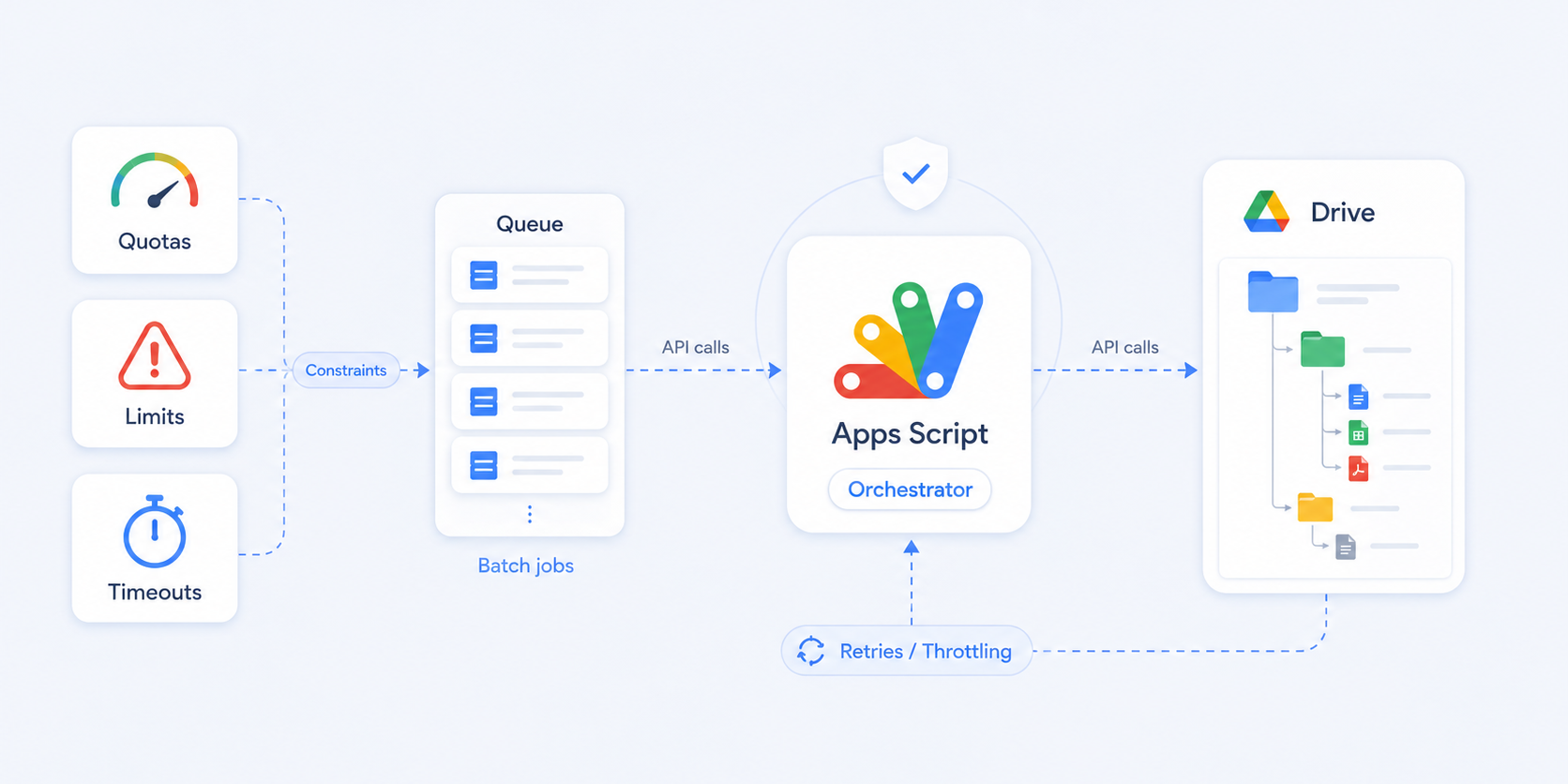
Working with long-running bulk operations in Google Drive can be complicated. From cloning deeply nested folders, uploading large files, or rolling your own bulk permissions operations, you’ll encounter a minefield of API limits in your scripts and workflows.
FolderPal’s job queue under the hood deals with all of these Drive API limits for you. However if you’d like to build it yourself, this guide summarizes all the up-to-date Google Drive API limits based on official documentation and sources.
Key Takeaways
- Keep an eye out on what limits are relevant to your use case. Limits like the 750GB and 500,000-item limit in Shared Drives makes your Workspace unusable, while limits like the 3 writes / s and request rate limiting means you have to design your solutions with throttling and backoff in mind.
- Production-grade Drive automations requires queueing, retries, and quota-aware scheduling to avoid broken and incomplete runs.
- FolderPal navigates these Drive API limitations behind-the-scenes so your bulk folder and file operations run reliably.
Google Drive API limits at a glance
Whether you’re a freelancer writing Google Apps Scripts, or a developer integrating directly with the API, knowing all the limits you’ll encounter will give you the knowledge to build better solutions.
When working with Google Workspace and Google Drive, the tables below summarize the most common limits you’ll encounter:
Hard Limits
| Limit | Value | Applies to | Notes |
|---|---|---|---|
| Daily transfer cap | 750 GB / 24h (rolling) | Per user / account | Counts both file uploads and file copies |
| Item cap | 500,000 items | Per shared drive | Includes files, folders, shortcuts, and trashed items. Once the cap is reached, no more items can be added. My Drive has a total limit of 5 million items, and 500,000 items per folder. |
| Folder nesting depth | 100 levels | My Drive and shared drives | Deep folder structures can be difficult to navigate and migrate. |
Sources: Google shared drive limits and large-migration guidance (current as of July 2026).
Soft Limits
| Limit | Value | Applies to | Notes |
|---|---|---|---|
| Sustained writes | ~3 write/insert req/s | Per account | Official Google migration guidance; cannot be increased |
| Request quota — new projects | Quota-unit model | Per project & user | May 2026 quota overhaul: 1M units/min/project; 325k units/min/user. Method costs vary; daily usage thresholds also apply. |
| Request quota — legacy projects | 20,000 calls / 100s | Per user & per project | Created before April 2026 |
| Apps Script execution | 6 min / run | Apps Script | Plus daily trigger runtime: 90 min (consumer) / 6 hr (Workspace) |
Sources: Google Drive API limits and large-migration best practices (current as of July 2026).
Storage, item, and folder-depth limits apply across Google Drive. Drive API quotas and Apps Script execution limits apply only when using those respective platforms.
Google Drive hard volume quotas
Google Drive imposes strict volume-based limits across users’ workspaces and Drives.
The 750 GB Daily Transfer Limit
For agencies and teams dealing with large files, a single user or service account can transfer a maximum of 750 GB of data within a rolling 24-hour window. This limit includes uploads and copies. The first upload that crosses the allowance can complete, but further uploads and copies are blocked until the limit resets. Individual uploads can be up to 5 TB, while files larger than 750 GB cannot be copied.
The 500,000-Item Shared Drive Quota
A shared drive has a hard cap of 500,000 total items, including files, folders, shortcuts, and items in the trash. Once the cap is reached, no more items can be added. My Drive has a 5 million item total Drive limit and 500,000 limit of items within a folder. Either way, empty the trash to free up item quota.
Google Apps Scripts limits and timeouts
The 6-Minute Apps Script Timeout
All Apps Scripts are subject to a hard 6-minute execution timeout, after which the script stops. There is also a daily cumulative execution limit for scripts started via triggers: 90 minutes for consumer accounts and 6 hours for Google Workspace accounts. If you exceed the daily quota, you must wait for it to reset, which occurs 24 hours after the first request.
For bulk tasks, this is quite limiting, considering that Apps Scripts are single-threaded and don’t support true parallel processing, meaning tasks must complete one-by-one. You’ll find that bulk folder and file operations built using Apps Scripts are very brittle and often miss items, or take a very long time to finish.
However, there are useful strategies to work around these limits, by simulating long-running jobs and mimicking parallel script executions.
Google Drive soft rate limits
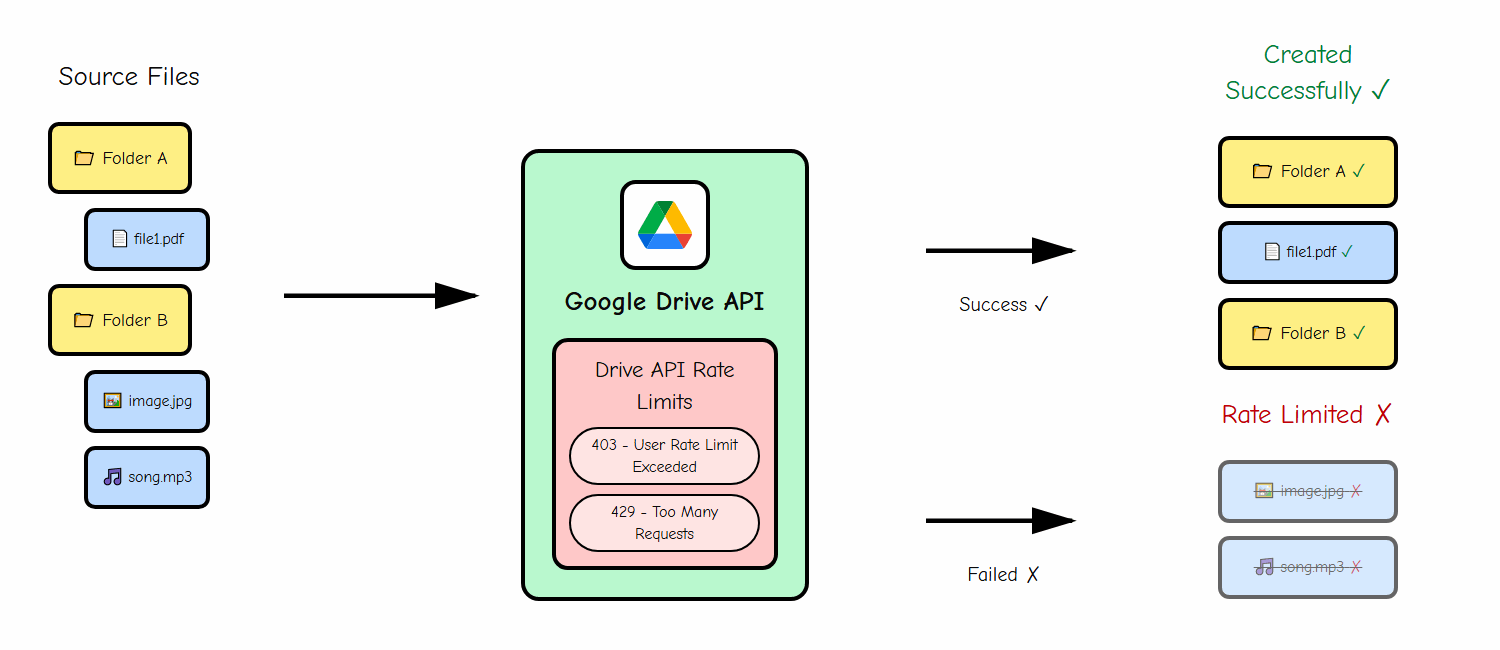
Google Drive’s most notorious API limits are rate limiting and throttling quotas on read/write operations, usually triggering the infamous 403: User Rate Limit Exceeded and 429: Too Many Requests error codes.
Drive API Request Quotas (2026 Quota-Unit Model)
Since May 1, 2026, newly created Google Cloud projects have used a weighted quota-unit model. A basic read costs 5 units, an edit 50, a list request 100, and a download 200. Each project is allowed 1 million units per minute, with a separate limit of 325,000 units per minute for each user. Google also lists daily thresholds of 400 million quota units and 1 TB of project egress.
Projects that already used the Drive API before May 2026 currently keep their previous request-count quotas — historically 20,000 calls per 100 seconds, per user and per project (roughly 200 requests per second) — pending Google’s wider rollout later in 2026. If you’re on one of these legacy projects, you won't be on the quota unit model just yet.
Either way, you can request higher quotas in the Google Cloud Console for high-traffic applications, though approval isn’t guaranteed. To spread load, Google recommends distributing writes across multiple impersonated users via a service account with domain-wide delegation, rather than concentrating everything on a single account.
3 Writes Per Second Sustained Limit
Google’s own large-migration guidance advises keeping sustained write throughput under 3 write or insert requests per second, per account — and explicitly notes this rate limit can’t be increased.
This limit includes both copy and create operations, and applies to both folder and file writes. Write requests are counted towards the limit from when they are first initiated, so you need to carefully manage throughput.
Google doesn’t document exactly how the limit is enforced, but community testing suggests a token-bucket limiter behind the scenes: you can typically burst up to ~30 write requests before being throttled to roughly one refill per second.
Overcoming Google Drive rate limits
Depending on what you’re building, there are several best practices to adopt when building scripts or automations with the Google Drive API.
Exponential Backoff
Whether script or custom code, adopting an exponential backoff strategy when encountering a 403 or 429 rate limit error code would be the simplest solution. This would involve waiting (or sleeping) execution for a period of time when running into these errors, with exponentially increasing delays (1s, 2s, 4s, 8s) on further limit hits before resuming the next operation.
However, hitting the Drive API limits directly too frequently may impose further restrictions and flag your account, forcing unpredictable delays. Controlling throughput via throttling is a better strategy.
Rate Limiting / Throttling
Rate limiting controls the rate at which you make requests. In the case of write operations, adding a small sleep delay between requests ensures you aren’t making bursts of requests that will quickly exhaust your limit. This way, you can control and throttle your own request rate without hitting the Drive API limits directly.
However, with Google Apps Scripts, requests are made synchronously, so you’ll have to wait for each request to complete before issuing the next one. The fetchAll() method lets you run batches of requests, though you’d have to wait for the whole batch to complete first. This makes throttling unreliable as requests can take under 100ms to an average of several hundred ms.
If you are building a custom-coded solution, you may have the luxury of parallel processing. In that case, it would still be recommended you throttle requests using a delay, or even your own token bucket algorithm to manage throughput.
Job Queues
A more resilient architecture is usually needed for frequent, long-running tasks. For those with more demanding needs, the most popular approaches include a message queue system with background workers that can work in parallel, for example RabbitMQ, Amazon SQS, and Google Cloud Pub/Sub. This lets you orchestrate jobs asynchronously without needing to wait for execution to complete.
Along with a message queue, you’d need a way to manage usage limits for your workspace to make sure you aren’t creating too many requests at once, and also respecting daily quotas. Typically a caching service like Redis is used to track throttling and usage between jobs.
This approach allows thousands of Drive operations to run safely over hours instead of failing after minutes.
Batch Operations
In Google Drive, you can perform Batch Requests, which combine a bunch of API calls (up to 100) into one network request. However, each individual API call still counts towards your limits. The main benefit of batching is making only one network roundtrip instead of a hundred.
Usage Monitoring and Alerts
Above all, measuring your Workspace API usage gives you the insight to track and escalate API usage issues. With a combination of the Google Cloud Console’s API Dashboard and usage-based alerts, you can figure out how much of your API quotas are being consumed, and how often you are hitting limits.
Run Google Apps Scripts beyond the 6 minute timeout
Community users have experimented with Google Apps Scripts to run longer than 6 minutes through pathways that some consider to be unnatural. These workarounds are not foolproof, but certain strategies might allow you to simulate long-running Google Apps Scripts execution beyond the 6 minute execution limit.
Run Google Apps Scripts in parallel
Google Apps Scripts are generally reserved for simpler operations. Heavyweight operations that run into the hundreds and thousands of operations might call for custom solutions. However if you’re still committed to Google Apps Scripts, there are strategies to simulate parallelism in Google Apps Scripts.
Let FolderPal handle your Google Drive operations
FolderPal handles all of these Drive limits intelligently behind-the-scenes. When duplicating nested folder trees and copying files, FolderPal’s job queue system considers all of Google Drive’s limitations to ensure your operations work reliably. See the folder-copy workflow, or compare the ways to copy a Drive folder. Building your own integration? The FolderPal API queues the copy as a background job, so you don’t have to manage these limits yourself.
In-built FolderPal behaviour includes:
- Processing files and folders in parallel to maximize creation speed
- Respecting Workspace-wide rate limits
- In-built retries and graceful error handling
Before you start hacking away at a custom solution that could be incredibly time-consuming and costly, try FolderPal for free so you can start copying Drive folders seamlessly today.