
How to create a Google Drive folder template
A folder template is a reusable Google Drive folder structure, with merge fields for the names of folders and files that change.
Use a template when you set up the same folders again and again - for a new client, project, or job. If you are looking to do a quick one-time duplication, copy it instead.
Last updated
1. Before you start
Make sure you are connected to Google Drive.
2. Create a new template
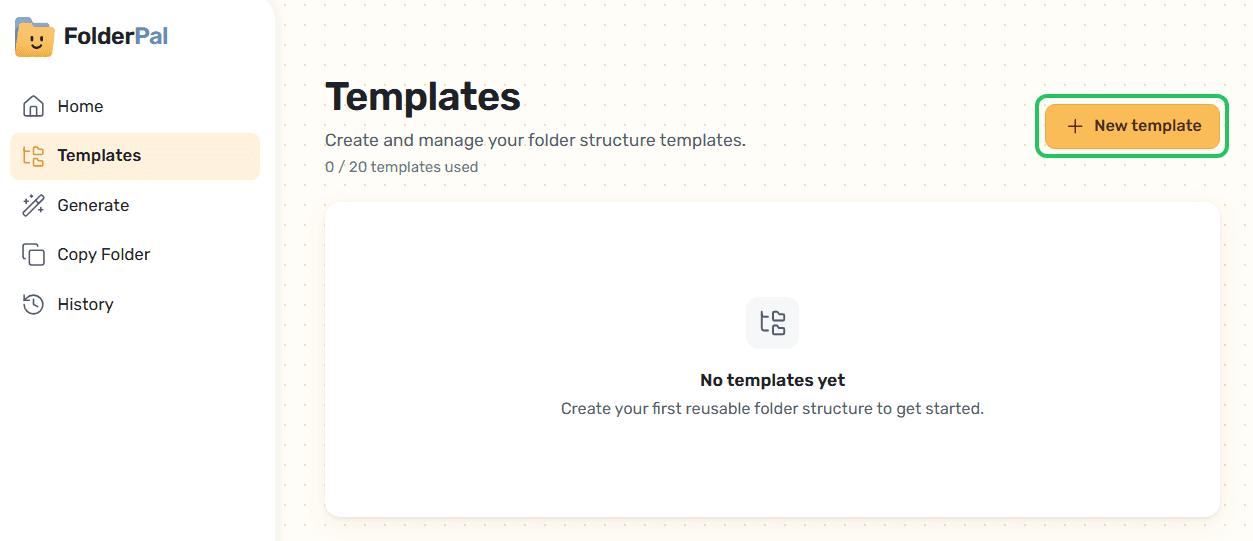
Click Templates > New template.
3. Name your template and choose where folders go
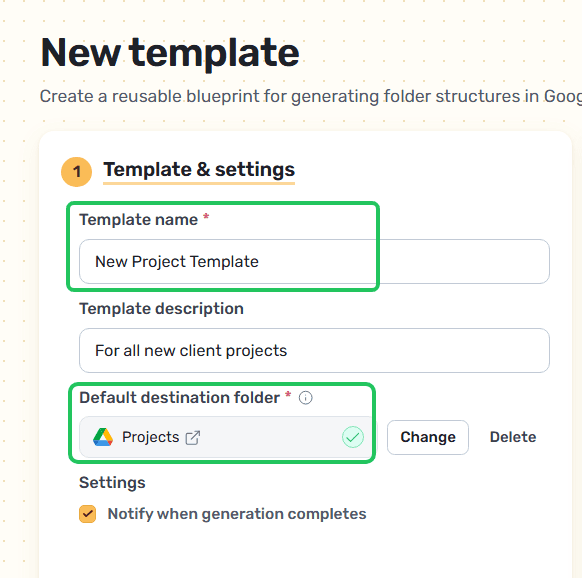
Give your template a Template name and a description.
Set the Default destination folder — the Google Drive folder that every folder generated from this template will sit under. You may choose any folder in My Drive or Shared Drives, as long as you have permission to create folders in them.
You may choose to be notified, where you will receive a completion email any time a generation has been completed. Useful for long-running jobs or when you're creating folders via integrations.
4. Add merge fields for names that change
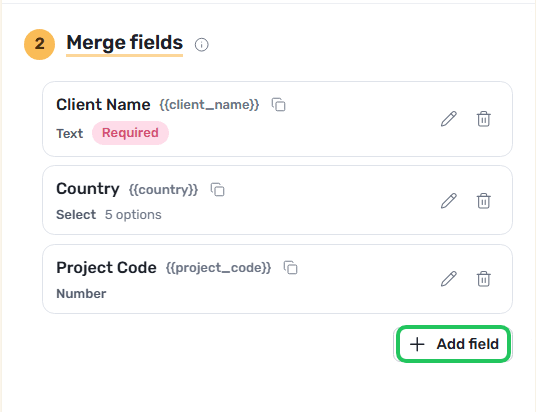
A merge field is a placeholder, like {{client_name}}, that you fill in each time you generate. Add them here, then use them in your folder and file names.
5. Add sharing permissions
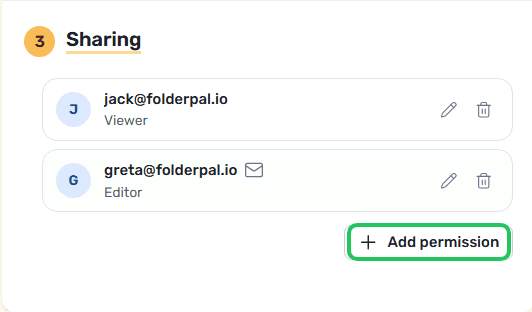
Add default sharing permissions to your template. For each generation using this template, these are the default set of permissions.
6. Build the folder structure
Import a folder from Google Drive to copy its structure across, or start empty and add everything yourself.
Not sure what to include? Start from one of our example folder structures.
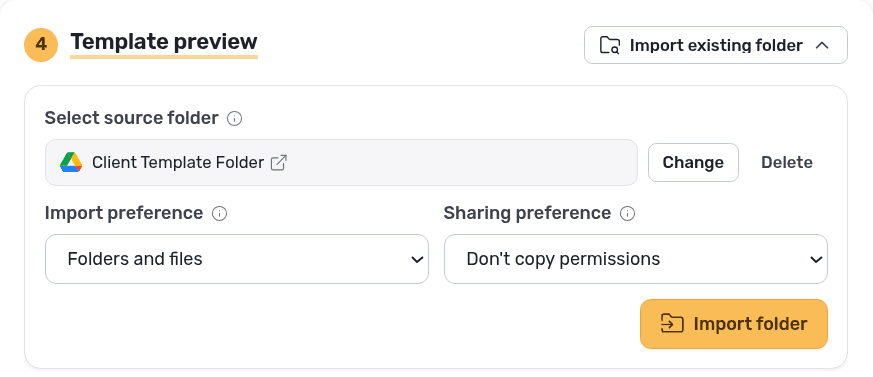
Import from Drive (optional)
Pick a folder in Drive and FolderPal copies its folders and files into your template. Your folder in Drive is never changed.
Add folders and files
Use the buttons on any row to add a folder or file inside it. Nest folders as deep as you need.
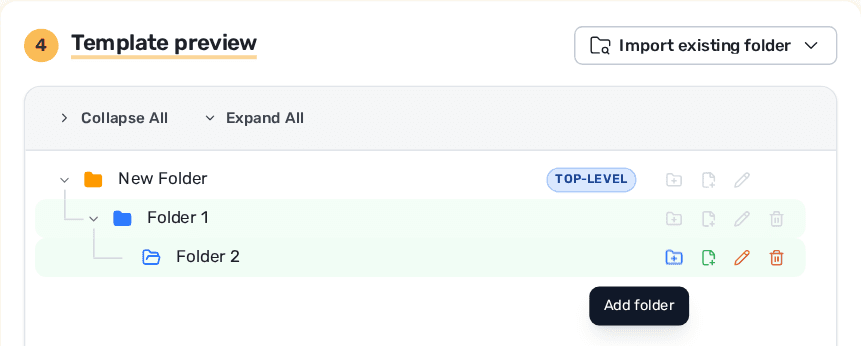
Files aren't uploaded to FolderPal. We link to the file in your Drive and copy it when you generate. Add Google files (Docs, Sheets, Slides) or other files (Word, Excel, PDF). Your file types and names are preserved exactly during the copy.
Edit folder and file names
Rename anything in the template to what you want the generated copy called. The original in your Drive keeps its own name.
Naming your new folder
Your new folder in Drive gets the same name as your top-level folder. To change the name each time, add a merge field. For example, {{client_name}} – Onboarding becomes Acme Co – Onboarding.
Add merge fields to names
Use a merge field for any part of a name that changes each time, like a client or project name. Add one with the Add Merge Field button, or type it yourself as {{example_field}}.
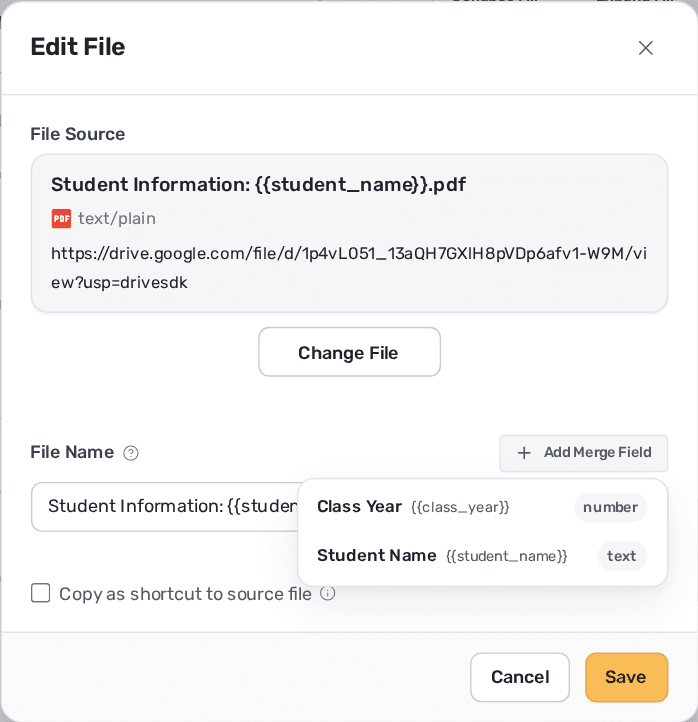
Merge fields work in the folder you import from too, so you can set them up in Drive first if that's easier. Do this by manually adding the merge field, e.g. {{client_name}}, to the folder or file.
For example, this template:
{{client_name}} – Onboarding/
├── 01 Contracts/
│   └── {{client_name}} Agreement
└── 02 Working Files/
With Acme Co as the client name, it generates:
Acme Co – Onboarding/
├── 01 Contracts/
│   └── Acme Co Agreement
└── 02 Working Files/
Create as shortcut
Instead of copying a file, add it as a Google Drive shortcut. Every generated folder points to the same original, so updating it updates everywhere.
Use a shortcut for things people only need to read, like a policy or price list. Use a copy when each folder needs its own version to fill in.
Shortcuts take up no storage, so they're a good way to keep your Drive usage down or stay under a file size limit.
Limits and restrictions
Some limits depend on your plan:
- Folders and files per template
- Nesting depth
- File size
If you lose access to a file, that item errors. Jobs will proceed as normal and skip over errored items.
7. Save your template
Click Create template to save it. Your template appears in the Templates list, ready to generate folders from.
Common questions
Does building a template change my folder in Drive?
No. Your original folder is never changed.
Are my files uploaded to FolderPal?
No. FolderPal links to your files and copies them when you generate.
Which file types can I add?
Google Docs, Sheets, and Slides, plus other files like Word, Excel, and PDF.