
Getting started with Google Drive folder templates
Quickly get set up with your first folder template and start building repeatable folders today.
Last updated
1. Connect to Google Drive
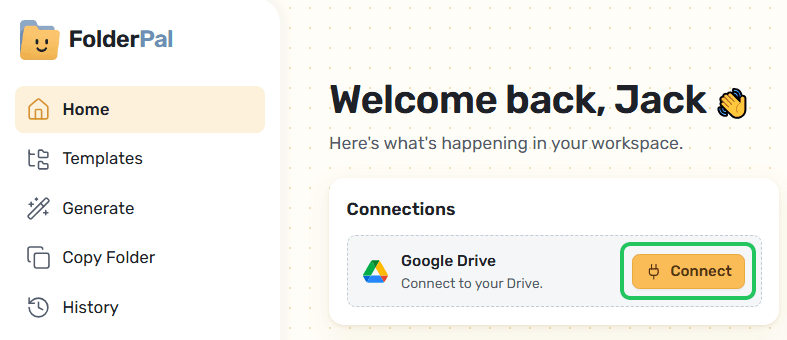
Grant access to the Drive scope so FolderPal can read your folders and create new files.
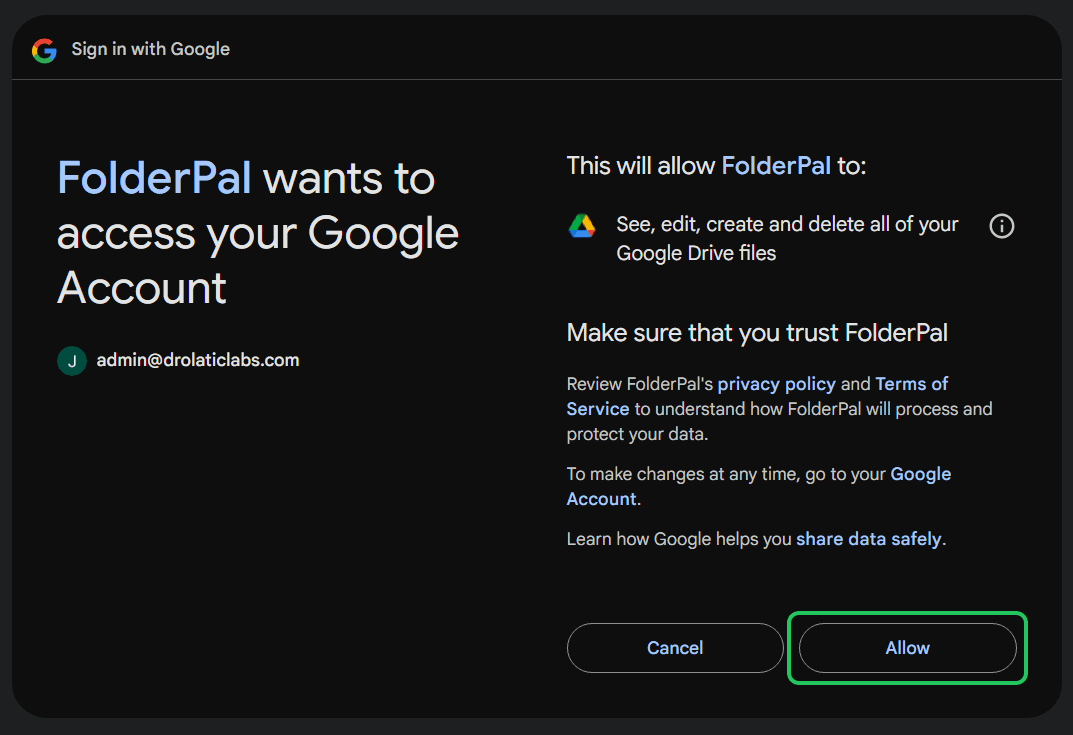
2. Create a new Template
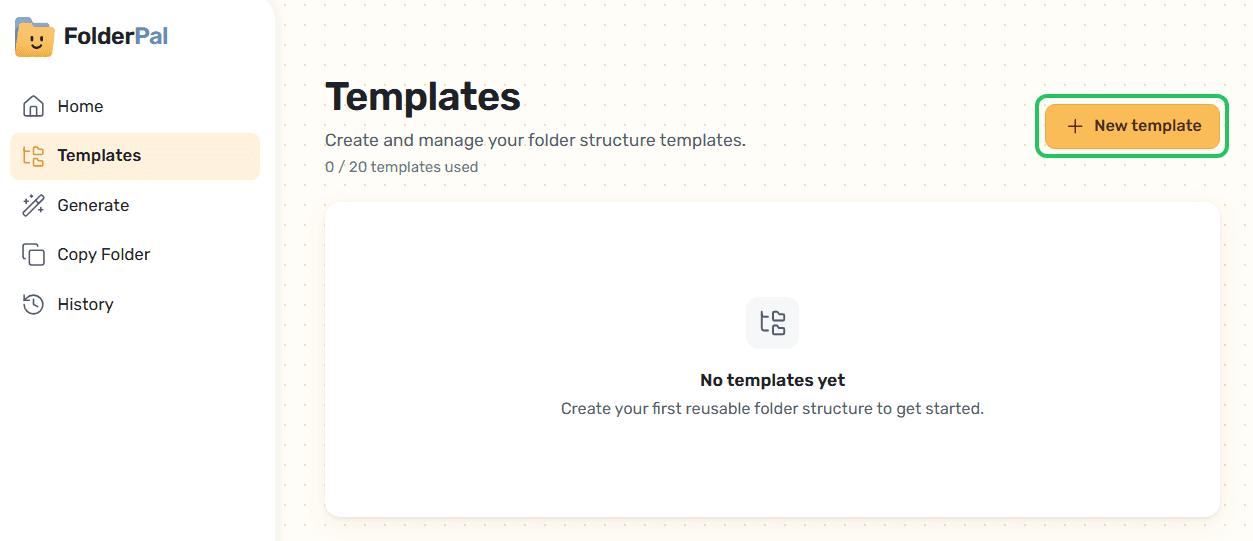
3. Set Destination Folder
Set a default destination folder for your template. This is the folder where all folders generated with this template will sit under.
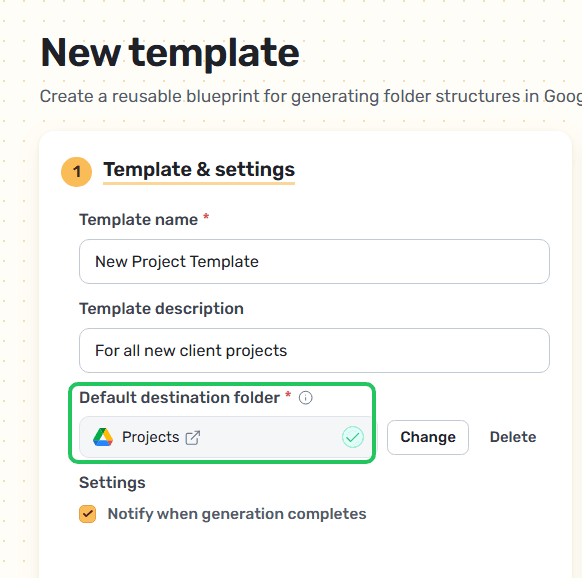
4. Add Merge Fields & Sharing Permissions
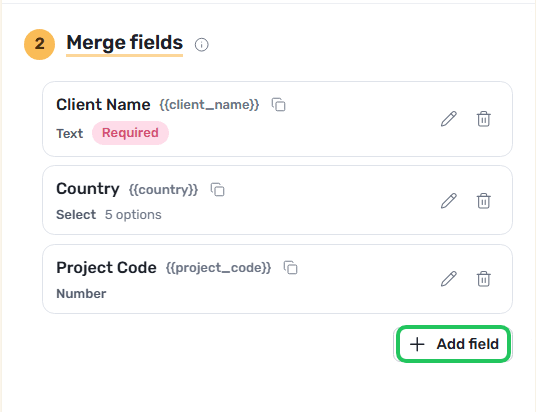
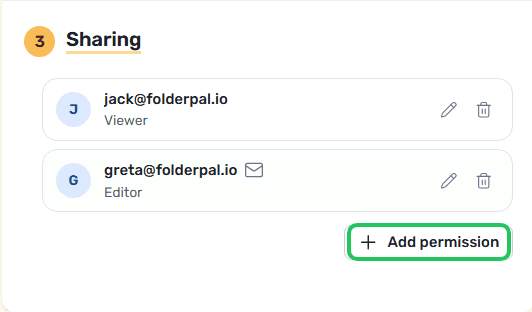
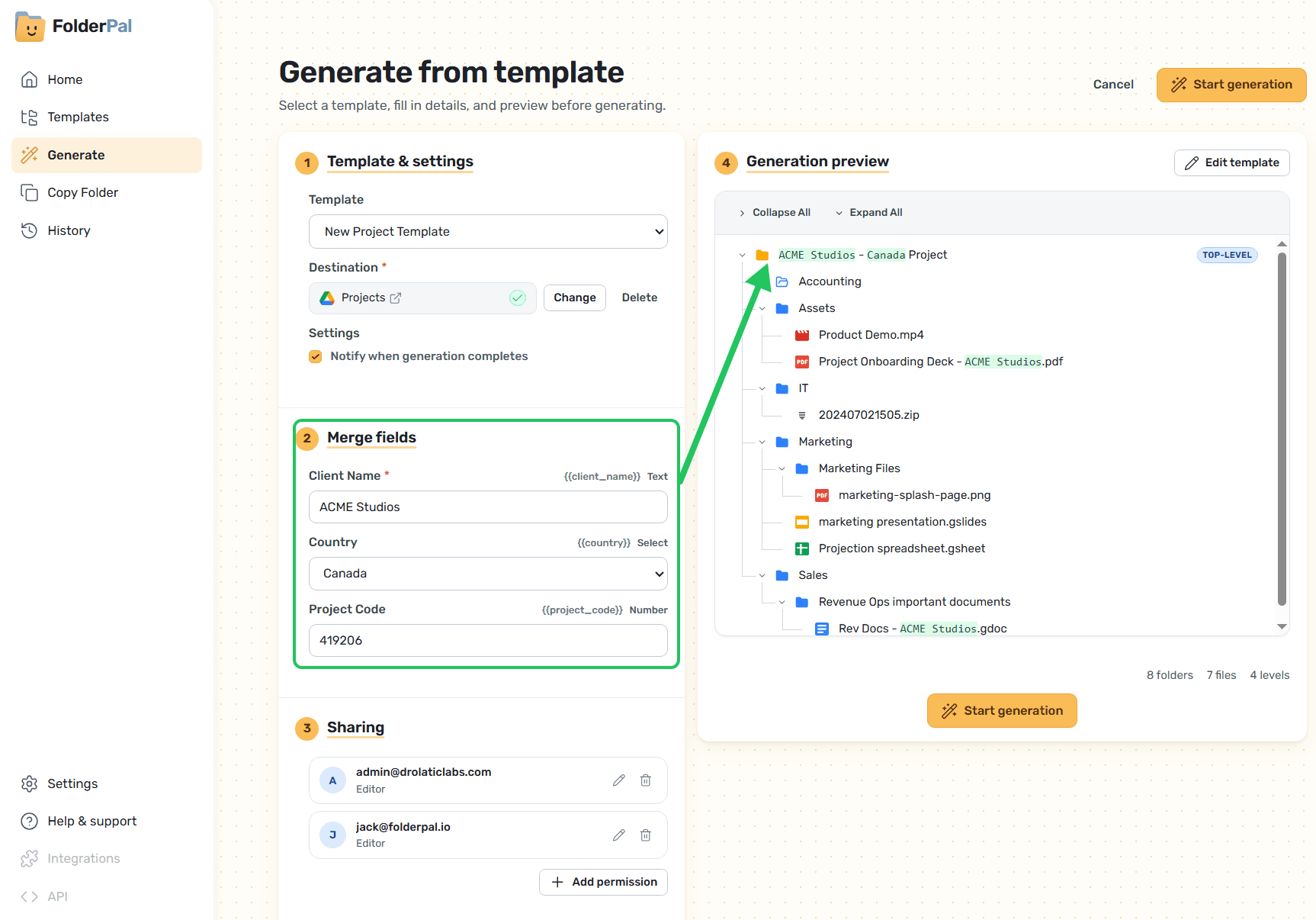
Add merge fields and default sharing permissions to your template. For each generation using this template, these fields will be set by default.
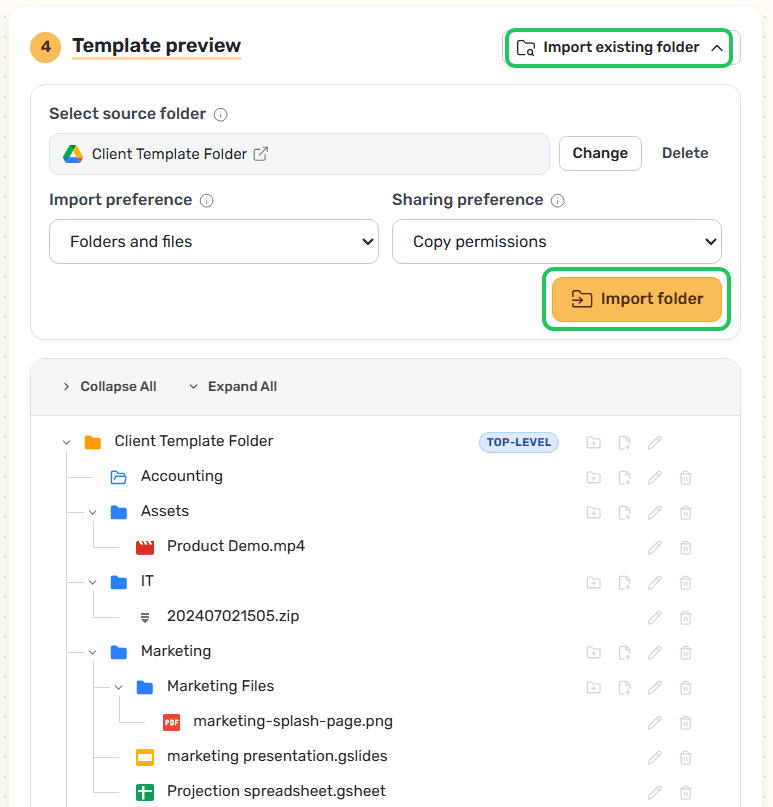
5. Optional: Import an existing folder from Google Drive
6. Customize Template Folders & Files
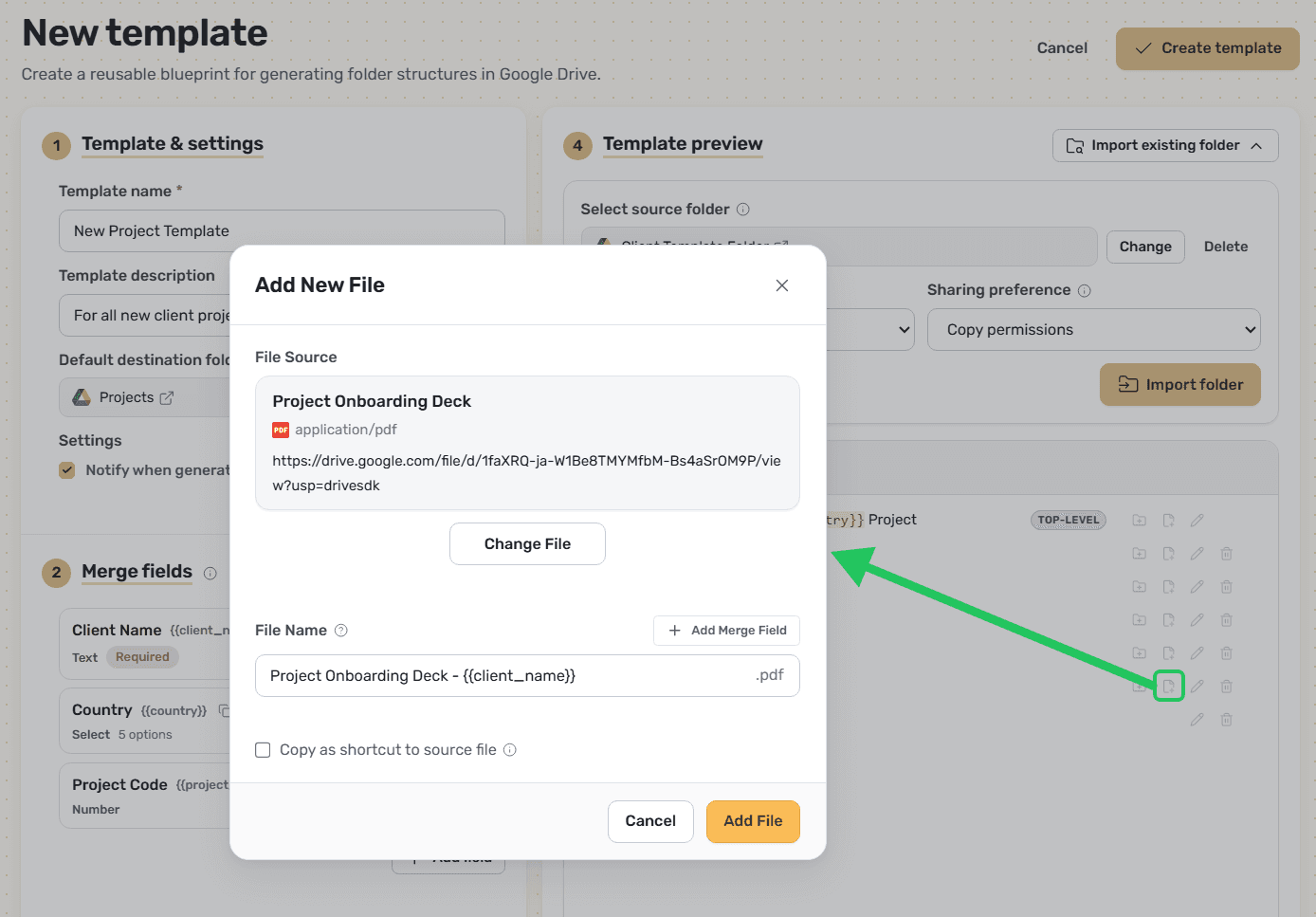
Use the template editor's action buttons to add and edit folders and files until you have your perfect folder structure. Changes here do not impact your source folder.
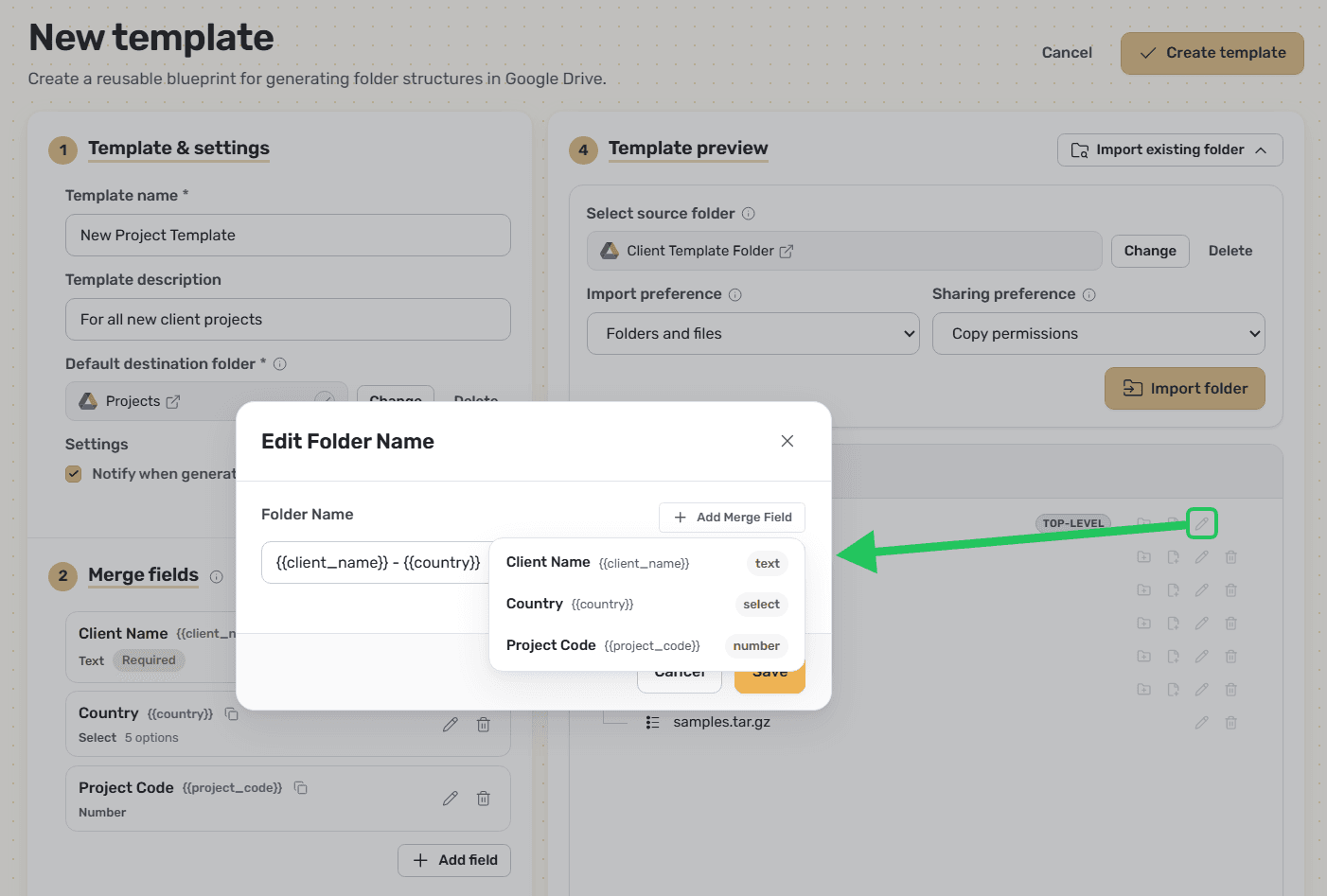
Merge fields can be inserted here directly using the Add Merge Field button, or you can manually specify them in the Drive source folder with the {{example_field}} label pattern.
Naming your new folder
Your new folder in Drive gets the same name as your top-level folder. To change the name each time, add a merge field. For example, {{client_name}} – Onboarding becomes Acme Co – Onboarding.
You can insert files directly into your template. These are not uploaded to FolderPal; we store the link to the file and copy it at generation time. You may add both native Google files (Docs, Sheets, Slides) as well as binary files (Word, Excel, PDF).
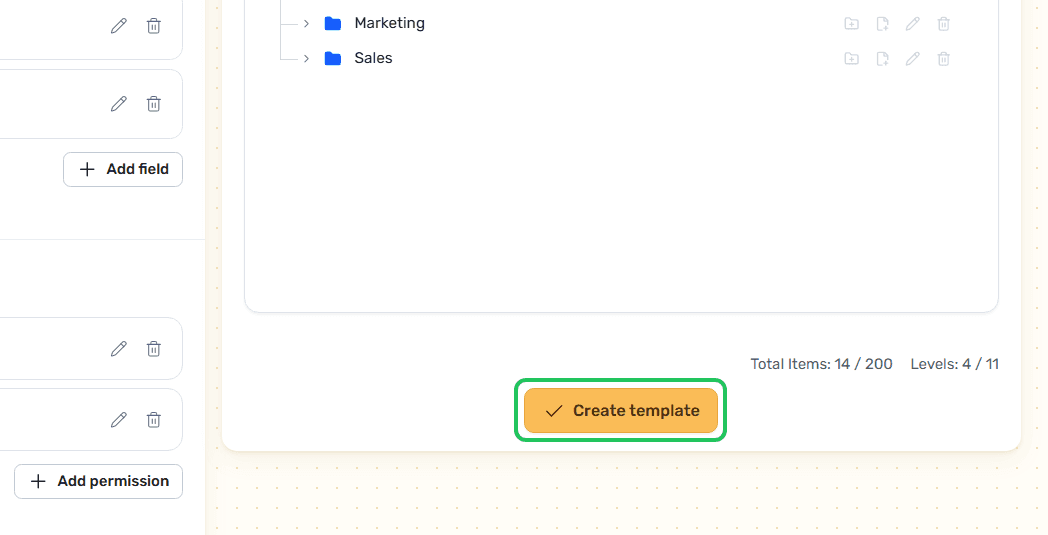
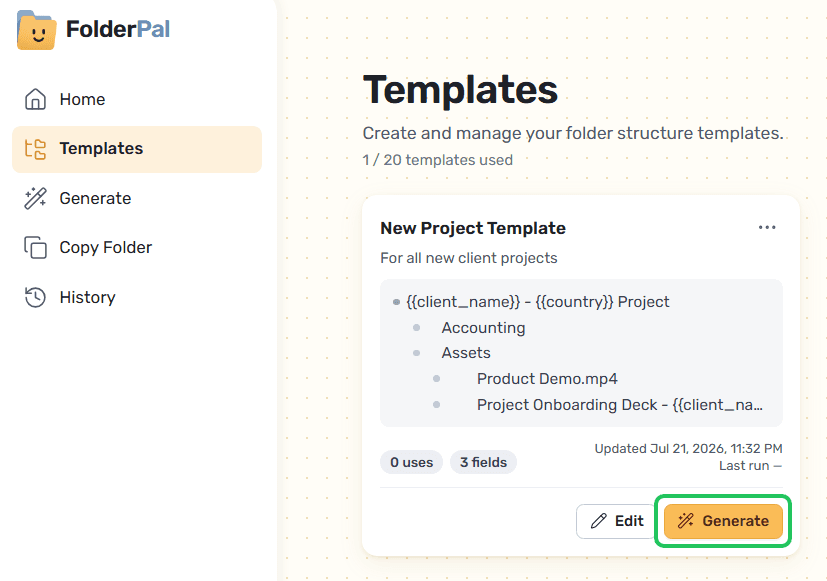
7. Generate from Template
8. Fill in Merge Fields
9. Generate!
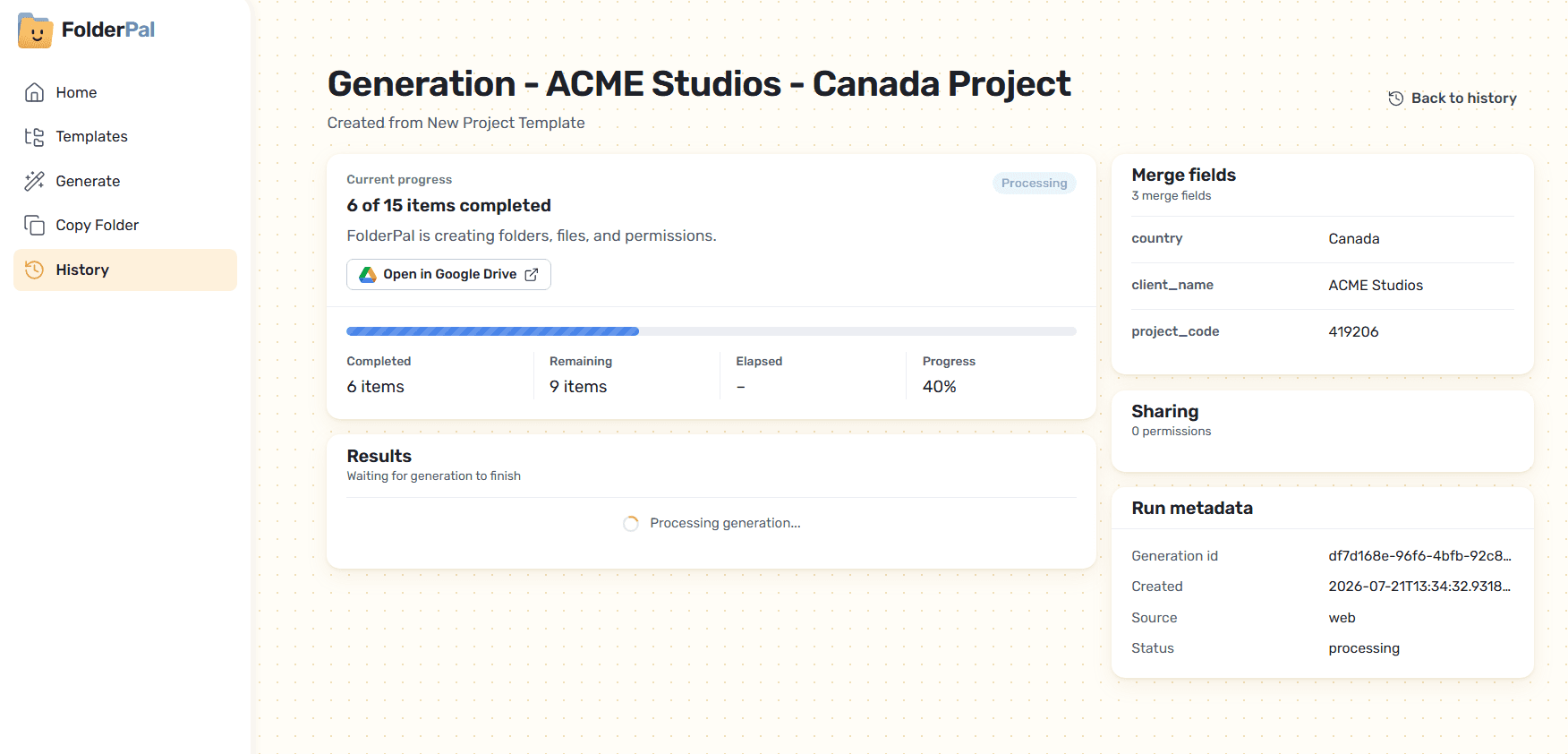
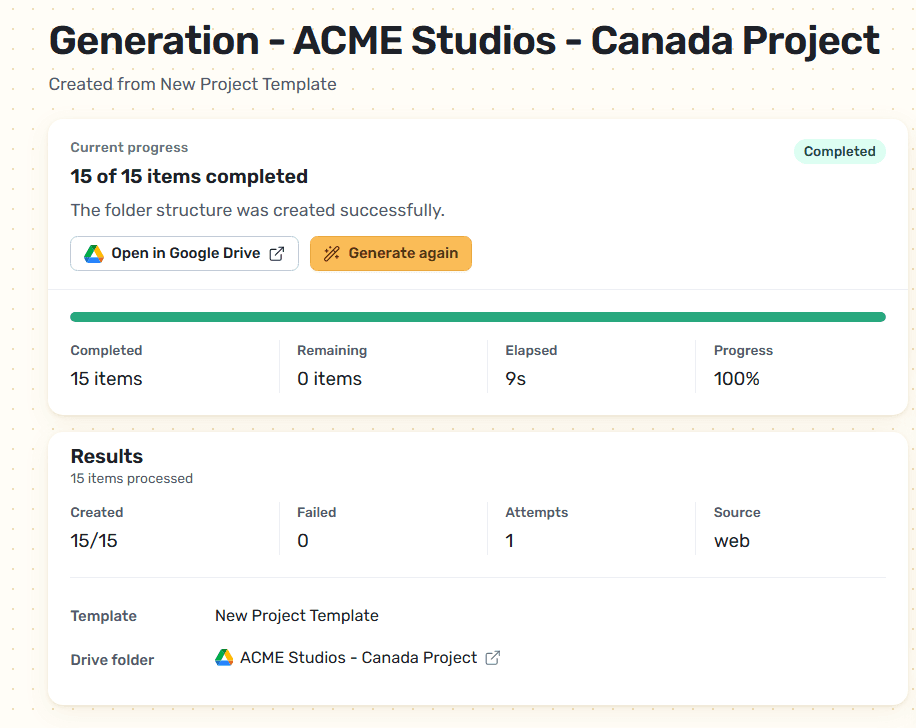
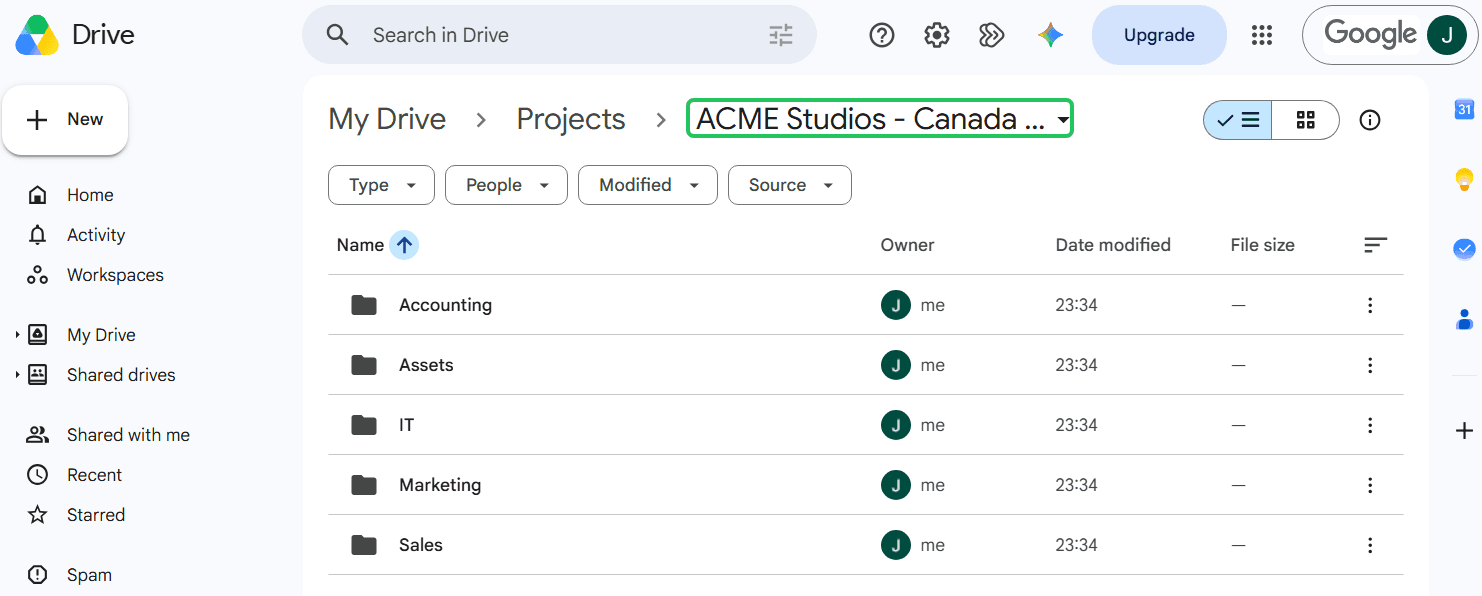
10. Check your new folders
11. Generate again and again with the same template
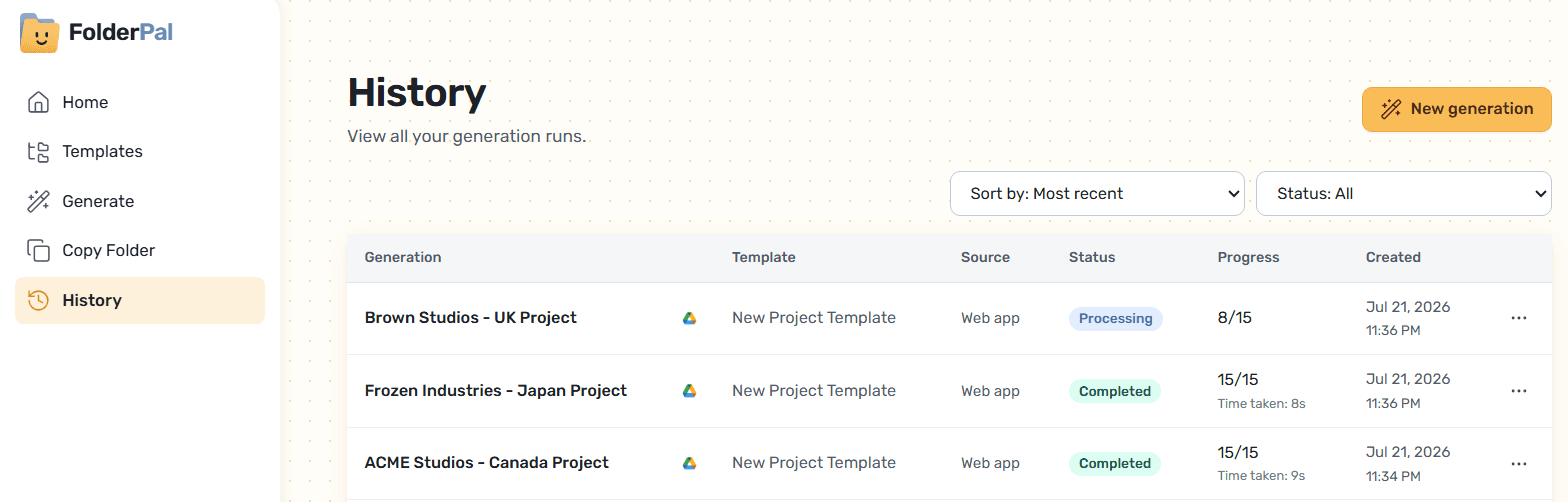
Templates are reusable, so you can run the same structure as often as you need. How many generations you get each month depends on your plan.