
How to generate folders from a template in Google Drive
Once you've created a folder template, you can start generating new Drive folder structures in seconds.
Last updated
1. Start a generation
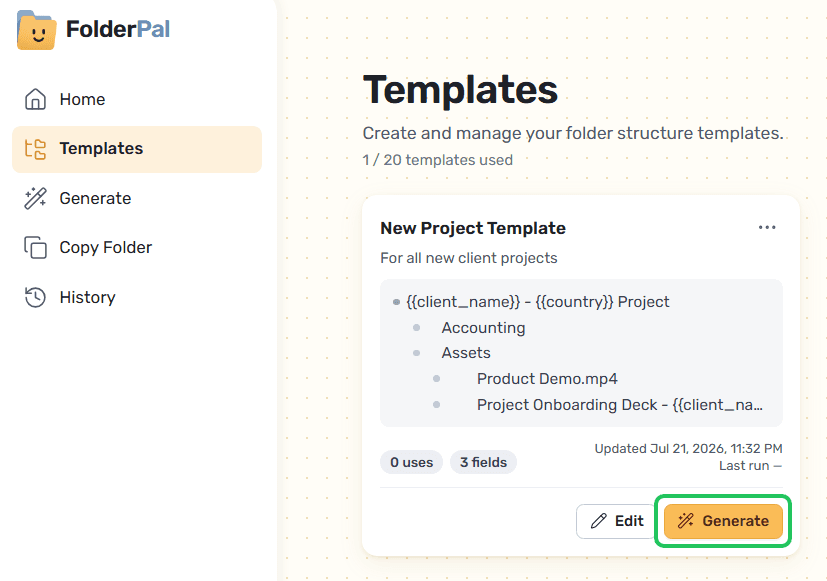
Click Generate on a template in your Templates list. You can also click Generate in the sidebar and pick a template.
2. Fill in merge fields
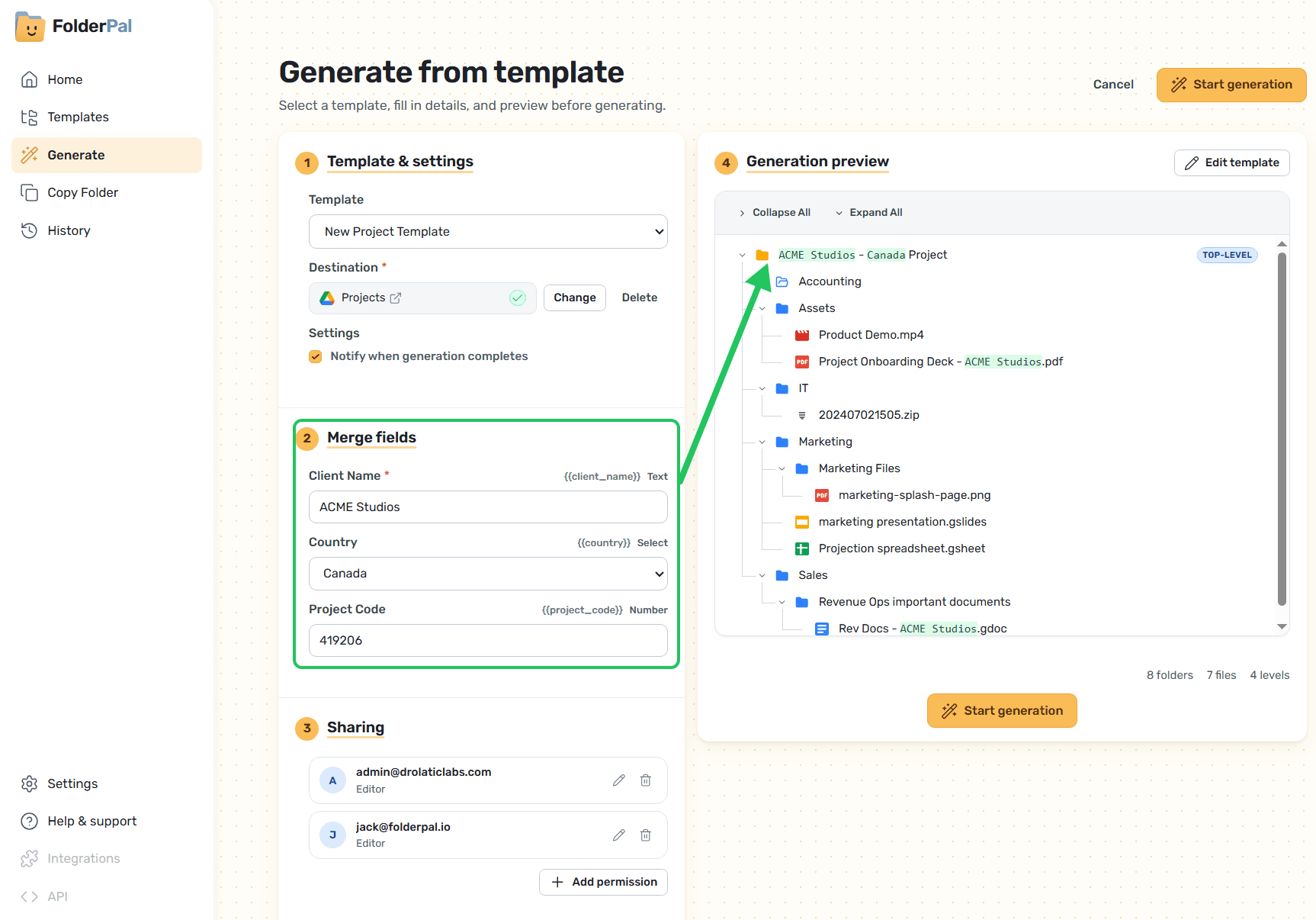
Enter a value for each merge field. These fill in your folder and file names. Fields marked * are required.
3. Check the destination
Your new folders by default go into the template's default destination folder. If you want a different folder this run, click Change folder to put them somewhere else.
Tick Notify when generation completes to get an email when it's done.
4. Check sharing
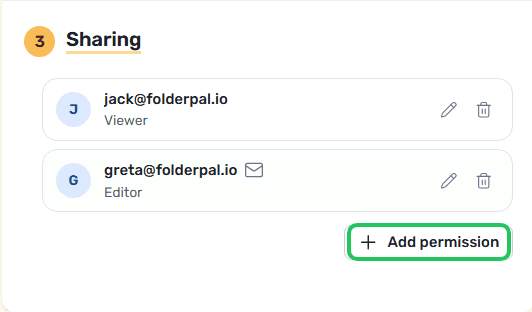
Everyone listed under Sharing gets access to the top-level folder with the role shown, like Viewer or Editor. The sharing list comes from your template, and you can add, edit, or remove people here.
Google only emails people who are set to be notified.
5. Preview and start
The Generation preview shows exactly what will be created, with your values filled in. When it looks right, click Start generation.
6. Wait for it to finish
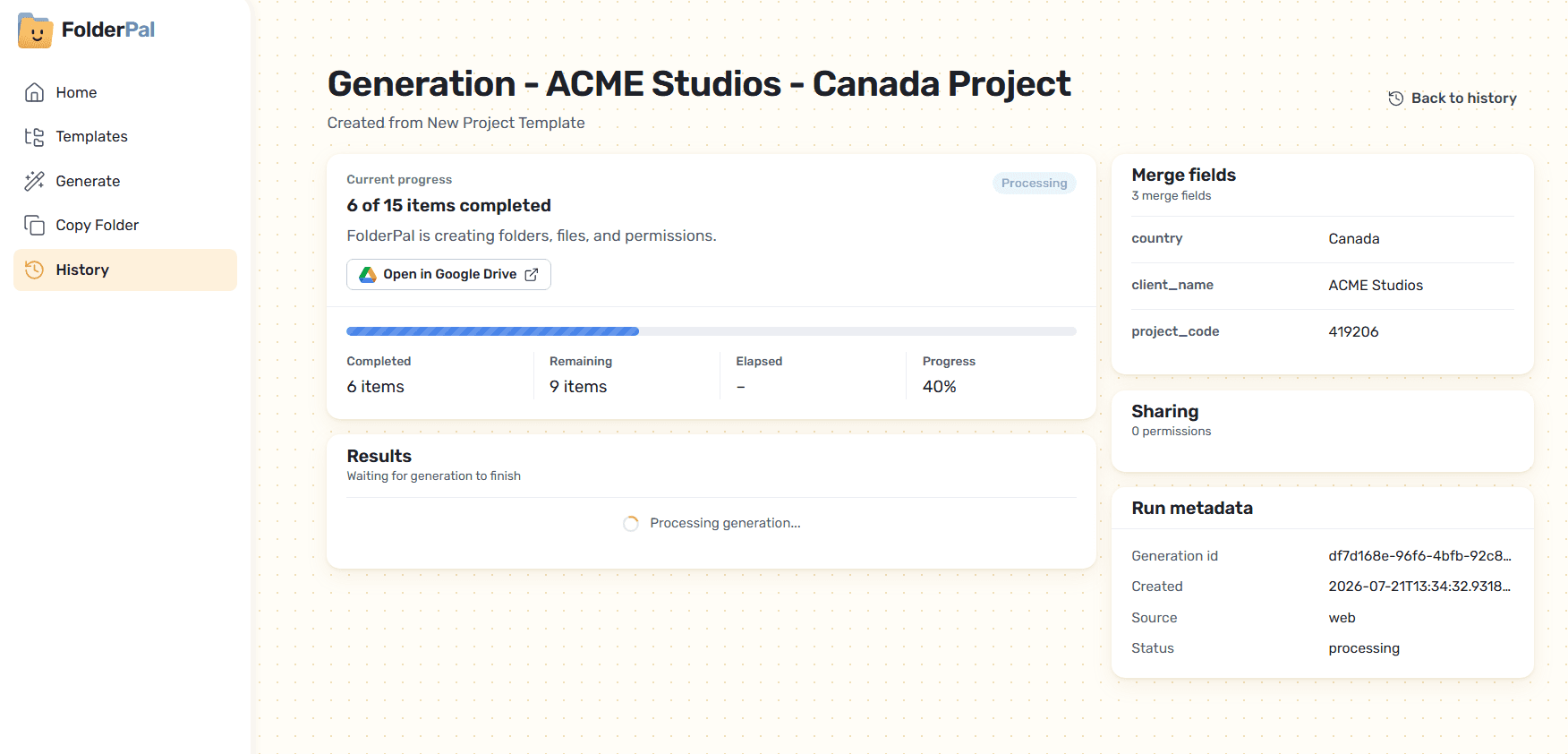
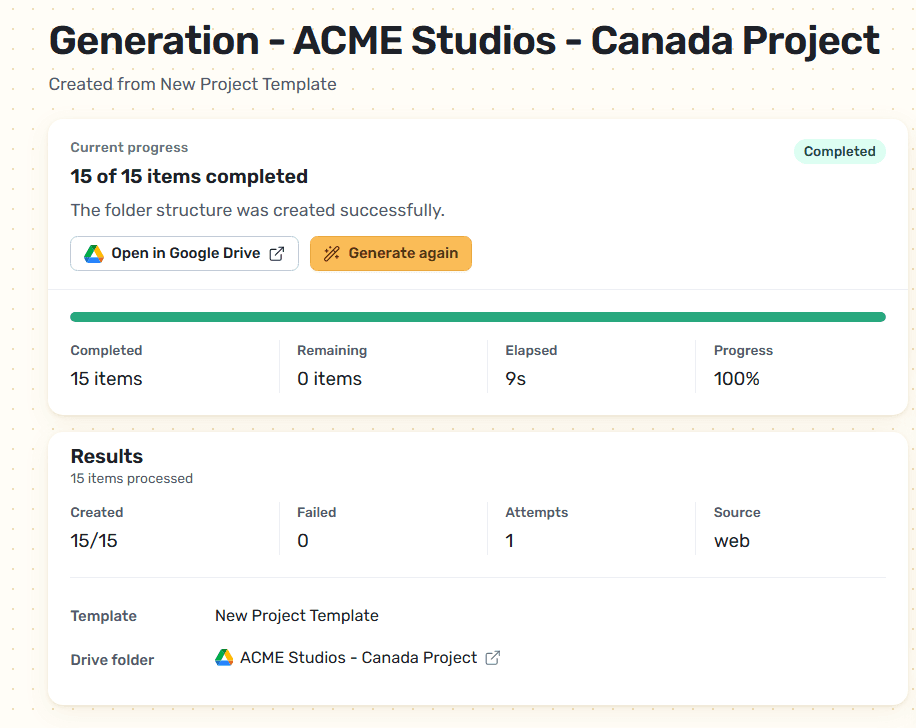
FolderPal creates your folders, files, and sharing in the background, and you don't need to keep the page open.
7. Open your folders
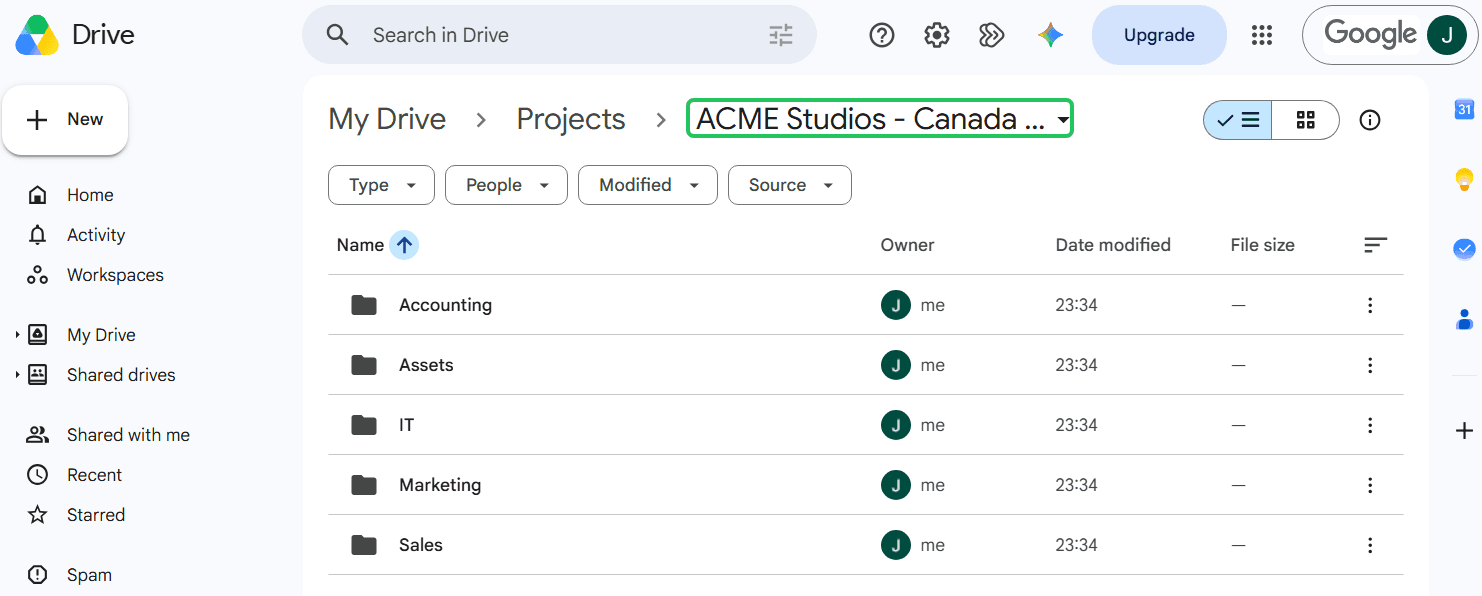
When it's done, click Open in Google Drive to see your new folders.
If some items fail
Sometimes an item can't be created, for example if you've lost access to a file. You'll see the error for why each one failed.
Click Retry to run the generation again. FolderPal only retries the items that failed.
Generate again
Click Generate again to make another set from the same template. Every past generation is listed in History.
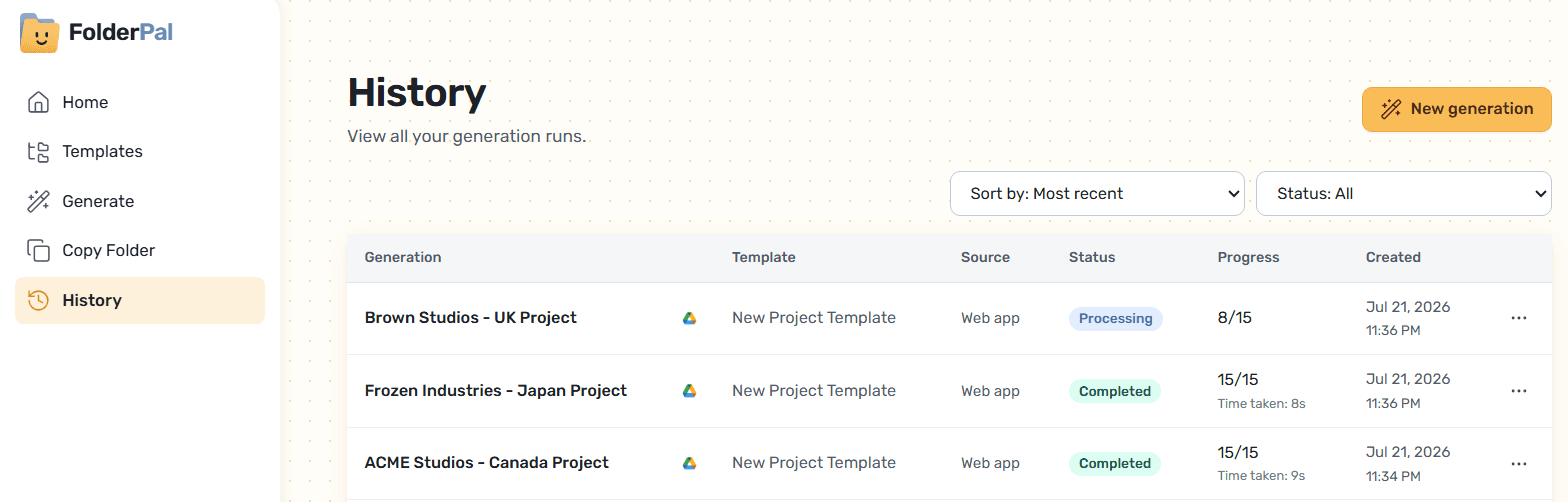
How many generations you get each month depends on your plan.
Common questions
Does generating change my template?
No. Your template stays the same, so the next generation starts from the same structure.