How to create a Google Drive folder template
Folder templates help you organize and automate Drive folders that you plan to use again and again. Setting one up is easy and powers up your workflows.
1. Before you start
Make sure you are connected to Google Drive.
2. Create a New Template
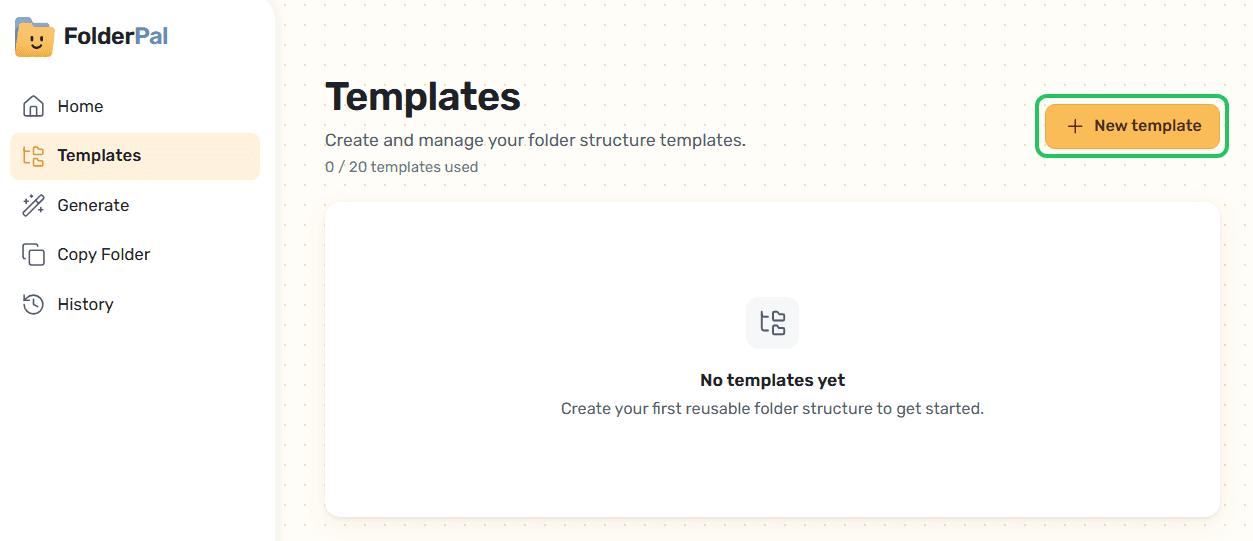
Click Templates > New template.
3. Fill template fields and destination folder
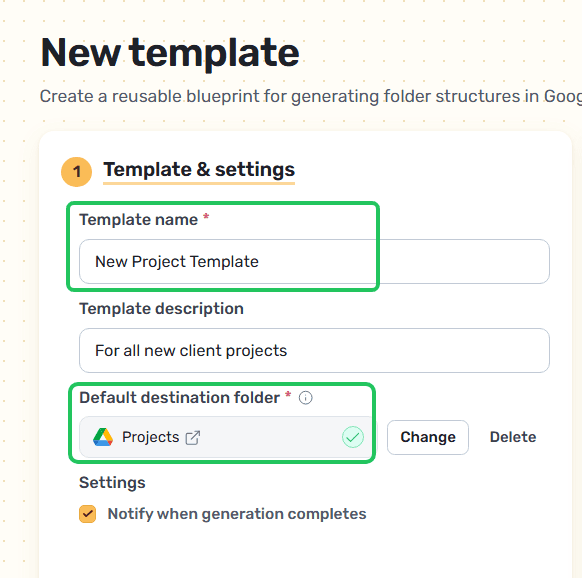
Give your template a Template name and a description.
Set the Default destination folder — the Google Drive folder that every folder generated from this template will sit under. You may choose any folder in My Drive or Shared Drives, as long as you have permissions to create folders in them.
You may choose to be notified, where you will receive a completion email any time a generation has been completed. Useful for long-running jobs or when you're creating folders via integrations.
4. Add merge fields for names that change
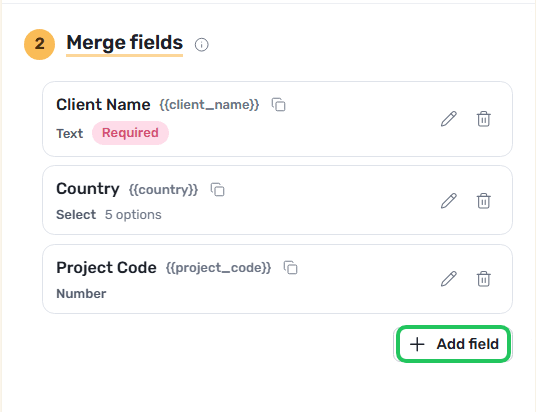
Add merge fields to your template. For each generation using this template, these fields will be set by default.
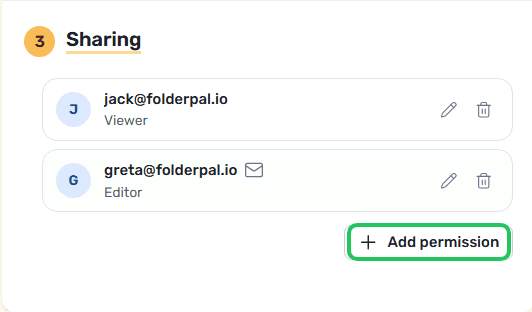
5. Add sharing permissions
Add default sharing permissions to your template. For each generation using this template, these permissions will be set by default.