
How to set up the FolderPal Zapier integration
Set up a Zap that builds Google Drive client folders from a FolderPal template or an existing Drive folder, with merge fields and sharing. To get an idea of what you can do, see the Zapier integration.
Each folder FolderPal creates uses just 1 Zapier task, however many subfolders and files it contains. Building the same structure with Zapier's Google Drive steps uses a task for every folder and file. FolderPal runs are subject to your plan's usage.
Last updated
Before you start
- A FolderPal Pro plan
- A Zapier account
1. Pick a trigger
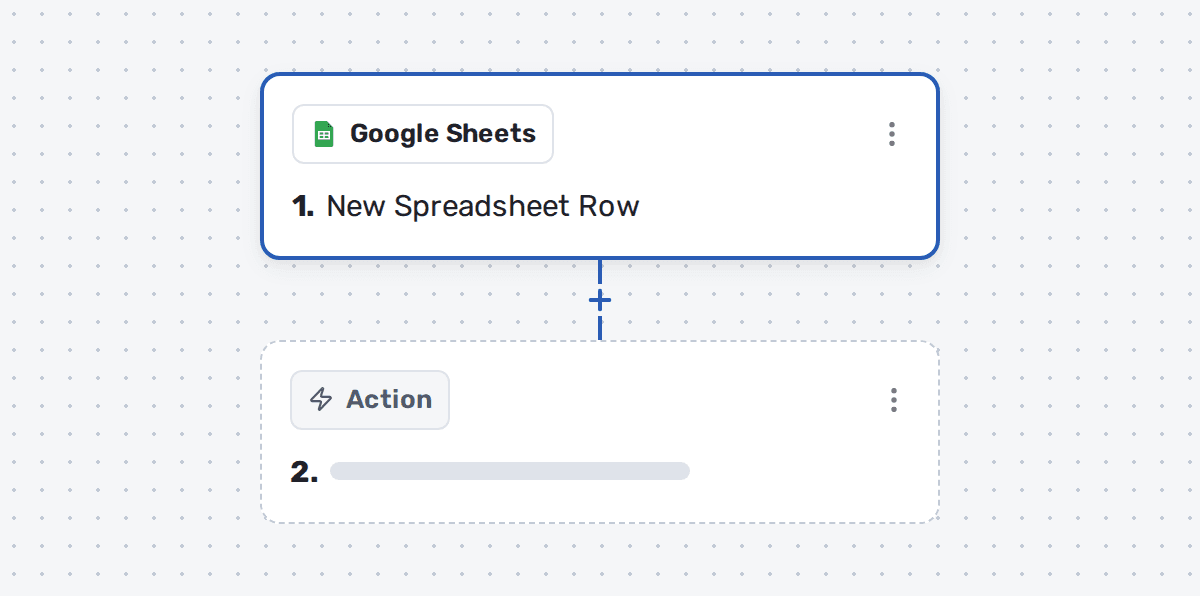
In Zapier, create a Zap and choose the event that starts a new client or project, like a won deal in Pipedrive or a new form entry.
2. Create an API key
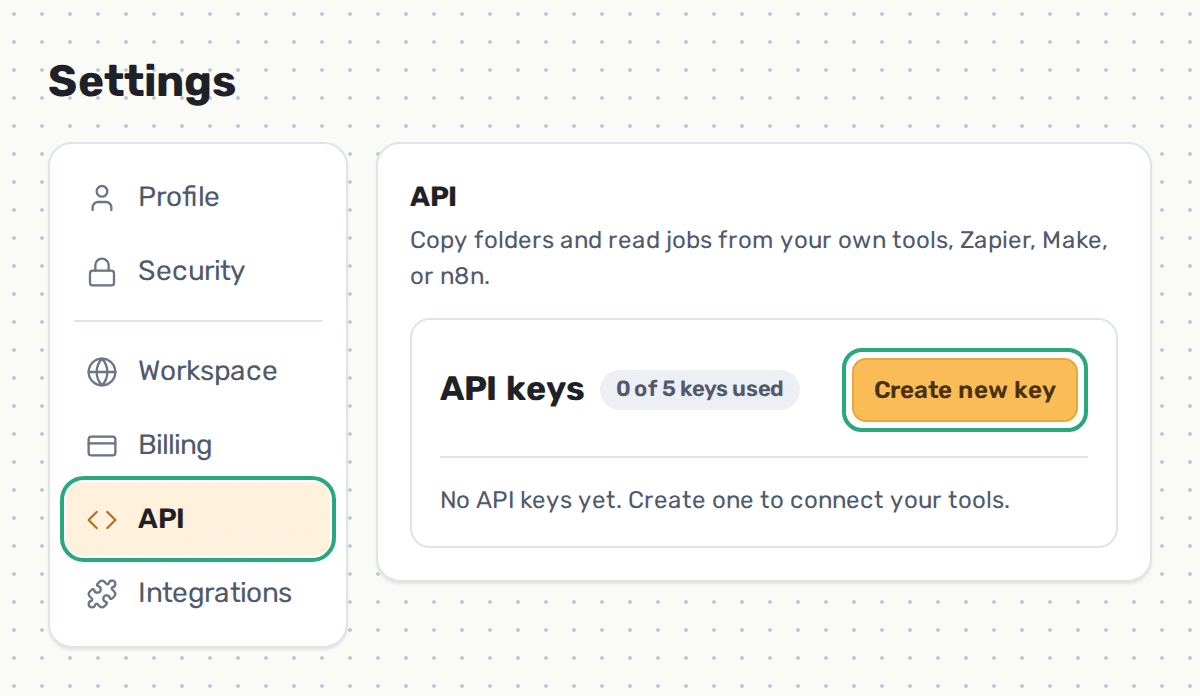
In FolderPal, open Settings > API and create a key. Copy it for the next step.
3. Connect FolderPal
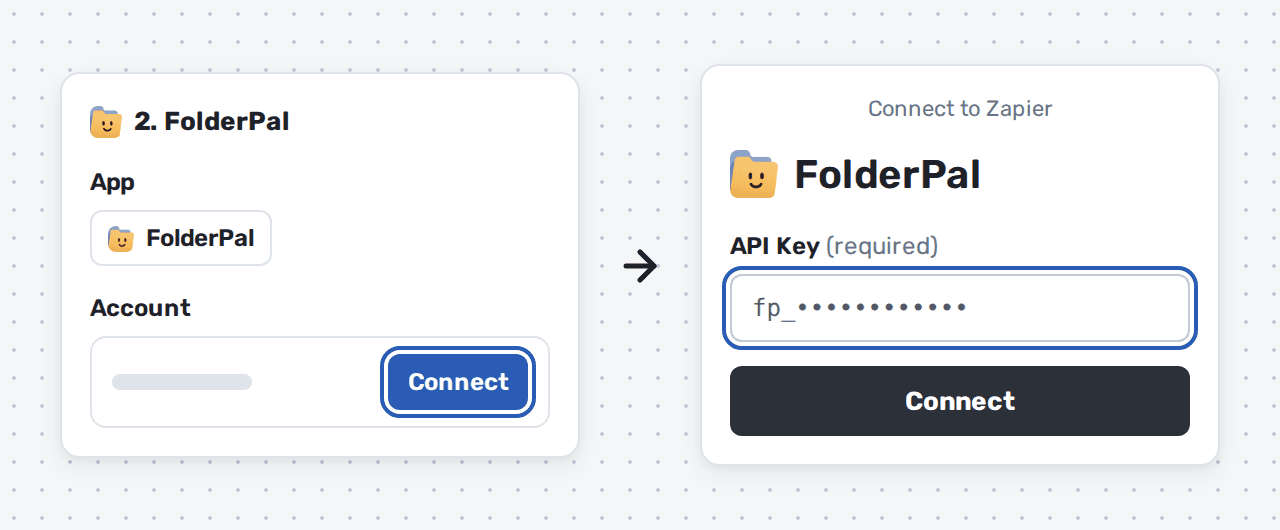
Add an action step and look for FolderPal. Under Account, click Connect and paste your API key when prompted.
4. Choose a copy method
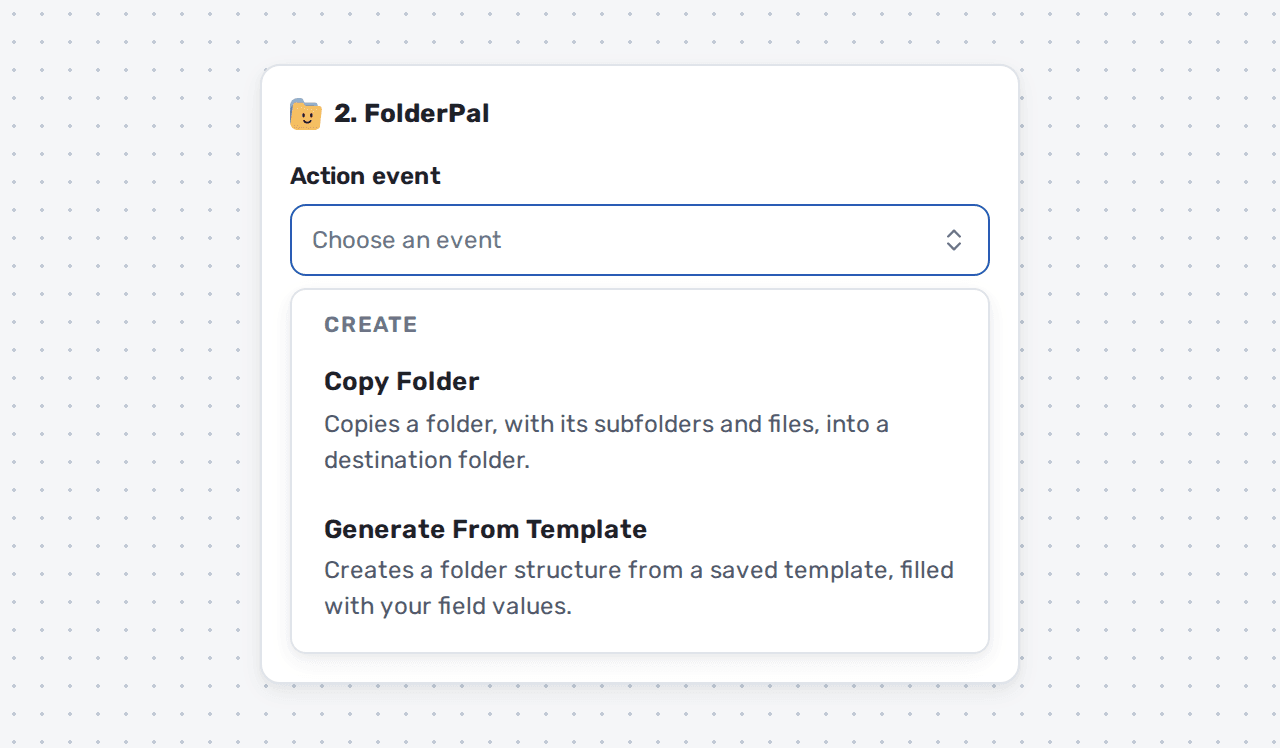
Under Action event, select a copy method. There are two options:
- Copy Folder - You have an existing Google Drive folder you want to use. You provide the Drive folder ID, set a destination folder, and it will copy the folder exactly.
- Generate From Template - You define a custom folder structure in FolderPal. You pick the template, set a destination folder, and it will generate from that template.
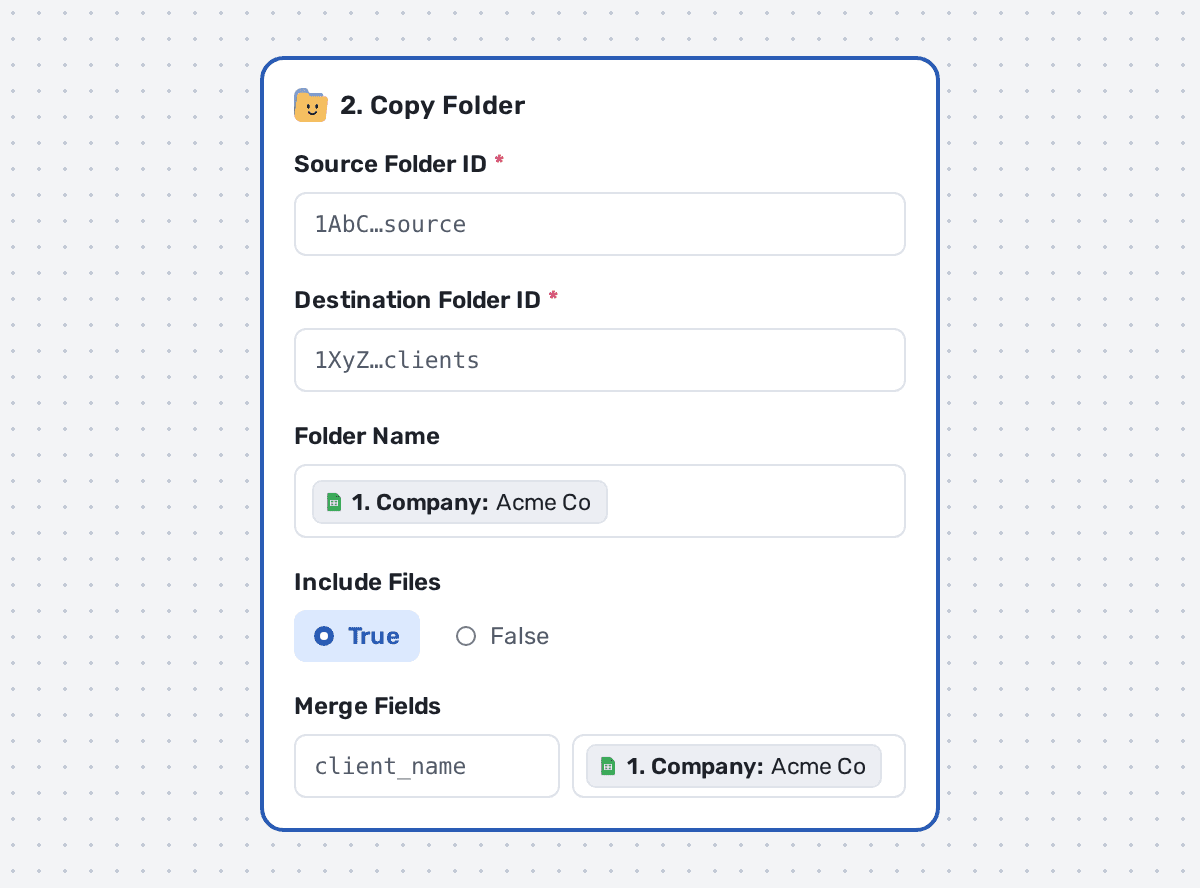
4a. Copy Folder
To copy a folder directly from Drive, fill in these fields:
- Source Folder ID: the Drive folder to copy. It's the last part of the folder's URL.
- Destination Folder ID: where the copy goes in Google Drive.
- Folder Name: optional. Rename the top-level folder with values from the trigger, like the client or project name. Leave it blank to keep the source folder's name.
- Include Files: choose False to copy only the folders.
- Merge Fields: optional. Enter the tag name without braces on the left, like
client_name, and map its value on the right. Any folder or file in your source folder with{{client_name}}in its name gets that value instead. - Share Folder With: optional. Add an email address or domain, a permission, and whether to send a sharing email. Subfolders and files inherit access.
- External ID: optional. The trigger record's ID, like a Pipedrive deal ID. See Send the folder link back.
4b. Generate From Template
For a custom folder structure, create a template in FolderPal with the template editor.
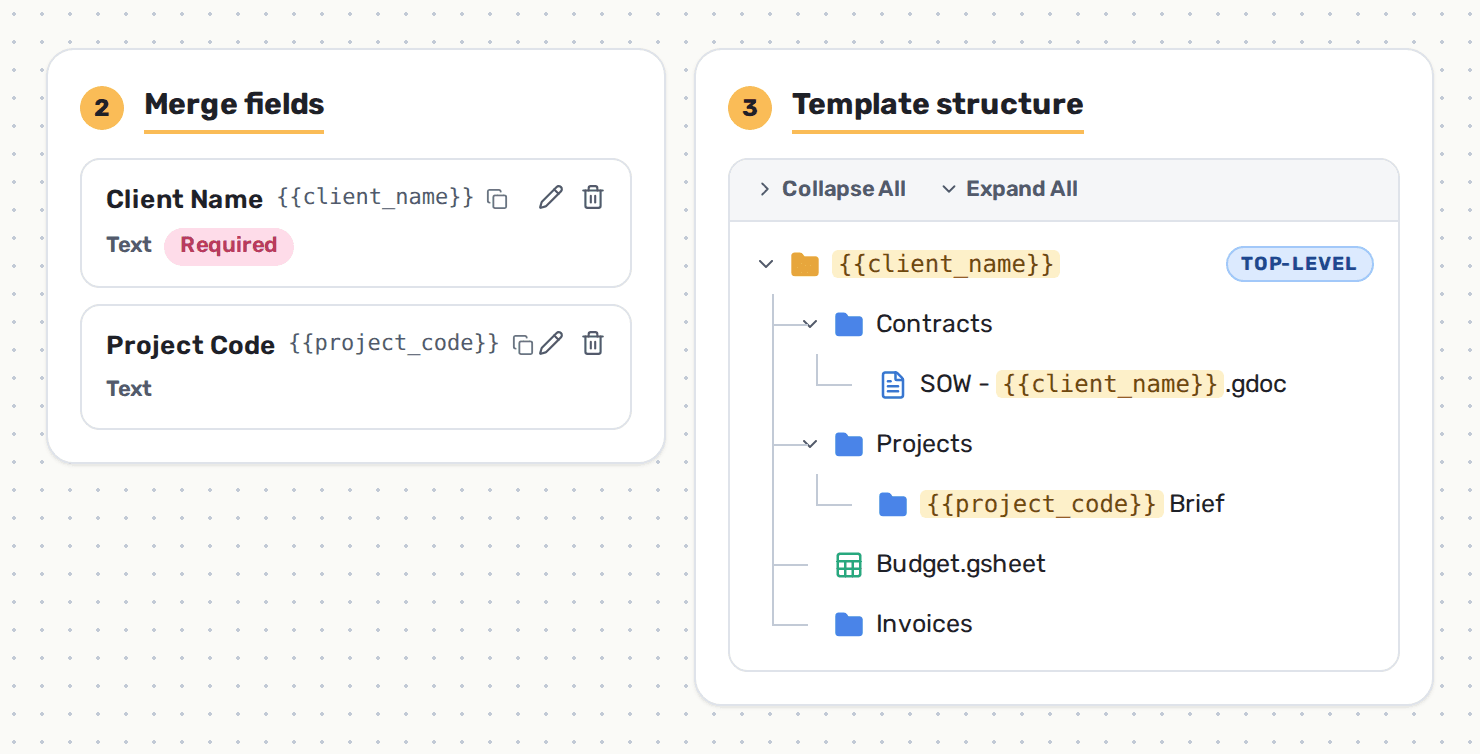
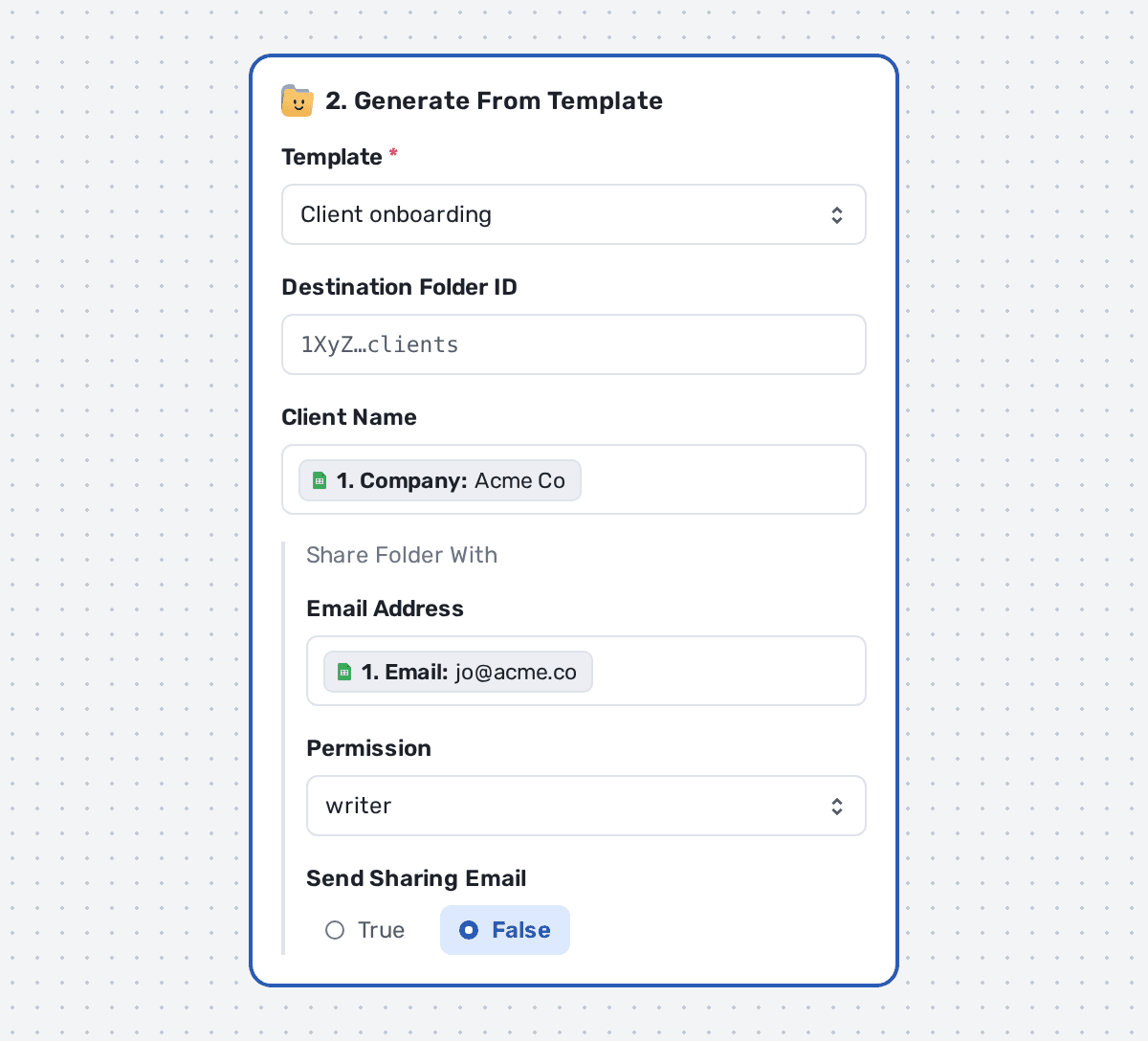
Once it's saved with its defaults set, fill in these fields:
- Template: the FolderPal template to generate from.
- Destination Folder ID: optional. Overrides the template's destination folder.
- Merge fields: your template's fields appear once you pick it, like Client Name. Map each one from the trigger.
- Share Folder With: optional. Add an email address or domain, a permission, and whether to send a sharing email. Subfolders and files inherit access.
- External ID: optional. The trigger record's ID, like a Pipedrive deal ID. See Send the folder link back.
5. Test and turn it on
Test the step, check the new folder in Google Drive and in FolderPal History, then publish the Zap.
6. Send the folder link back
To save the folder link on the record that started the Zap, like a Pipedrive deal:
- In the FolderPal action, map the record's ID to External ID.
- Start a second Zap with FolderPal's New Folder Created trigger.
- Add your app's update action, like Pipedrive Update Deal. Set the record ID to External ID and map Folder URL to a field.
The trigger also fires when some items fail to copy, with Status set to partial. It doesn't fire again if the folder is retried, so filtering on completed skips those folders.
Troubleshooting
Why doesn't the FolderPal step give me the folder link?
FolderPal builds the folder in the background, so the action only returns a job ID. To get the link, use the New Folder Created trigger. See Send the folder link back.
Why did my Zap create duplicate folders?
Zapier may rerun a step, or the trigger can fire twice. The Idempotency Key field marks each request as unique, so the same request won't create duplicates. Set it to a unique identifier, like the client or project ID. Any request with the same Idempotency Key and values within 24 hours returns the existing job ID instead.
Why wasn't my merge field replaced?
Check that the field name matches the tag exactly, without braces: client_name for {{client_name}}. For templates, a blank value falls back to the field's default.
Where do I find a folder ID?
Open the folder in Google Drive. The ID is the last part of the URL, after /folders/. Use the ID, not the full link.