FolderPal use case
Set up one Google Drive class folder structure with its sharing already in place, then generate it again for each new course, class, and school year.

Whether you're an educator, course designer, or a school admin, managing coursework folders in Google Drive can be a challenge. A Google Drive folder template for teachers is a great starting point to creating predictable folders across faculties and classes, and a structure that holds up year after year.
This template folder structure is just an example of how you can scaffold your course/class folder hierarchy in Google Drive (Google Classroom), including pre-planning, lessons, assessments, communications, and course materials. FolderPal helps you create repeated course folders in Google Drive consistently, whether it is for classrooms, courses, or across faculties.
For general naming conventions and folder organization best practices, see Google Drive folder structure best practices and templates.
01 Course Overview works well as the front door: the course guide, key dates, and the handful of links you and your students open all year.
{{school_year}} Curriculum is a useful home for curriculum maps, standards references, and the planning documents you rewrite every cycle. The year sits in the folder name for high-level sorting.
03 Units and Lessons holds the teaching material itself. A single unit template inside it (lesson plans, slides, handouts, resources) means every unit starts the same way and no one’s scrambling to find stuff.
{{class_name}} Assessments keeps assessment templates, rubrics, and answer keys away from anything students can open.
{{class_name}} Student Resources and 06 Family Communications separate resources intended for students and families from the teaching team's working files. These are the two you'll want to check the access on before anything goes out.
07 Staff Resources suits documents shared by everyone teaching the same course. 08 Archive keeps last year's version reachable (Drive search still finds it) without letting it crowd this year's.
Whatever type of folder you want to repeat, start from one that is proven useful. Strip out stuff you don’t need, and keep the folders and files that can be copied going forward.
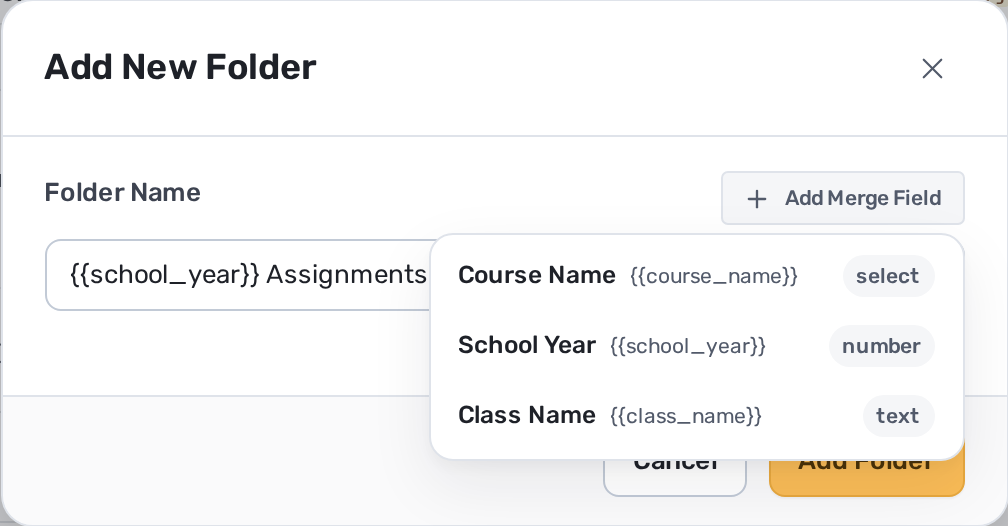
Use merge fields such as {{school_year}}, {{course_name}}, and {{class_name}} for the details that change from one class to the next. A gradebook, a student guide, and the folder holding them can all carry the class name, so each generated folder arrives labelled properly instead of "Copy of Copy of Biology".
If this is a one-time duplicate rather than something you'll repeat, check out FolderPal's simple folder copy feature. When your folders are more structured and repeatable, try creating templates.
Setup is a single pass over a folder you already have. Once it's saved, every new course or section comes from the same template.
Point FolderPal at an existing course folder and it imports the whole tree, nesting included. An empty template works too if you'd rather build it up folder by folder. Either way, editing the template leaves the original folder in Drive untouched.
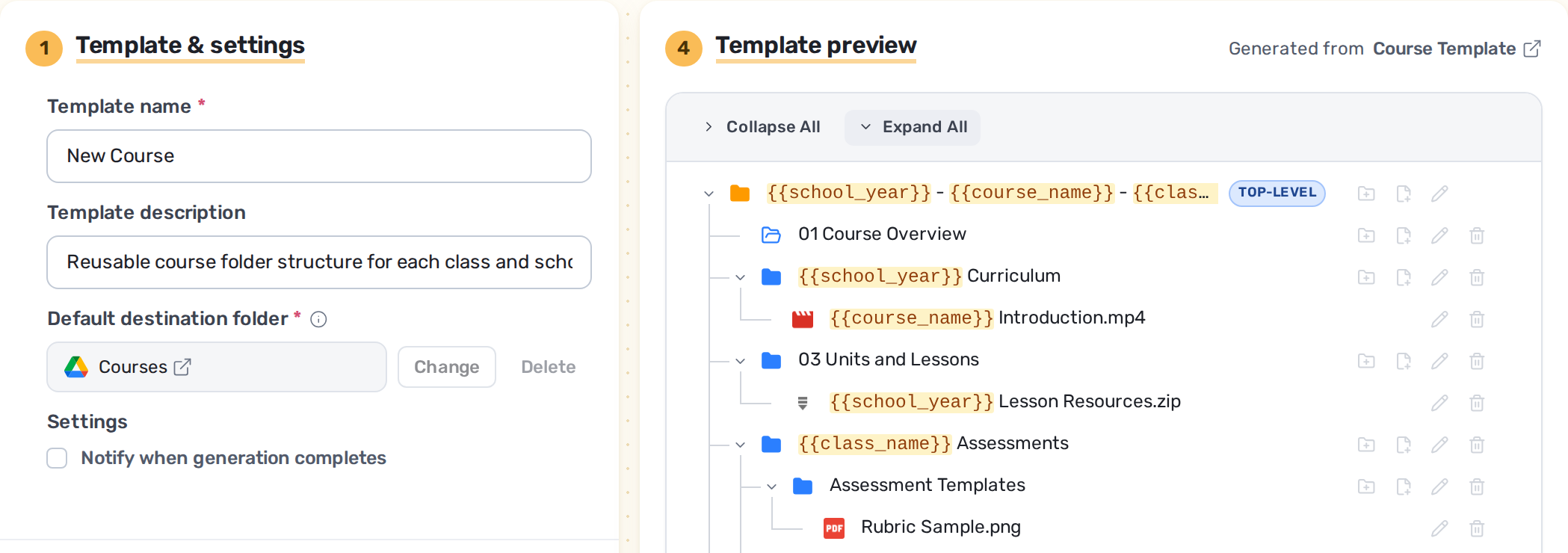
A course guide, a unit planning template, a blank rubric — whatever a new class should begin with can live in the template. Google Docs, Sheets, and Slides keep their native formats, and Word, Excel, and PDF files come across as themselves.
For anything every class reads but nobody should edit, like a curriculum map or an academic integrity policy, add it as a shortcut so all your classes point at one current version.
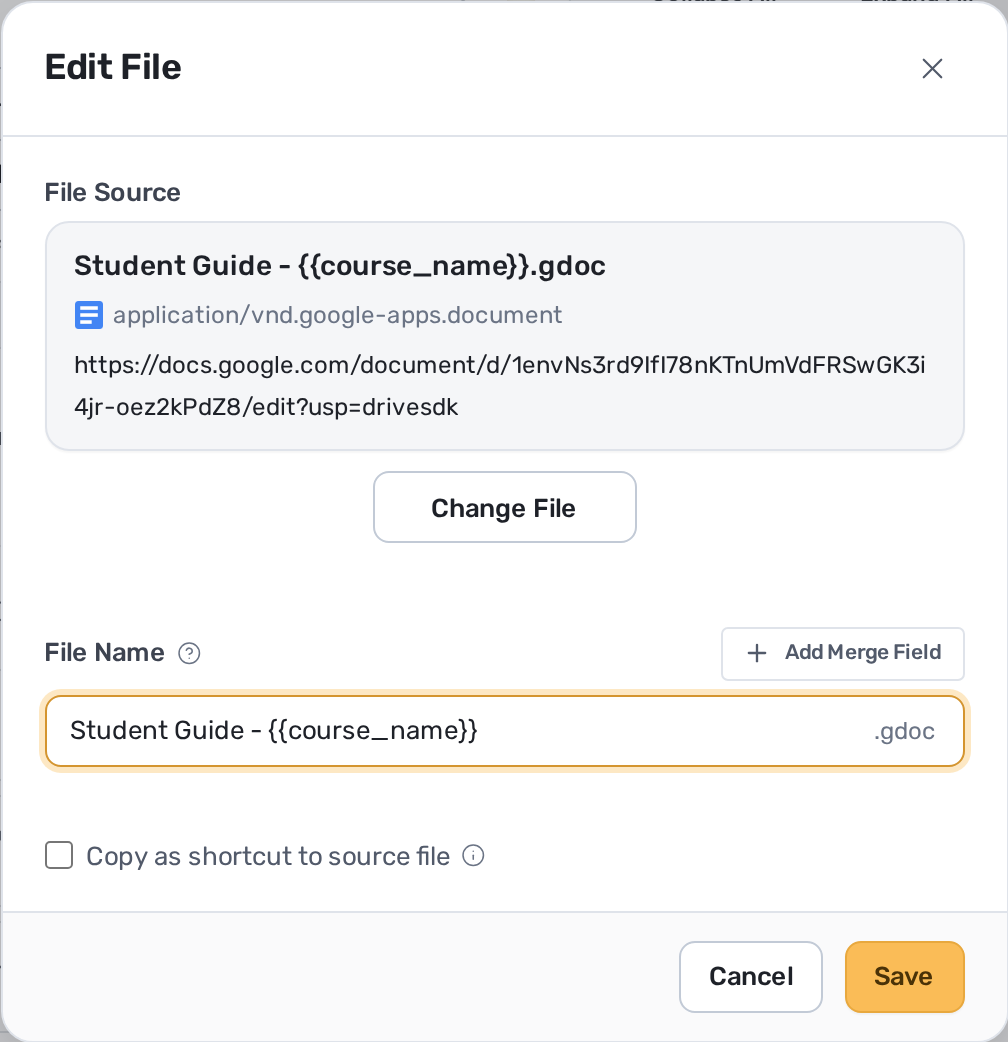
Merge fields go wherever a name varies: the year, the course, the class, even the student name. Fill them in once at generation time and every folder and file carrying that field picks up the right name.
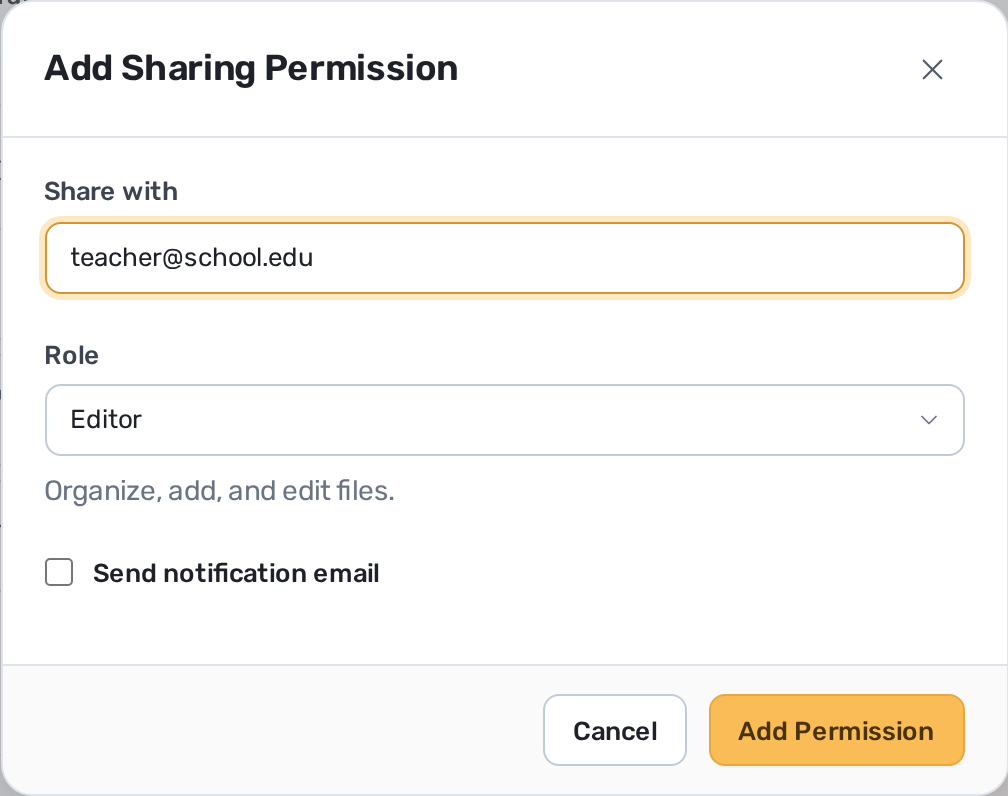
FolderPal lets you set sharing at the template level, or on each folder creation. That way you get to set staff and admin access for all folders, and tailor individual permissions per course or class.
Pick the destination in My Drive or a Shared Drive, fill in the merge fields, check the preview, and generate. Each run is recorded, so you can see which template produced which class folder.
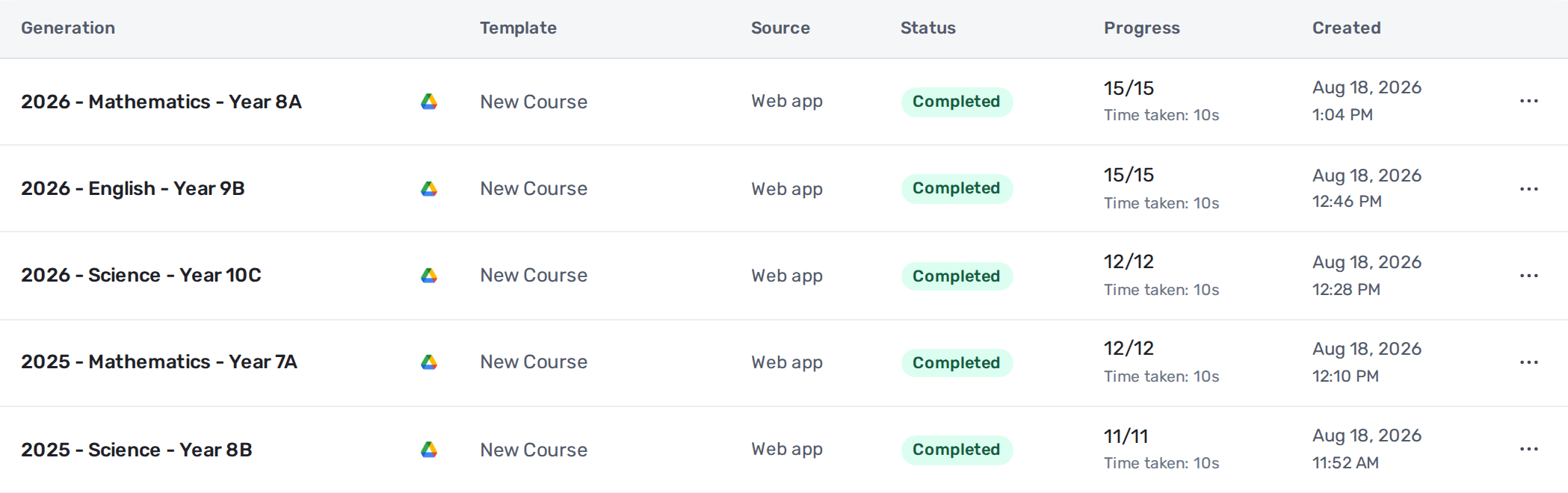
The FolderPal quick-start guide gets you up and running in minutes.
Google Classroom is the industry-standard tool for classroom management: handing out classwork, collecting submissions, giving each student their own copy of an assignment, and returning feedback. It can also copy class details and classwork into a new class.
Google Classroom is perfect for managing repeat class-based work. FolderPal complements this by providing the same templating and copy functionality in the Google Drive workspace around the class: the folders, working documents, and shared staff resources a new course, student, program, or department needs each time. That material sits in My Drive or a Shared Drive rather than inside Classroom and provides additional flexibility outside of Classroom.
Each school is different, and the right answer depends entirely on IT policy. Classes may sit under an educator's My Drive, or be centralized in a Shared Drive. FolderPal lets you work in both, so you can be flexible in your templating. If a colleague shares last year's course folder with you, you can copy the shared folder into your own Drive and build from it.
Shared Drive availability depends on the school's Google Workspace configuration and the account's role. Google also suggests giving each Shared Drive a clear purpose with access levels to match, and the Shared Drive overview covers the ownership model. FolderPal can generate into either one, as long as your account already has access.
Not directly in the Drive web app. There are workarounds for a one-off (download, unzip, re-upload), or you can use FolderPal's simple folder copy feature, but when the same structure comes back every year, a reusable template saves repeating them.
FolderPal complements Google Classroom by letting you organize, duplicate, and templatize resources outside of regular classroom folders, such as staff resources and organizational folders.
Yes, in their native formats, alongside binary files like Word documents, Excel files, and PDFs. Files aren't uploaded to FolderPal. The template stores a link and copies the file when you generate.
FolderPal can apply the template's default sharing permissions to each generation, and you can adjust sharing for a particular run. Review the generated folder in Drive before distributing it, especially when staff-only and externally shared resources need different access.
Folder and file allowances per generation, along with nesting depth, depend on your plan. The pricing page lists the current template capacity for each plan.
That depends on your school's Google Workspace settings. FolderPal works within what the administrator allows and can't get around authorization requirements.
FolderPal acts on Drive only with the access you grant it, and the permissions inside Drive stay yours to set. The security page covers how the connection works. One caveat: this is for teaching resources, not protected student records. Grades, education plans, and health information belong wherever school policy requires.
Build a Google Drive folder structure that stays consistent as your business grows, with practical templates, naming conventions, and ways to prevent folder drift.
GuideCopy a Google Drive folder with its subfolders and files. Choose a method based on your folder structure, file types, and whether you’ll need to do it again.
