


To organize Google Drive, clear out what you don't need, choose a handful of top-level folders, keep subfolders about three levels deep, and name folders so they sort the way you want.
Steps to clean up your Drive
- Know where your files live. My Drive, Shared with me and shared drives behave differently.
- Clear out old files, duplicates and anything you don't need.
- Pick five to eight top-level folders based on your work, not on file types.
- Keep subfolders shallow, about three levels deep.
- Name folders so they sort in the order you want.
- Move files in bulk, then keep new work consistent.
Step 1: Know where your files live
Drive keeps your files in a few different places, and you can't organize them all the same way.
| Where | Who owns the files | What you can organize |
|---|---|---|
| My Drive | You | Everything: create folders, move, rename and delete |
| Shared with me | The person who shared them | Add shortcuts to your own folders. Moving a file needs permission, or you can copy it to your My Drive |
| Shared drives | Your team or organization | Whatever your role allows. Contributors and above can add files |

This matters for storage too. Only the files you own count toward your Google storage, so know what folders you're working in that could count towards your usage.
Step 2: Clear out what you don't need
Organizing goes faster once the clutter's gone, and two parts of Drive do most of the work.
The Storage page, in the left sidebar, lists your files from largest to smallest. It's the quickest way to find old exports, videos and backups that are taking up room.

Search does the rest. Drive's search operators narrow your results without opening a single folder:
| Search | What it finds |
|---|---|
| owner:me before:2024-01-01 | Your files that haven't been modified since before 2024 |
| "Copy of" | Duplicates left behind when files were copied |
| owner:me type:pdf | Your PDFs, which is handy for old exports and scans |
| sharedwith:public | Files that anyone with the link can open |
| is:unorganized owner:me | Files you created in someone else's folder before that folder was deleted |

Deleted files go to the trash, where you can still restore them. They keep counting toward your storage until they're deleted forever, so it's worth emptying the trash once you're sure.
The limitation: Drive has no automatic duplicate finder. Sorting by name in list view puts likely duplicates side by side, and names ending in "(1)" or starting with "Copy of" are the usual suspects. If your real problem is running out of space, Gmail and Google Photos share the same storage, and Google's storage guide covers all three.
Step 3: Choose your top-level folders
Top-level folders are the first thing you see in My Drive. Five to eight is a good range: enough to cover your work, and few enough to fit on one screen. Folders based on areas of work hold up better than folders based on file types, because "Clients" tells you more than "PDFs".
| Personal Drive | Small business Drive |
|---|---|
| 01 Home | 01 Admin |
| 02 Finance | 02 Finance |
| 03 Work | 03 Clients |
| 04 Projects | 04 Sales & Marketing |
| 05 Photos & Media | 05 Operations |
| 99 Archive | 99 Archive |

An Archive folder gives finished work somewhere to go, so it stops crowding the folders you use every day. The numbers keep the order fixed, which step 5 explains.
For fuller business layouts, with subfolders for projects and monthly reporting, see our Google Drive folder structure templates.
Step 4: Keep subfolders about three levels deep
Every extra level is another click when you're filing something, and people stop filing when it takes too many. Google's own guidance also advises against nesting folders deeply, because large hierarchies are slow to update when permissions change. Three levels below a top-level folder is plenty for most work:
03 Clients › Acme Co › 2026 Website Redesign › Deliverables

If you keep creating the same subfolders inside every client or project, such as Contracts, Working Files and Deliverables, that structure is a good candidate for a template rather than something you rebuild by hand.
Step 5: Name folders so they sort the way you want
Drive doesn't let you drag folders into a custom order. It sorts by name, date modified and a few other columns, so the name is what controls the order.
- Number prefixes such as 01, 02 and 03 fix the order of your top-level folders. A 99 prefix keeps Archive at the bottom.
- Year-month dates such as 2026-01 and 2026-02 keep periods in chronological order.
- The Sort menu above the file list can show folders On top or Mixed with files.

The folder structure guide has a longer set of naming conventions for client, project and recurring work.
Step 6: Move your files in bulk
With the folders in place, moving files is mostly a matter of selecting them. Shift-click or Ctrl-click (Cmd-click on a Mac) to select several files, then drag them onto a folder, or right-click and choose Organize → Move. In Chrome, Ctrl+X and Ctrl+V work too.

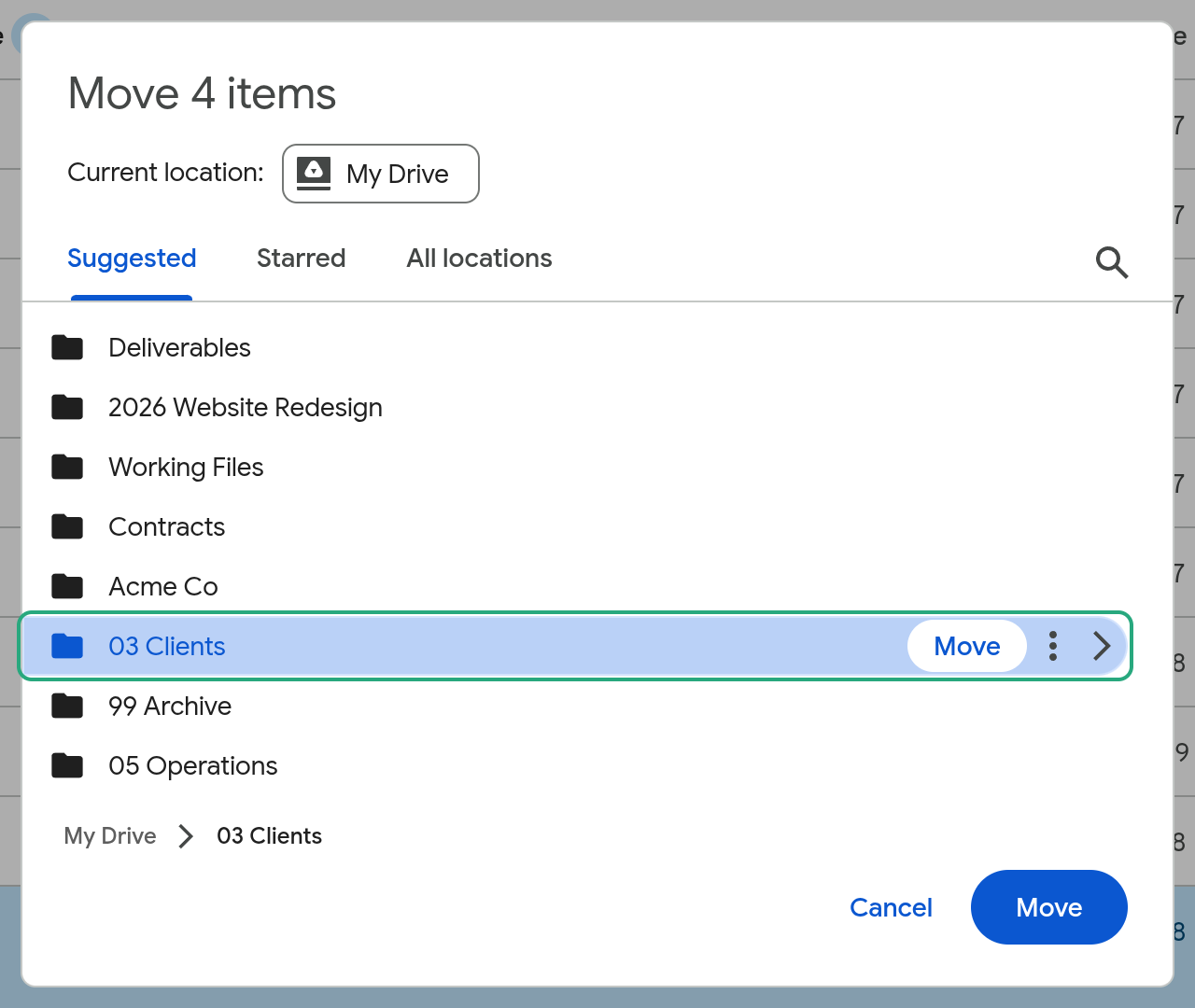
There are two things to be aware of:
- You need permission to move a file out of its current location. Without it, Drive puts a shortcut in the destination instead.
- Moving a large folder can take a while to show up in its new place.
Drive can copy files but not folders. If you'd rather leave the original where it is, our guide to copying a folder in Google Drive covers the workarounds. Moving files to a different Google account? See how to transfer Google Drive to another account.
Use Drive's built-in organizing tools
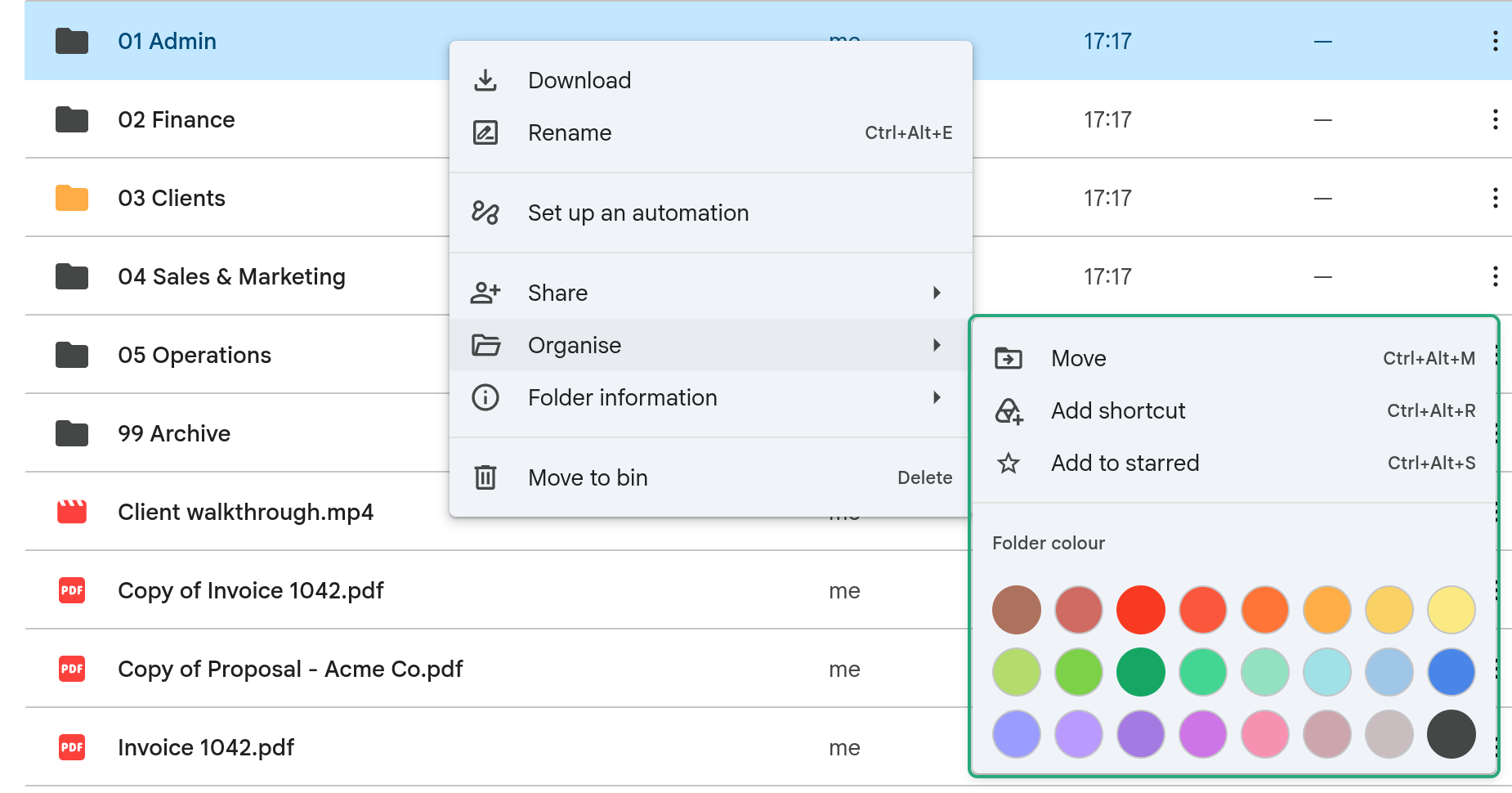
Folders do most of the organizing, and a few built-in features fill the gaps. Colors, stars and shortcuts are all under right-click → Organize.
| Tool | Good for | The catch |
|---|---|---|
| Folder colors | Making key folders easy to spot | Only you see the colors you set |
| Stars | Quick access to things you open often | Stars are personal and aren't shared with anyone |
| Shortcuts | Showing one file or folder in more than one place | A shortcut is a link, not a copy. Deleting it doesn't delete the original |
| Search operators | Finding files without knowing where they're filed | You have to remember the syntax |
| Labels | Tagging files by status or type across folders | Google Workspace only, and an admin has to turn them on |
Can Gemini organize your Google Drive?
Partly. Gemini in Drive can suggest where to move loose files, and it doesn't move anything until you approve it. Google made the feature generally available in June 2026.
- Open drive.google.com, then go to My Drive or a folder.
- Click Suggest file moves. The button only appears when Gemini has something to suggest.
- Review the suggestions. You can rename proposed folders, change destinations, or remove suggestions you don't want.
- Select the files to move, click Move files, then Create and move.
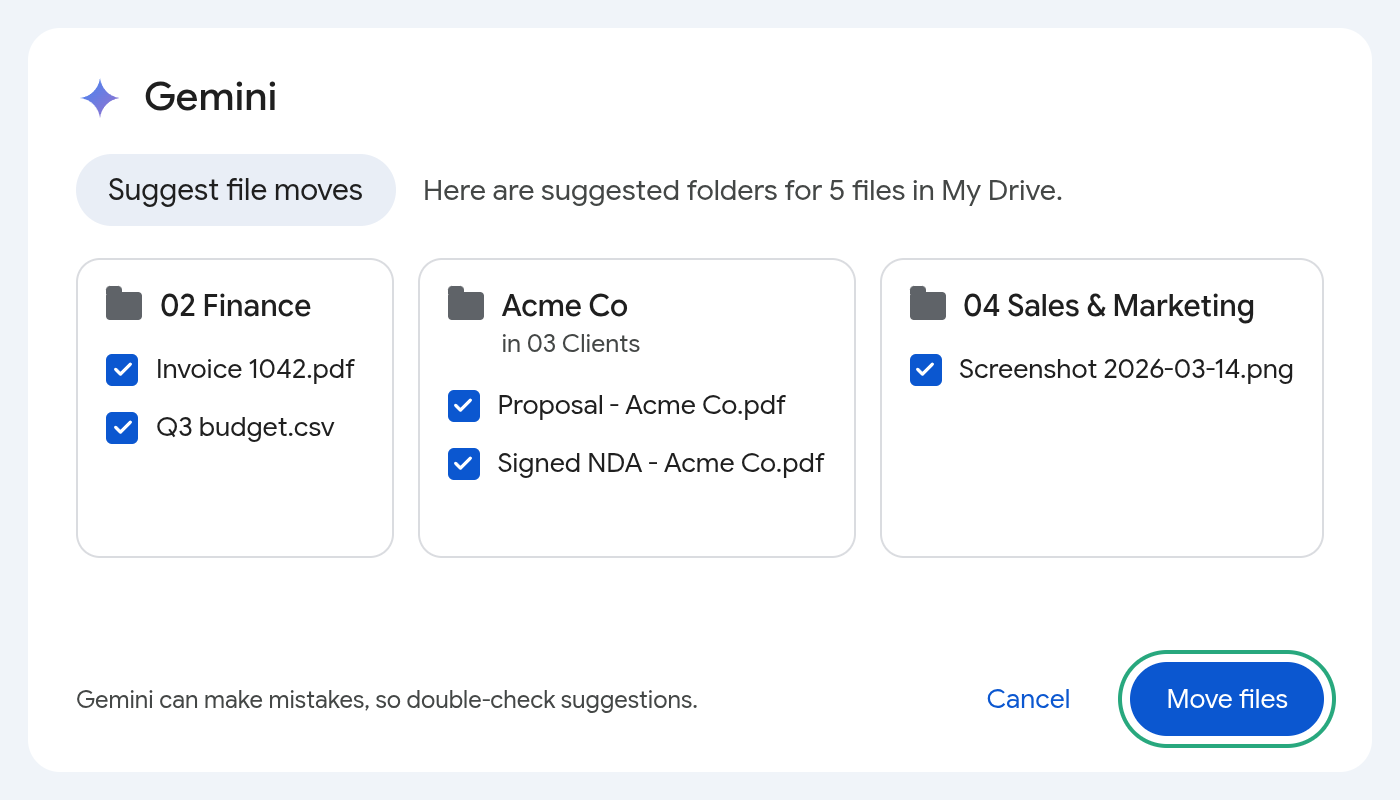
Ctrl+Z (Cmd+Z on a Mac) undoes a move, although any new folders Gemini created stay where they are. Suggestions you reject don't come back for 30 days. Google's help page on letting Gemini organize your files has the full details.
The limitation: the feature is in English only, on Drive for the web, and you need Editor access to the files. It also needs an eligible plan: Google Workspace Business or Enterprise Standard or Plus, Google AI Pro or Ultra, or Google AI Pro for Education. Gemini sorts the files you already have into folders like the ones you already use. It doesn't decide what structure your next client or project should start with.
How to organize Shared with me
Files in Shared with me belong to other people, so they don't sit in your folders. You can still file them next to your own work with shortcuts:
- In Shared with me, select the file or folder.
- Right-click and choose Organize → Add shortcut.
- Pick a folder in My Drive.

The shortcut shows up in your folder like any other item, and you can color shortcuts to folders too. The original stays with its owner, along with the storage it uses.
The limitation: if the owner deletes the original or stops sharing it, your shortcut stops working. To keep a version that's yours, make a copy instead. Here's how to copy a shared folder in Google Drive.
Organizing Google Drive for a team
Everything above applies to a team, with one extra decision: where shared work lives.
In a shared drive, the team owns the files rather than an individual. Files stay when someone leaves, and every member sees the same contents by default. In My Drive, each file belongs to whoever created it, so a shared folder can show different files to different people depending on their access.
For ongoing team work on Google Workspace, a shared drive is usually the safer home. Managers can also give one folder limited access, so only the people added to it directly can open it. That's useful for HR or finance folders inside a wider team drive.

When clients need access, sharing one client-facing subfolder may be more suitable than sharing individual files or sending them over email. The client onboarding folder template shows one way to lay that out.
Keep it organized
After a big spring cleaning, you might find the team Drive starts getting messy again without rules. You can follow this routine to keep it consistent:
- Once a month, check the top of My Drive for loose files and file them. On an eligible plan, Suggest file moves can do the first pass.
- Move finished clients and projects into 99 Archive at the end of each quarter or year.
- Start each new client or project from the same folder structure, rather than from a copy of the last one.
Common questions about organizing Google Drive
How do I change the order of folders in Google Drive?
You can't drag folders into a custom order. Drive sorts by name, date and other columns, so number prefixes such as 01, 02 and 03 are the way to set the order. Choosing Sort → On top keeps folders above files.
Can I sort Google Drive by file size?
Yes. The Storage page in the left sidebar lists your files from largest to smallest. However, if you're looking for the storage size of each folder, that is not available without tools.
Does organizing Google Drive free up storage?
Not by itself. Moving and renaming files doesn't change how much storage they use. You only get space back when you delete files you own and they leave the trash, and the total can take a while to update after a large clear-out.
Do files shared with me use my storage?
No. Only the files you own count toward your storage. A copy you make of a shared file belongs to you, though, so the copy does count.
What's the difference between My Drive and a shared drive?
My Drive holds files owned by individual people. A shared drive, available with Google Workspace, holds files owned by the team, so they stay put when someone leaves.
Should I use folders or labels?
Folders decide where a file lives. Labels describe a file wherever it is, such as its status or document type. Labels need a Google Workspace plan and an admin to turn them on, so for most people folders, stars and search are enough.
Setting up the same folders for every new client or project?
If every new client or project gets the same subfolders, that structure is worth saving as a template. FolderPal turns a Drive folder you already have into a reusable template, replaces the parts of names that change with merge fields like {{client_name}}, and generates a fresh, correctly named copy in My Drive or a shared drive each time.

Our guide shows how to create a folder template, and the construction project and teacher templates show what finished ones look like.
FolderPal is free to start. Sign in to FolderPal to create your first template.